This page provides an overview of all the features available in the eSHARE Admin Console, with one section per console module. For detailed information on each feature, please refer to the individual articles linked below. The following sections are covered:
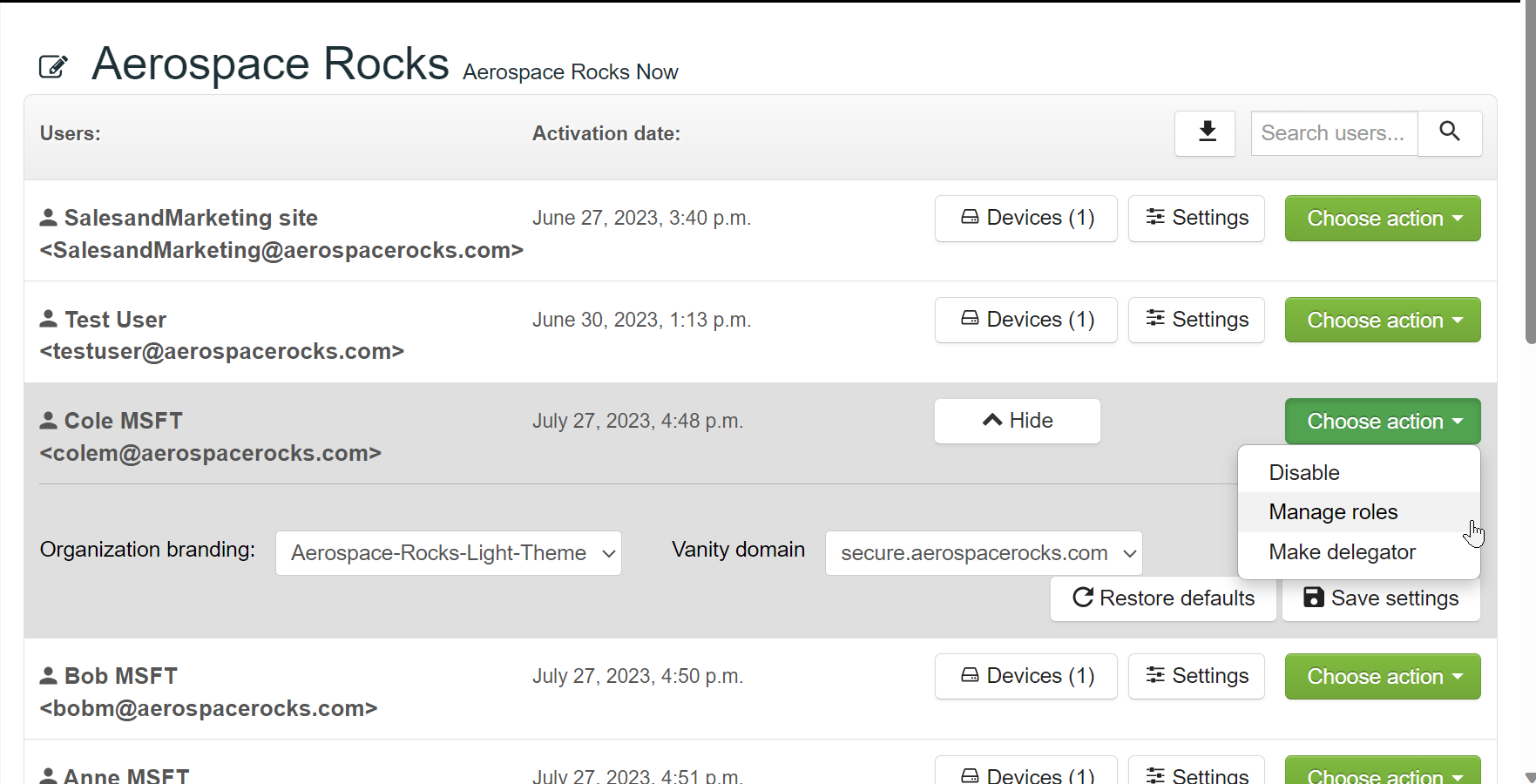
User Management
User Management is where you can view all internal users who have logged into your organization's eSHARE tenant and manage their eSHARE account. From this view you can:
Disable user accounts so they can no longer log in to eSHARE
Re-enable disabled accounts
Promote users to admin roles
Admin Roles Available: eSHARE Administrator and Audit Reader
Assign Corporate Brandings or Vanity Domains to specific users
View a user’s last login time
For more information, see User Management.
Corporate Branding
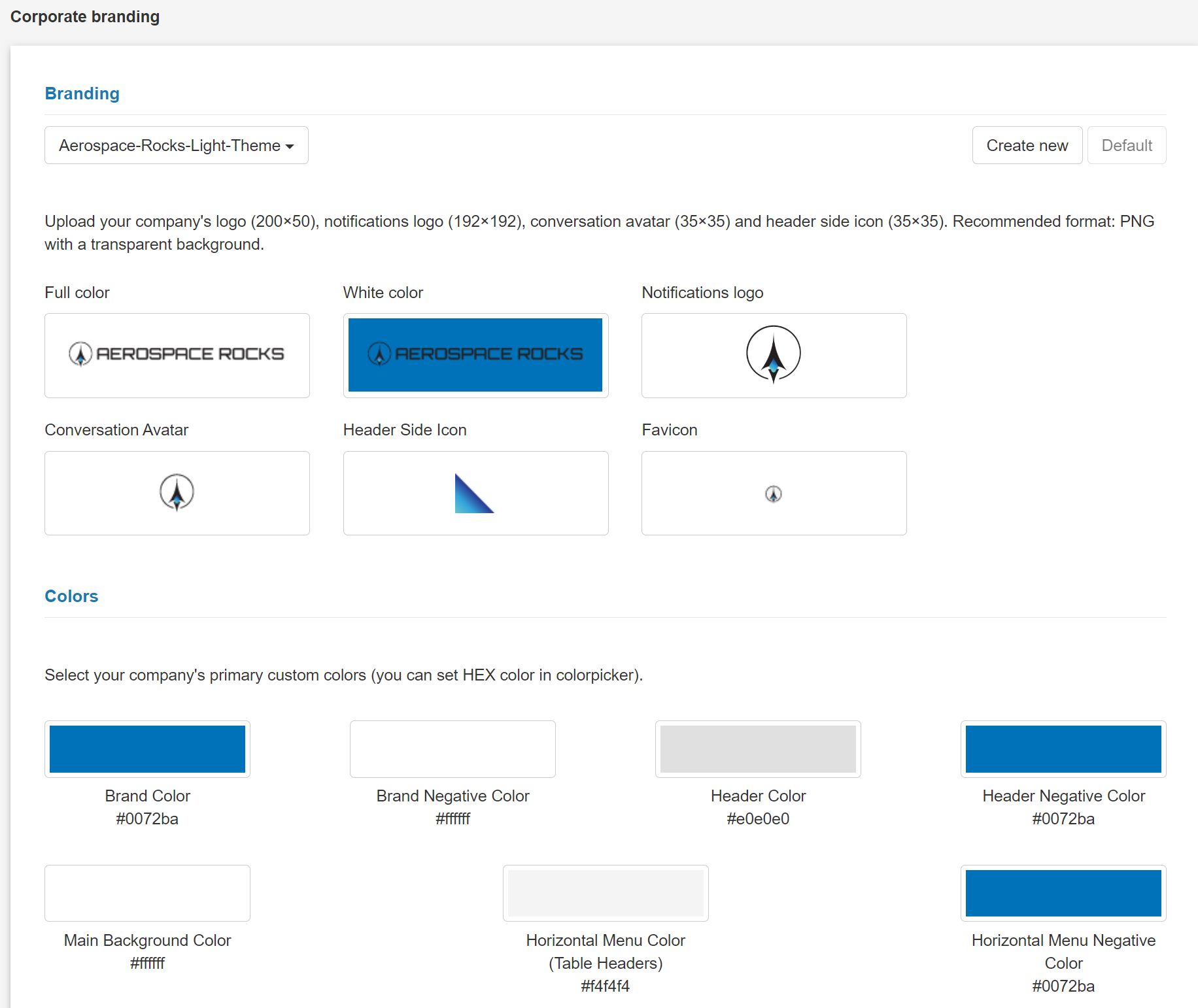
Corporate Branding is where you create branding for your eSHARE Web Portal and email notifications. Organizations can have more than one brand for their eSHARE tenant and assign these brands to different users. Logo requirements for branding are:
'Full Color': Your organization's full-color logo in (200x50 pixels) .png format
'White Color': Your organization's full white logo in (200x50 pixels) .png format
'Notification logo': Your organization's logo in (192x192 pixels) .png format
'Conversation Avatar': Your organization's logo in (35x35 pixels) .png format
'Header Side Icon': A logo or dog ear in (35x35 pixels) .png format
'Fav Icon': Your organization's logo in (16x16 pixels) .png format
You will also need your company’s primary, secondary, and tertiary colors in hex code format. For more information, see Branding Guidelines.
Corporate Cloud Providers
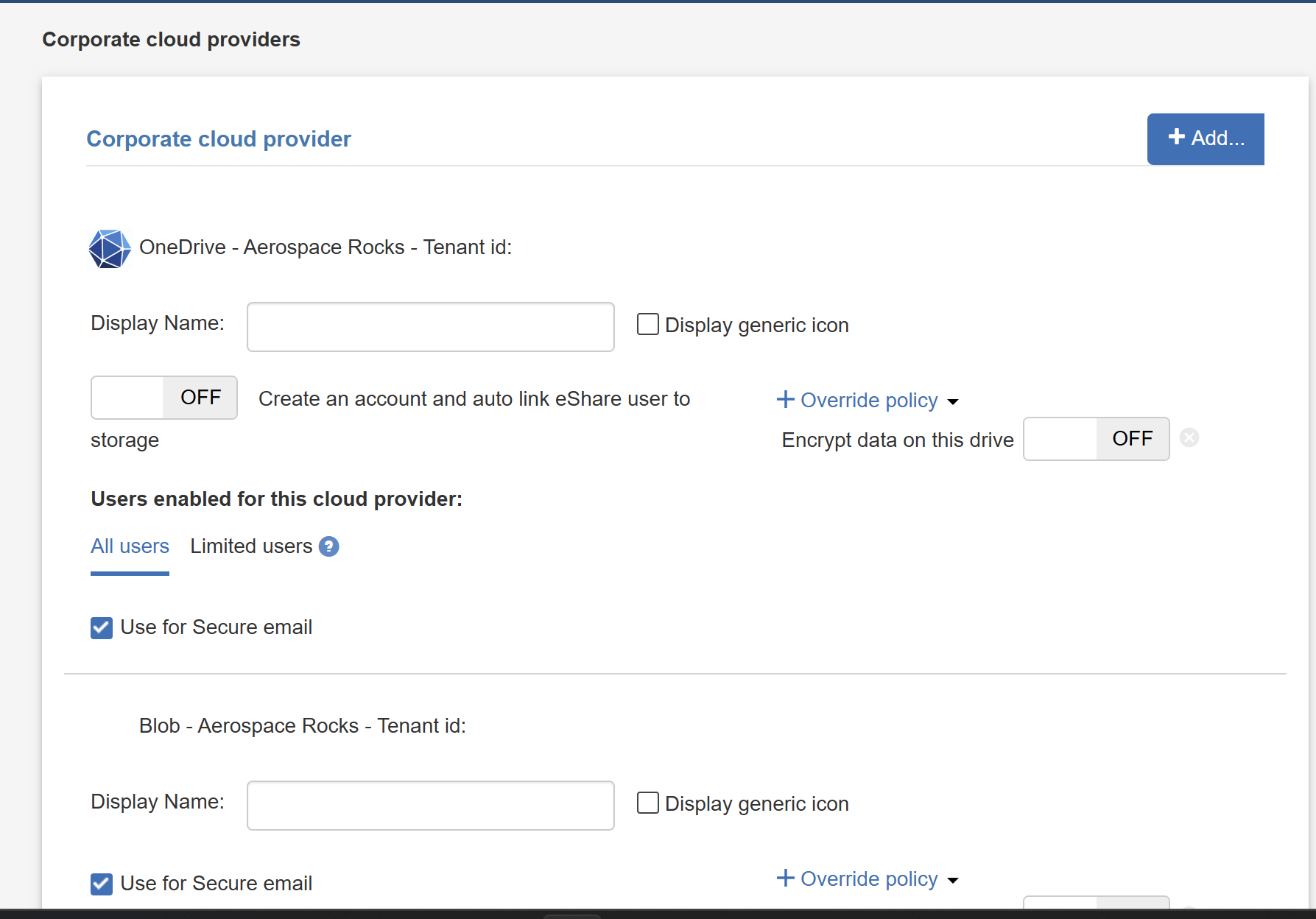
This is the page where you add a Microsoft Graph connection to your existing tenant and connect OneDrive or SharePoint. You can also access additional settings, such as enabling selected users for sharing, syncing sensitivity labels, and consenting shared mailboxes.
Note:
This page currently does not have a save step after making changes. Once your cloud provider is configured, we strongly recommend making only minimal changes on this page to avoid unexpected changes.
CWP e-mail branding
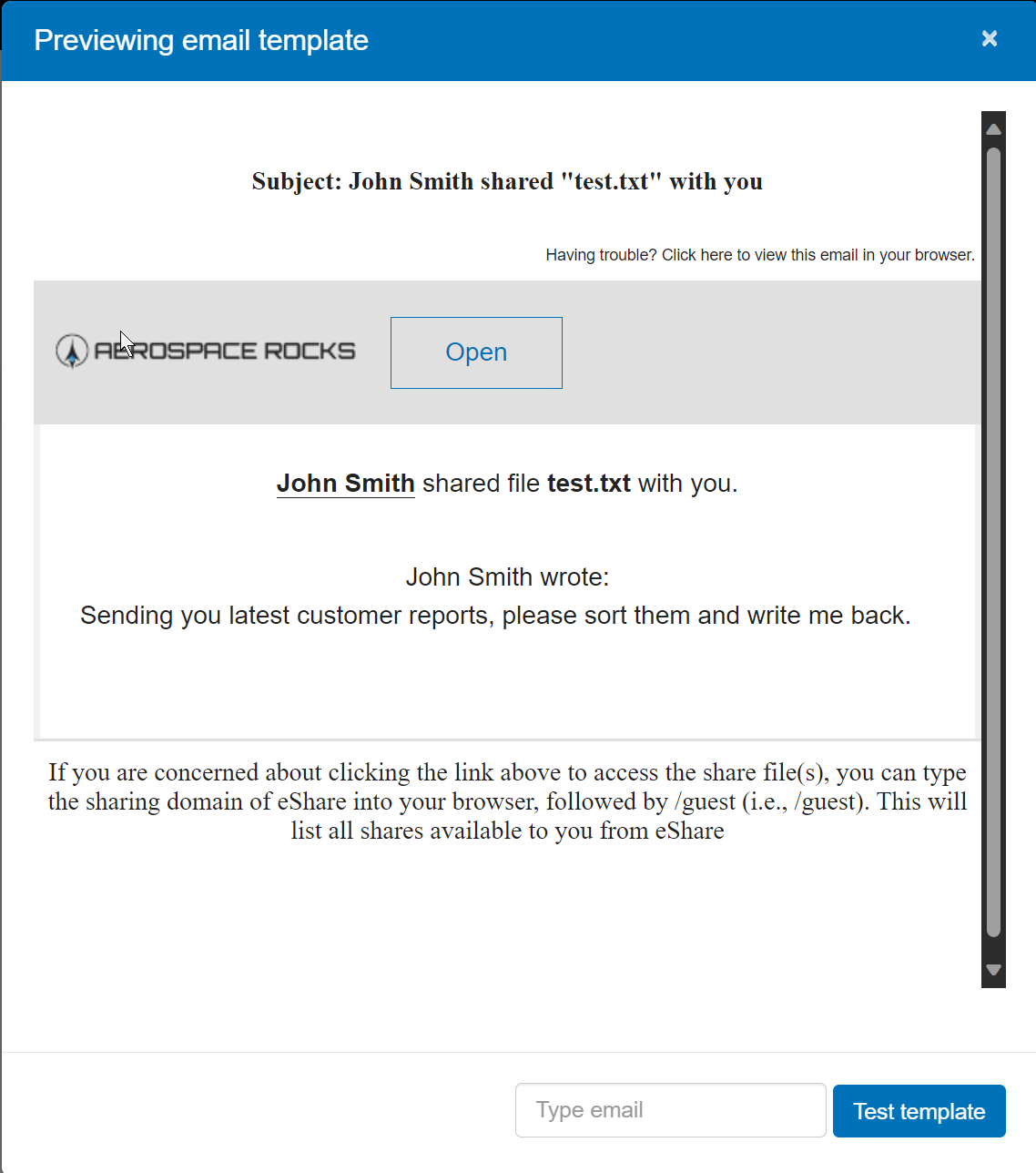
CWP e-mail branding is where you will see previews of the email notification templates that will be sent to your internal and external users based upon certain activities performed in the eSHARE platform. These templates are based upon the configured corporate brandings for your eSHARE tenant.
SMG email branding
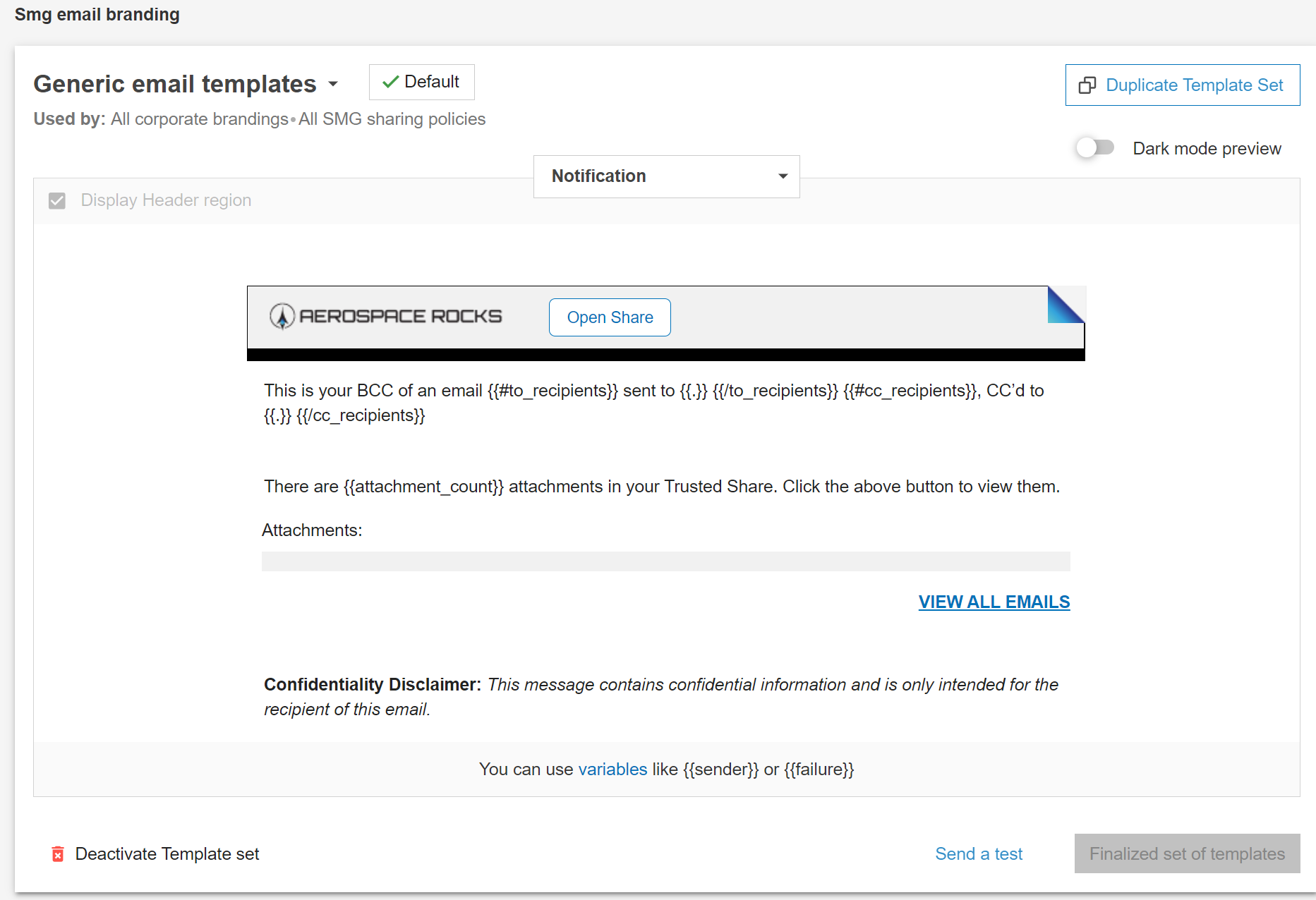
SMG email branding is where you will see previews of the Secure Email templates that will be sent to your internal and external users if your emails are secured by your organization’s Secure Collaboration Gateway Appliance. These templates are based upon the configured corporate brandings for your eSHARE tenant.
Device Policy
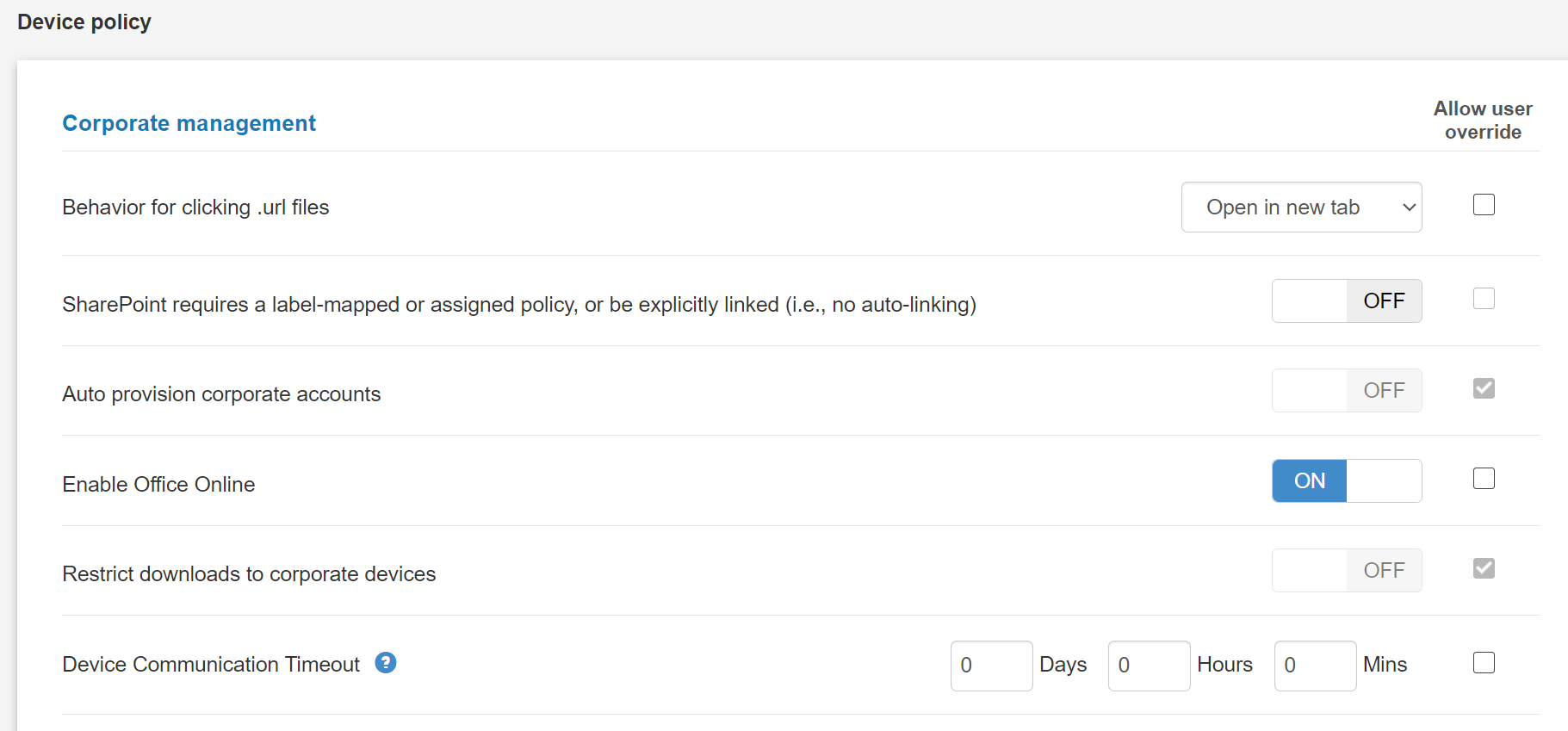
Device Policy is where you configure tenant-wide settings for your organization. Most settings in the other sections of Device Policy have been deprecated and can be ignored as they will be removed in upcoming releases. The 'Corporate management' section of Device Policy contains most of the important tenant-wide settings, the ones of interest being:
'SharePoint requires a label-mapped or assigned policy, or be explicitly linked (i.e., no auto-linking)': When enabled, users are unable to use native M365 apps unless the site is linked in the Admin Console or has a container label that links to an eSHARE policy. A built-in request workflow lets the user request that admins link a site for sharing.
'Enable Office Online': Allows users to use the Office Online capabilities.
'OTP delivery method': Admins can determine which OTP delivery methods are allowed: email, SMS, or Authenticator app (Microsoft and Google Authenticators supported).
'OTP persistence': Remembers a user's OTP sign-on for a selected period of time or until their session token is revoked.
'External user inactivity timeout': Forces a logout after a specified amount of time for external users who are logged into a Trusted Share but are inactive.
'Blocked Recipient Override': Enables options in Sharing Policies to allow Share creators to override recipient blocks in certain scenarios. For more information, see Blocked Recipients Override.
Folder policy
This feature is deprecated and will be removed from the console in future releases.
Sharing Policies
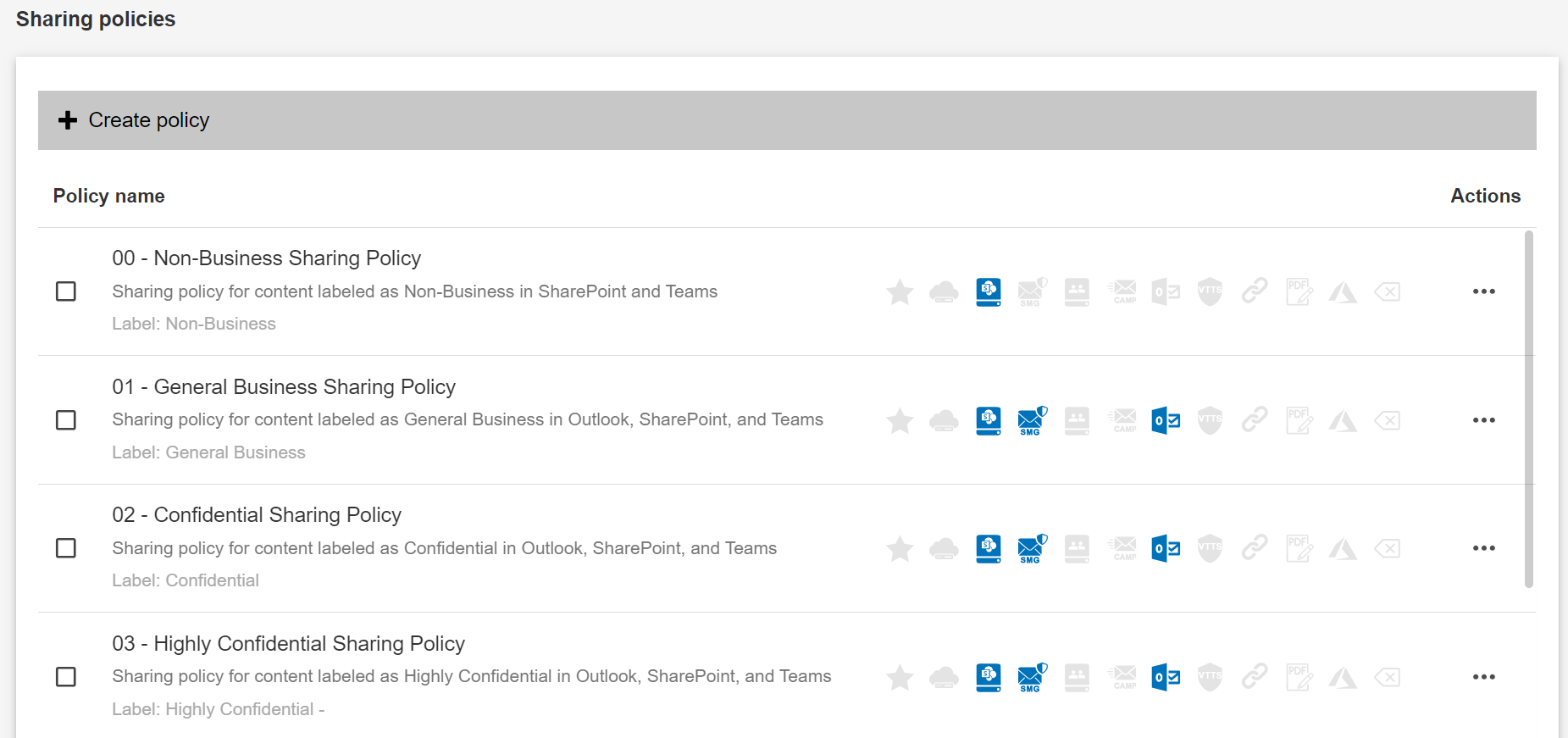
Sharing Policies is where you configure policies which dictate how your users share data in the eSHARE platform. Organizations can create as many Sharing Policies as they would like; however, be aware that you cannot delete Sharing Policies and can only disable any Sharing Policies you no longer wish to apply.
Sharing Policies can be assigned or mapped to modules such as SharePoint or Personal Cloud storage to make them available for selection when sharing from that storage type. For more information, please see the Sharing Policy documentation, starting with Sharing Policy Options Explained.
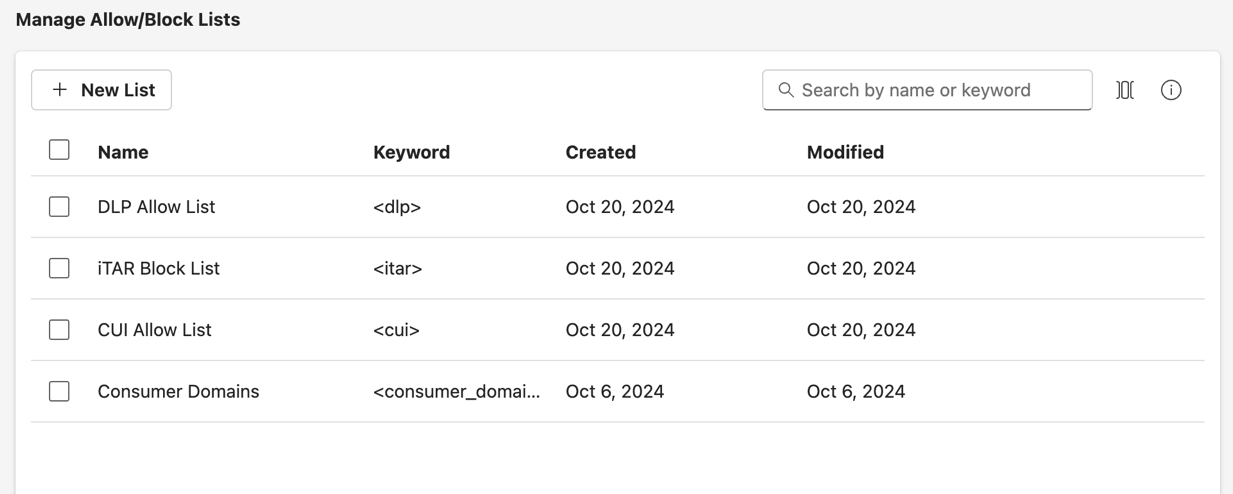
Allow List/Block List
This menu is where administrators can configure a Domain Keyword list that will be added to various Sharing Policy Allow/Block lists. Admins can configure multiple lists; the only requirement is that each list has a unique name and a unique keyword. When configuring the lists, email addresses, full domains, subdomains, or top-level domains can be added to the list (e.g., secure.eshare.com, eshare.com, com).
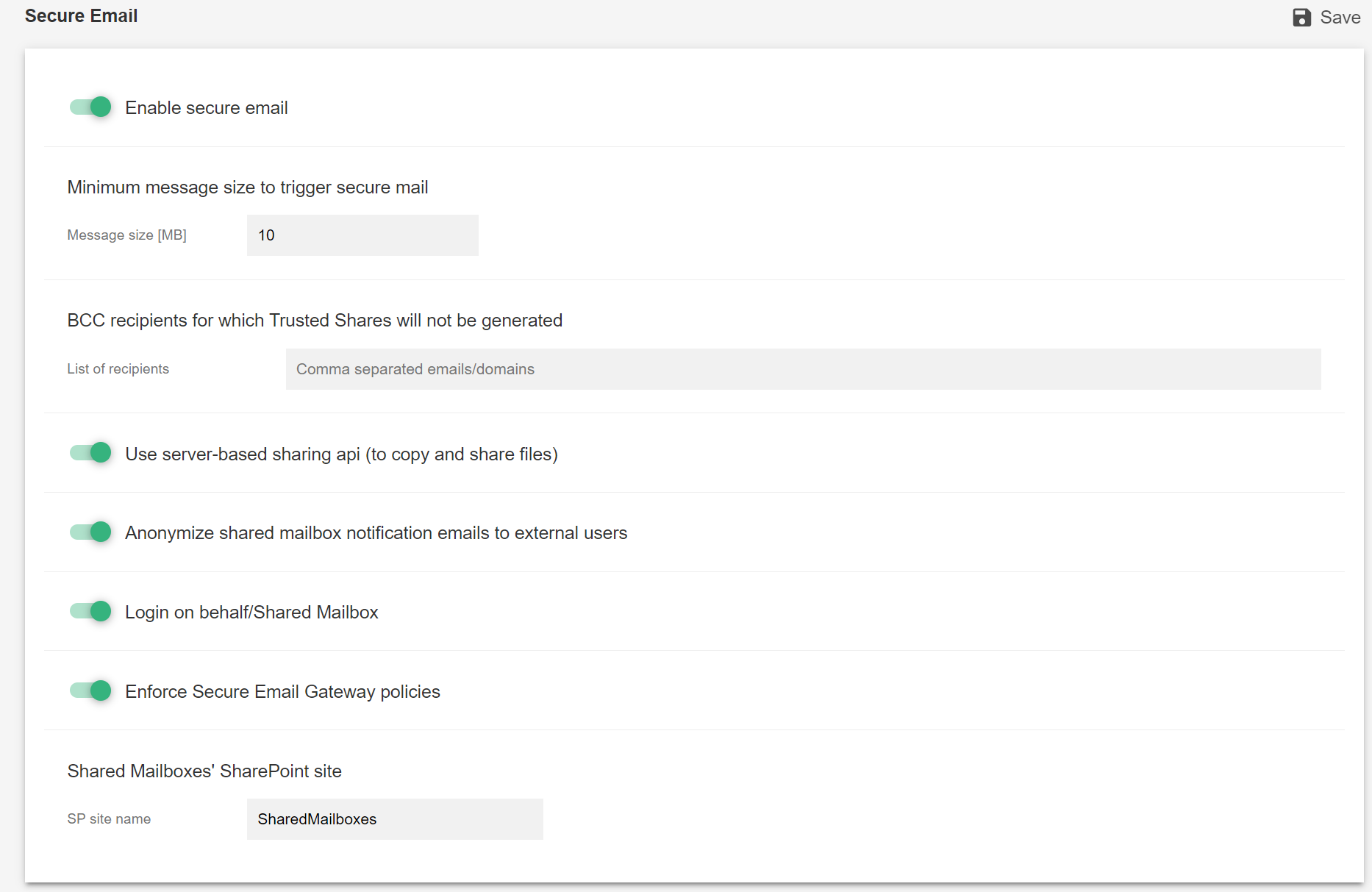
Secure email
This menu is where administrators establish the SharePoint site they would like attachments to be uploaded to when someone sends a Secure email from a Shared Mailbox account. A prerequisite to using this feature is enabling the 'Outlook API' feature within Cloud Providers.
Domains management
This feature is deprecated and will be removed from the console in future releases.
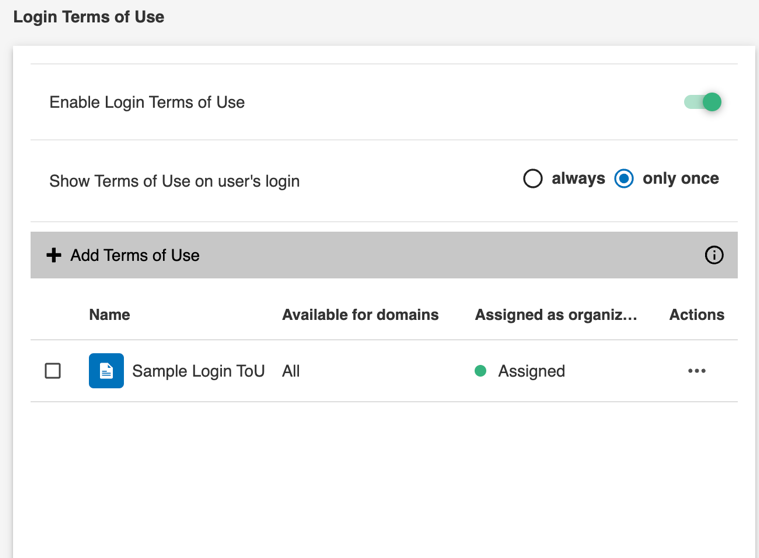
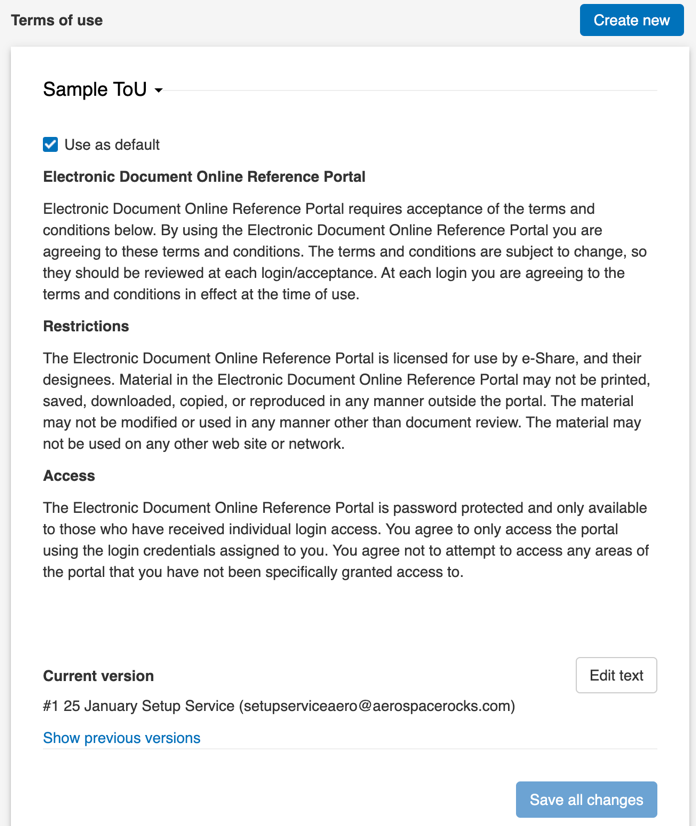
Terms of Use and Login Terms of Use
Administrators can configure Terms of Use to be displayed to internal users when they initially log in to the eSHARE Web Portal, as well as configure Terms of Use to be displayed to external recipients before they are allowed to access the Trusted Share.
Client versions
This feature is deprecated and will be removed from the console in future releases.
Share With Me Link
Share With Me Link allows administrators to enable the Share With Me Link, which allows external recipients to initiate a Trusted Share with an organizational user to safely exchange files and information without the need to resort to other external sharing tools.
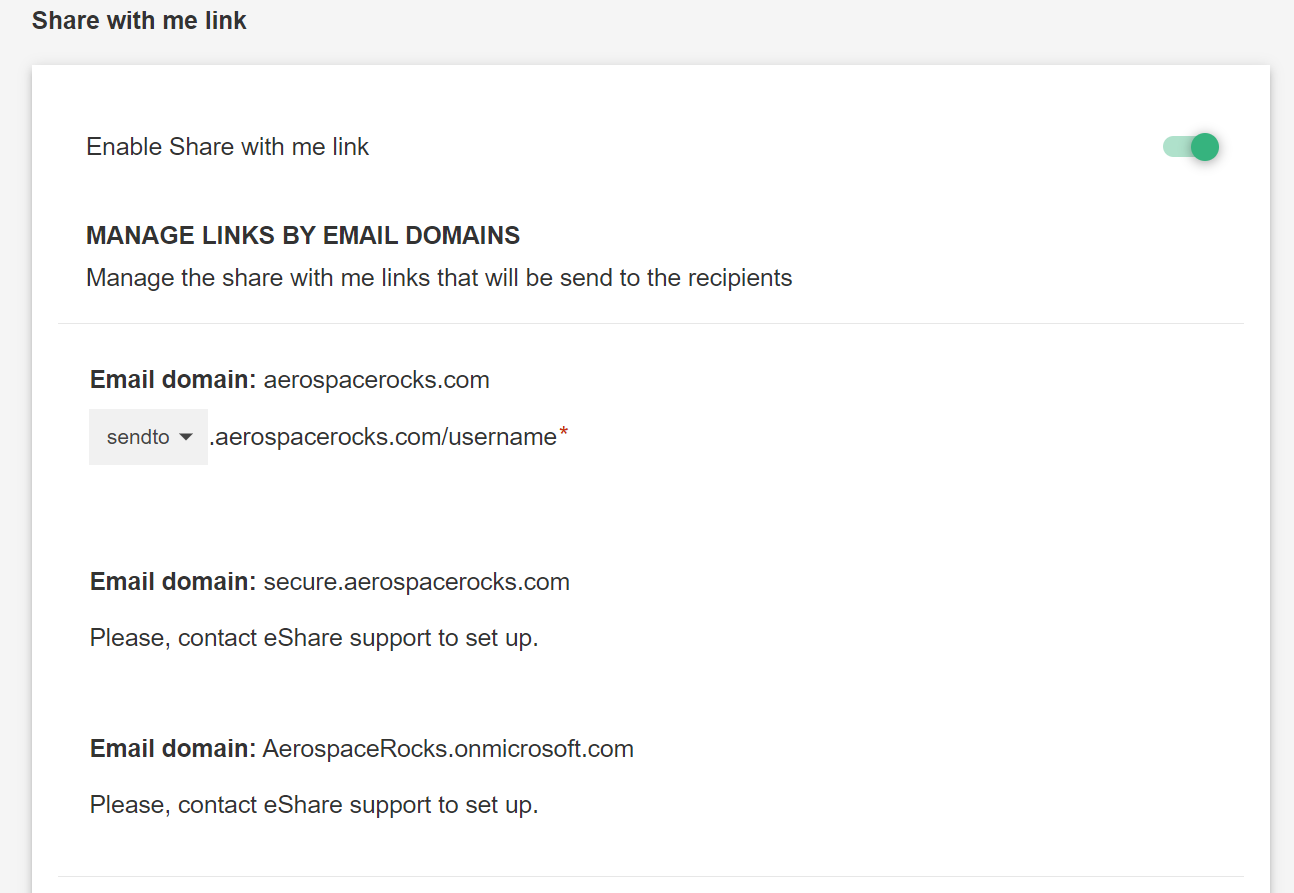
An optional explainer file can be uploaded in the form of a PDF that will be present in every SWML-generated Trusted Share, to provide instructions to external recipients on how to navigate the Trusted Share and its options. For more information, see Getting Started with Share with me Link.
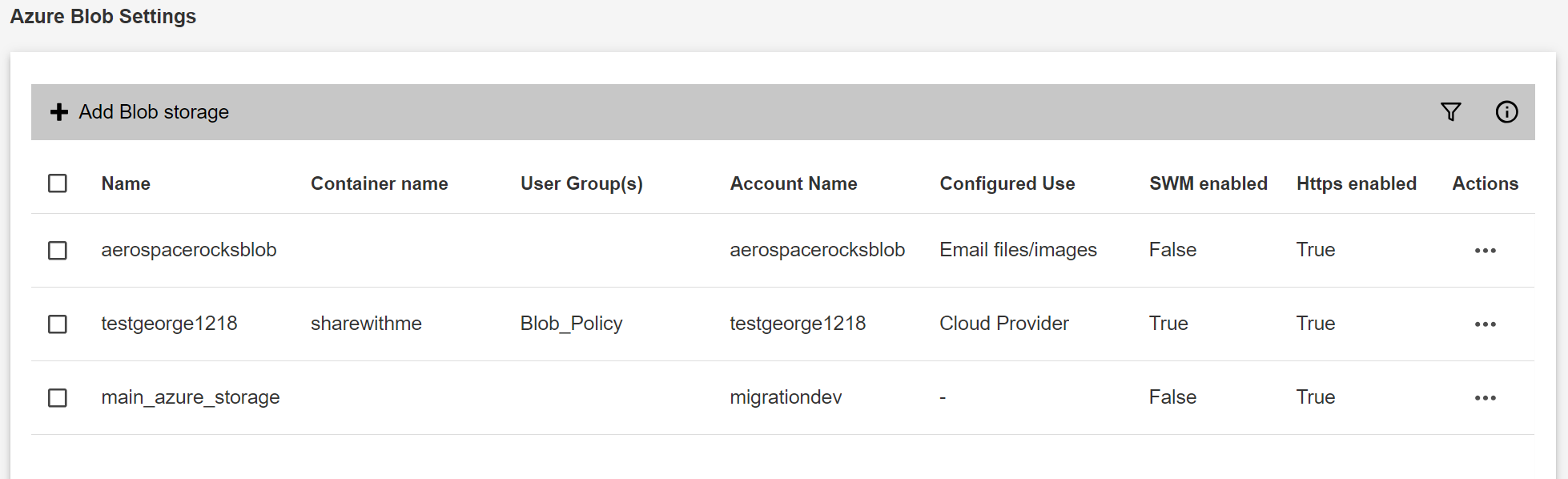
Azure Blob settings
This menu allows administrators to link an existing Blob storage account to eSHARE to accommodate fast file storage needs that go beyond the limitations imposed by Microsoft in SharePoint. This Blob storage can then be utilized in the generation of Trusted Shares.
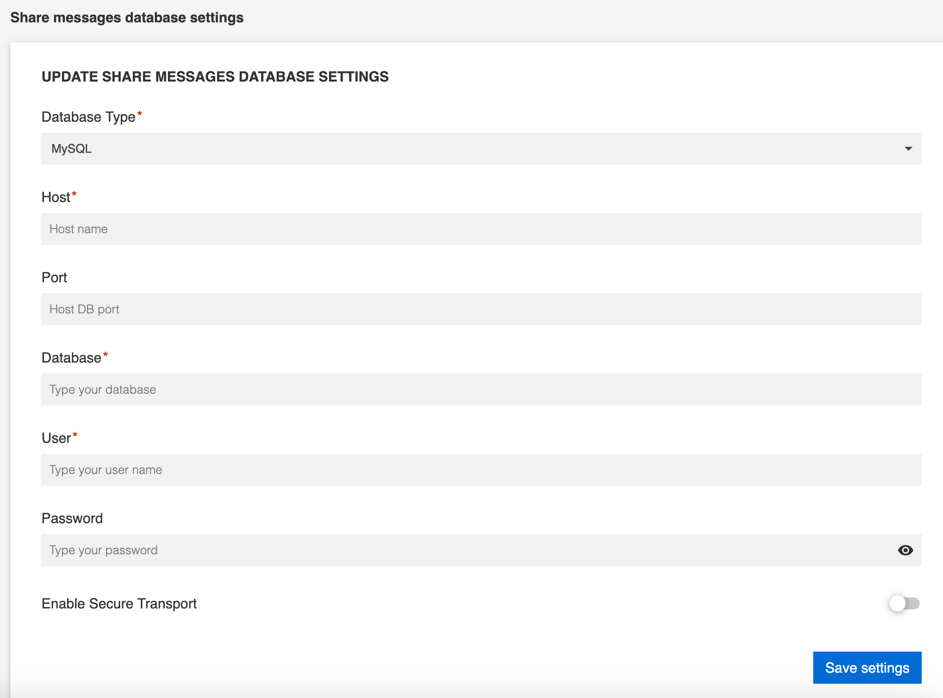
Share Messages
By default, Secure Conversation messages posted in Trusted Shares are stored on eSHARE’s server. Organization administrators who wish to have complete control over the content posted within a Trusted Share can link a MySQL or Azure SQL database in the 'Share Messages' menu, which allows them to host all secure conversations in their tenant. For more information, see Azure SQL Database for Secure Messages.
Data analytics settings
This feature is deprecated and will be removed from the console in future releases. Data analytics setup has been moved outside of the eSHARE Admin Console.
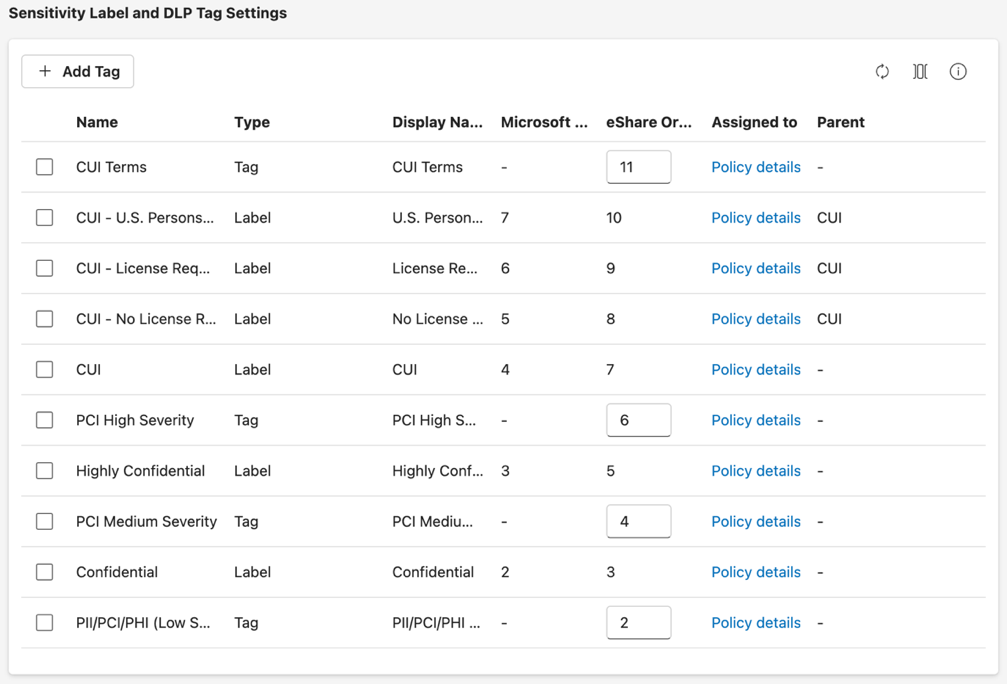
Labels and Tags
Administrators can access this menu to view the Sensitivity labels or DLP tags they have synced from M365 to their eSHARE tenant. This view displays the organization's Sensitivity labels, the order of priority, and any Sharing Policies that are mapped to the labels. Additionally, if your organization is syncing DLP Rules to eSHARE, this is the menu where administrators configure DLP tags that can be assigned to Sharing Policies. For more information, see Sync Purview Information Protection Sensitivity Labels.
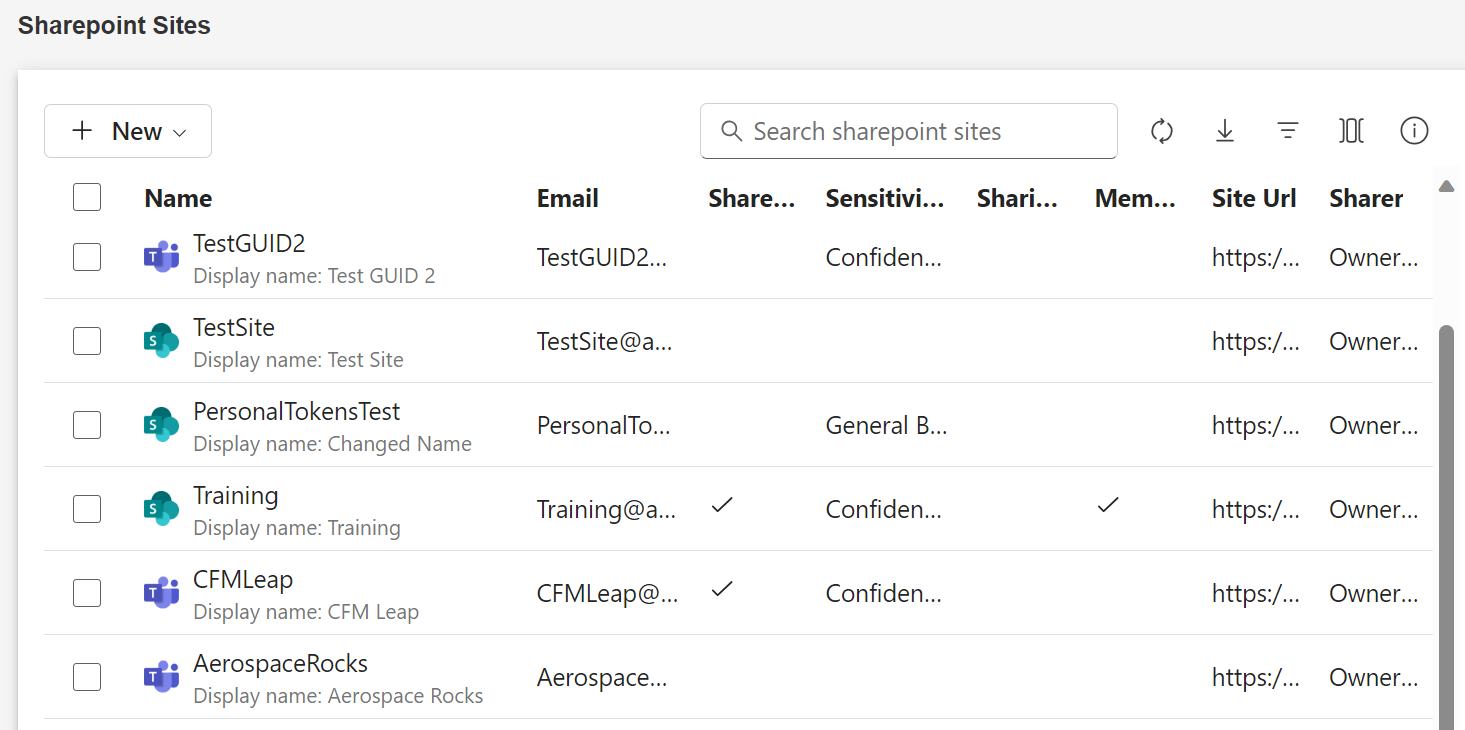
SharePoint sites
The SharePoint sites menu is where administrators register Modern, Legacy, or Communication SharePoint sites to allow users to share from eSHARE. Administrators can register sites by searching the organization for sites, or by uploading a .csv file. Once a site is registered, administrators can perform the following functions on SharePoint sites:
Assign a Sharing Policy
Enable ShareWithMe Link for the SharePoint site
Pre-load documents for a ShareWithMe Dataroom
Disable the site for use in eSHARE
Re-enable the site for use in eSHARE
Determine if Owners + Members can share, or only Owners can
For more information, see SharePoint Site Registration Governance.
Note:
If you disable a registered site in eSHARE, all Trusted Shares created in that site will become inactive.
SMG Manager
This feature is deprecated and will be removed from the console in future releases.
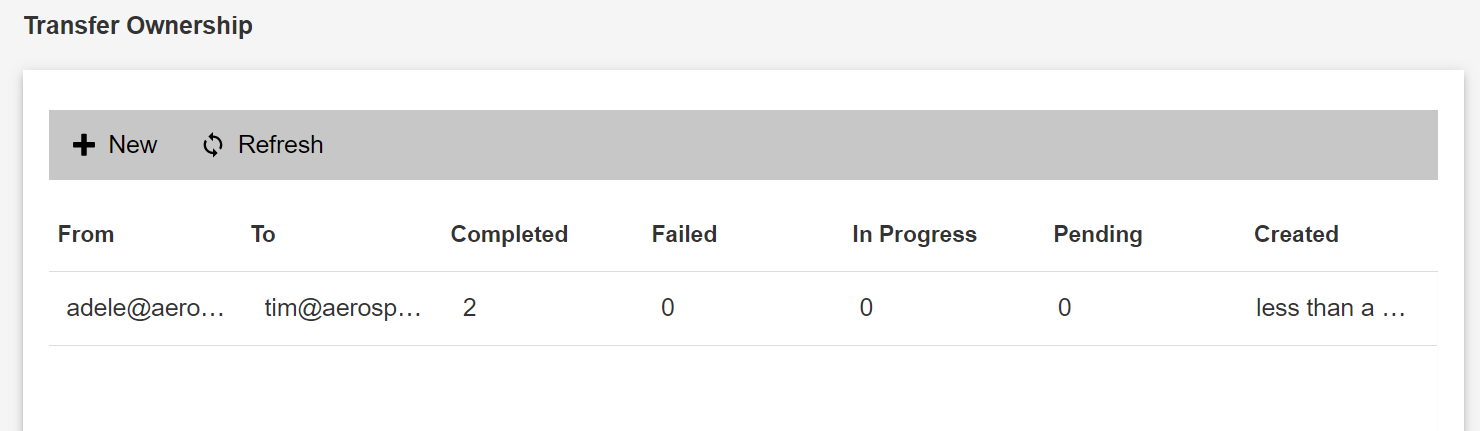
Transfer Ownership
This menu allows administrators to perform a bulk transfer of ownership of one user’s Trusted Shares to another user within the organization. For the ownership transfer to be successful, it must meet the following criteria:
The Trusted Shares being transferred must be created in a SharePoint site; you cannot transfer ownership of a OneDrive Trusted Share.
Both users must be at least a member or owner of the SharePoint site.
Both users must exist in eSHARE.
Organization Shares
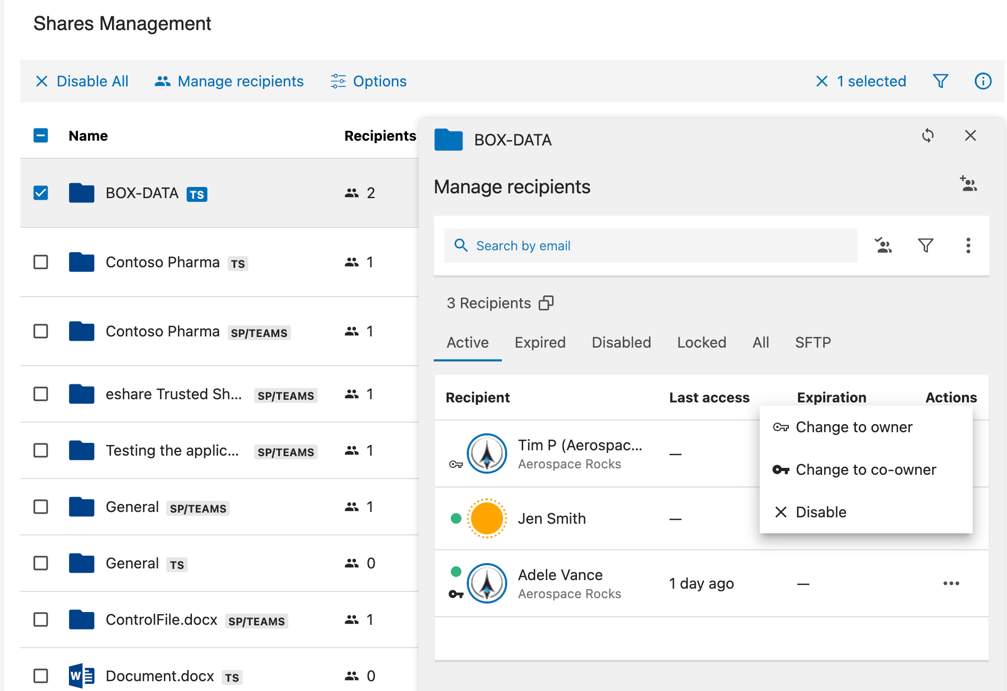
In this menu, administrators can view all of the Trusted Shares that have been created within the organization. You are able to search for a specific Trusted Share by name or participant (internal or external), or you can use the filter function to find specific types of created Trusted Shares. Administrators are able to perform the following tasks on Trusted Shares that were created within the organization:
View recipients of a Share
View configured options of a Share
Enable/Disable recipients of a Share
Promote internal members to Co-owner
Transfer Ownership of a Share
Demote internal members to recipient status
For more information, see Managing Organization Trusted Shares.
Mass Decrypt
This feature is deprecated and will be removed from the console in future releases.
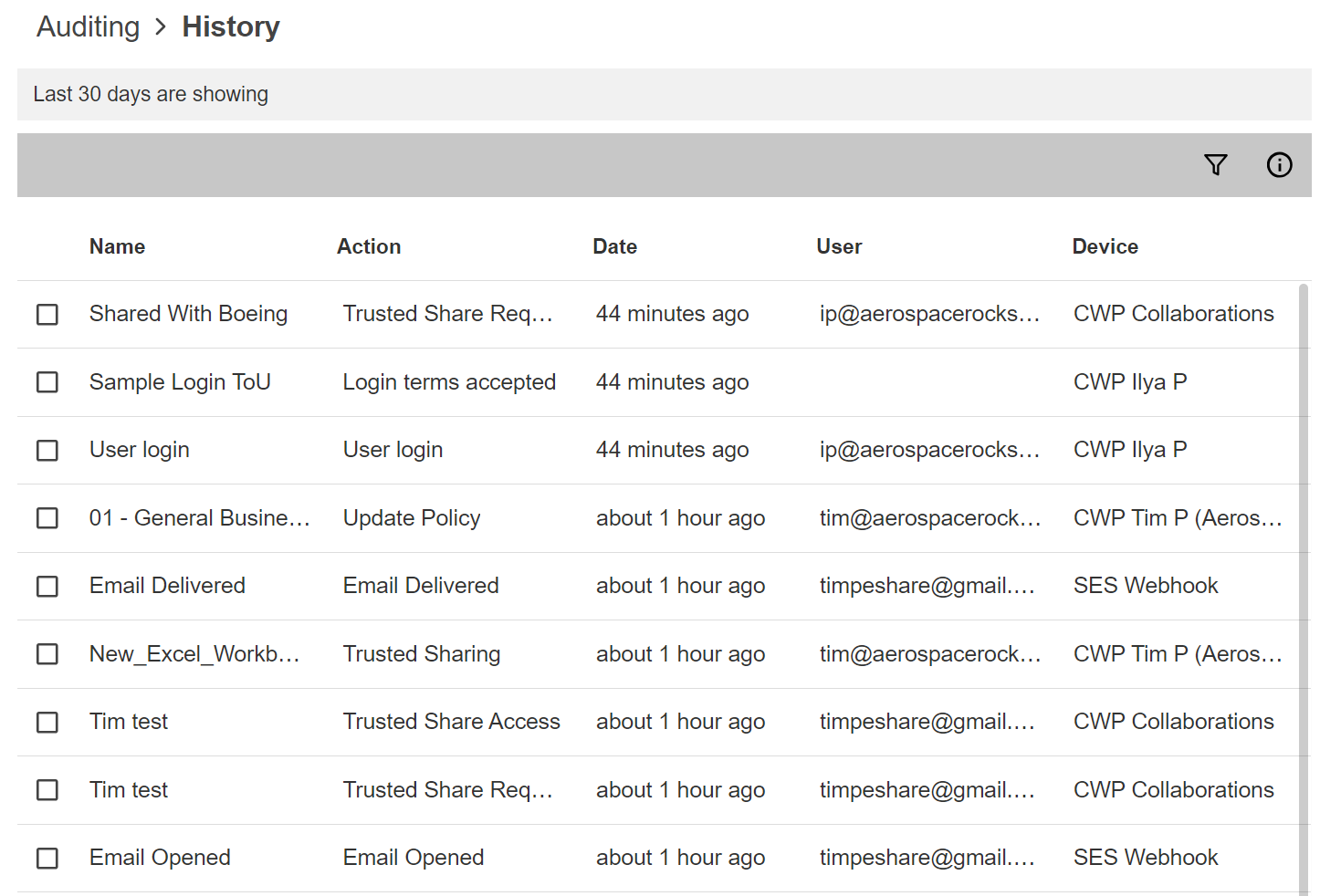
Organization Auditing
Users with the 'Audit Reader' administrator role can access this menu to review audit events occurring across your eSHARE tenant. This audit log shows all audit events that have occurred in the past 30 days, but can be filtered to show logs from a specific time period. For more information, see View and Manage Organization Audits.
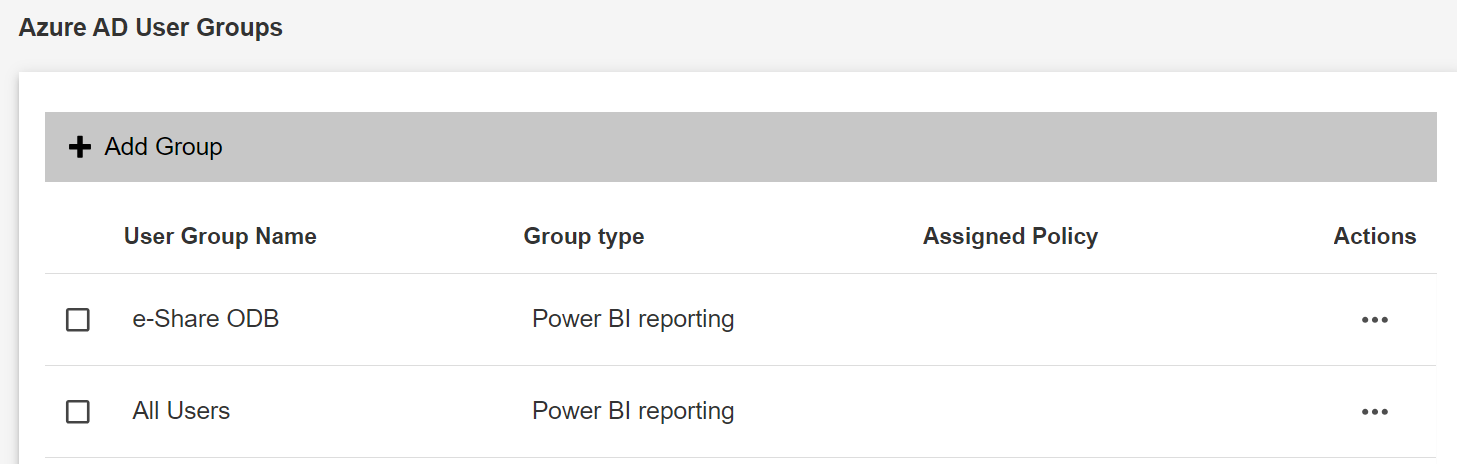
Azure AD Groups
Administrators can sync Azure AD Security Groups or Mail-enabled Security Groups to the eSHARE console for the purpose of displaying User Groups in the organization's Power BI report.
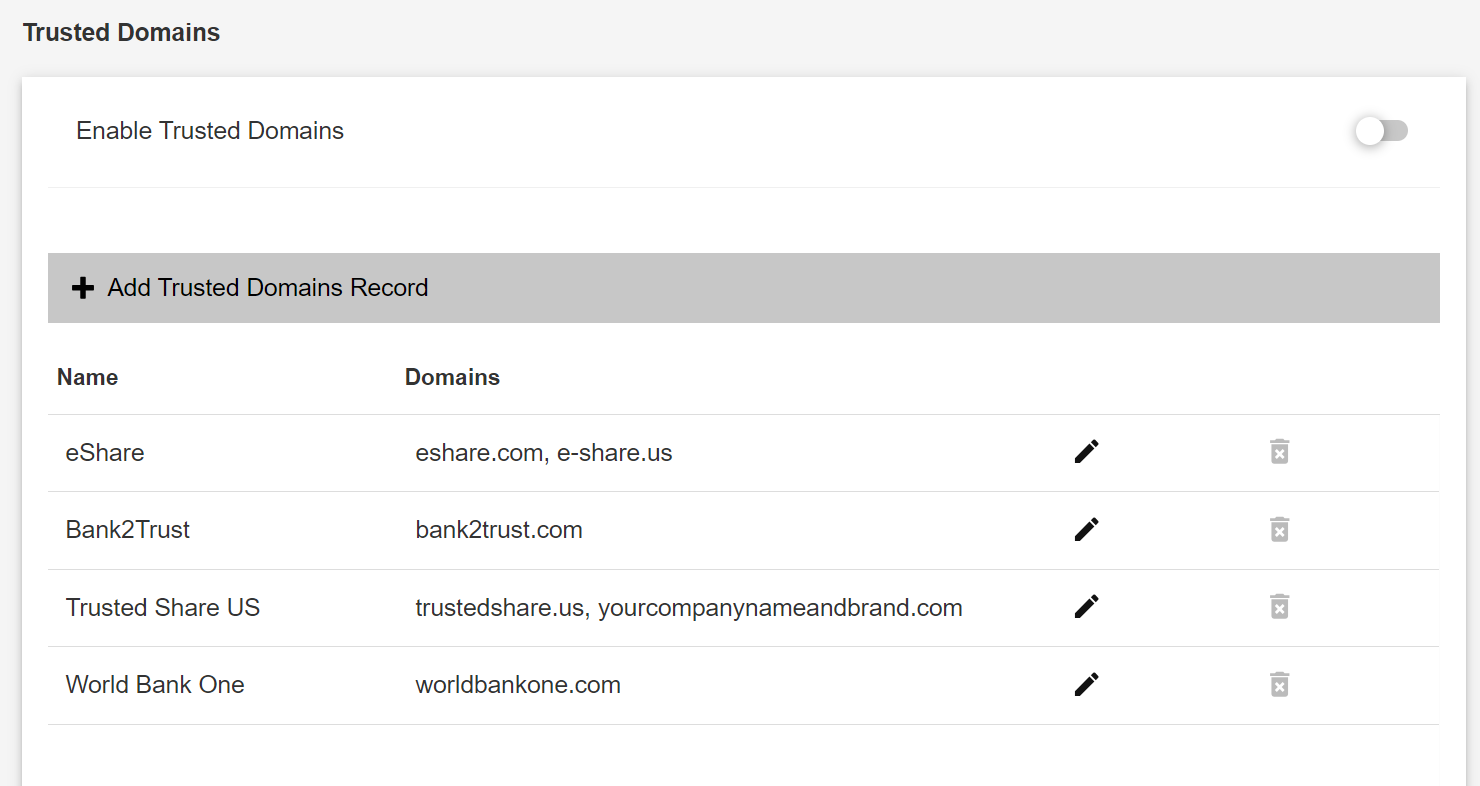
Trusted Domains Override
The purpose of this menu is for administrators to define specific recipient domains they trust. Once a domain is considered “Trusted”, administrators can decide if they would like to increase or decrease authentication requirements for recipients from that domain accessing Trusted Shares sent from your organization:
Ignore OTP or always enforce OTP
Ignore Login Required
Ignore Terms of Use
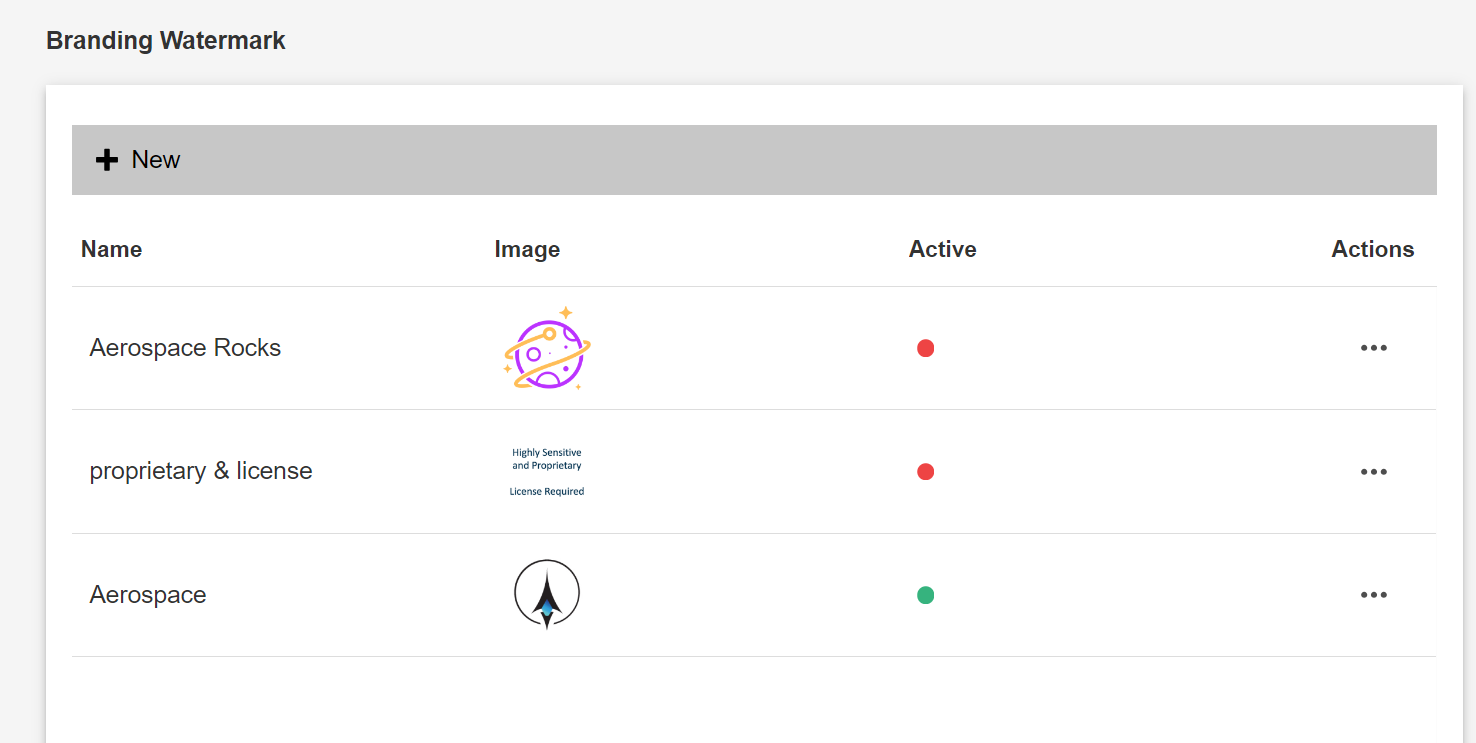
Branding Watermark
Administrators can upload a brand logo which can be applied to files if the 'Brand Watermark' feature is enabled in a Sharing Policy. The requirements for the watermark are as follows:
A .png image with transparent background
Must be 300 pixels by 300 pixels
Size must be between 5KB and 2MB
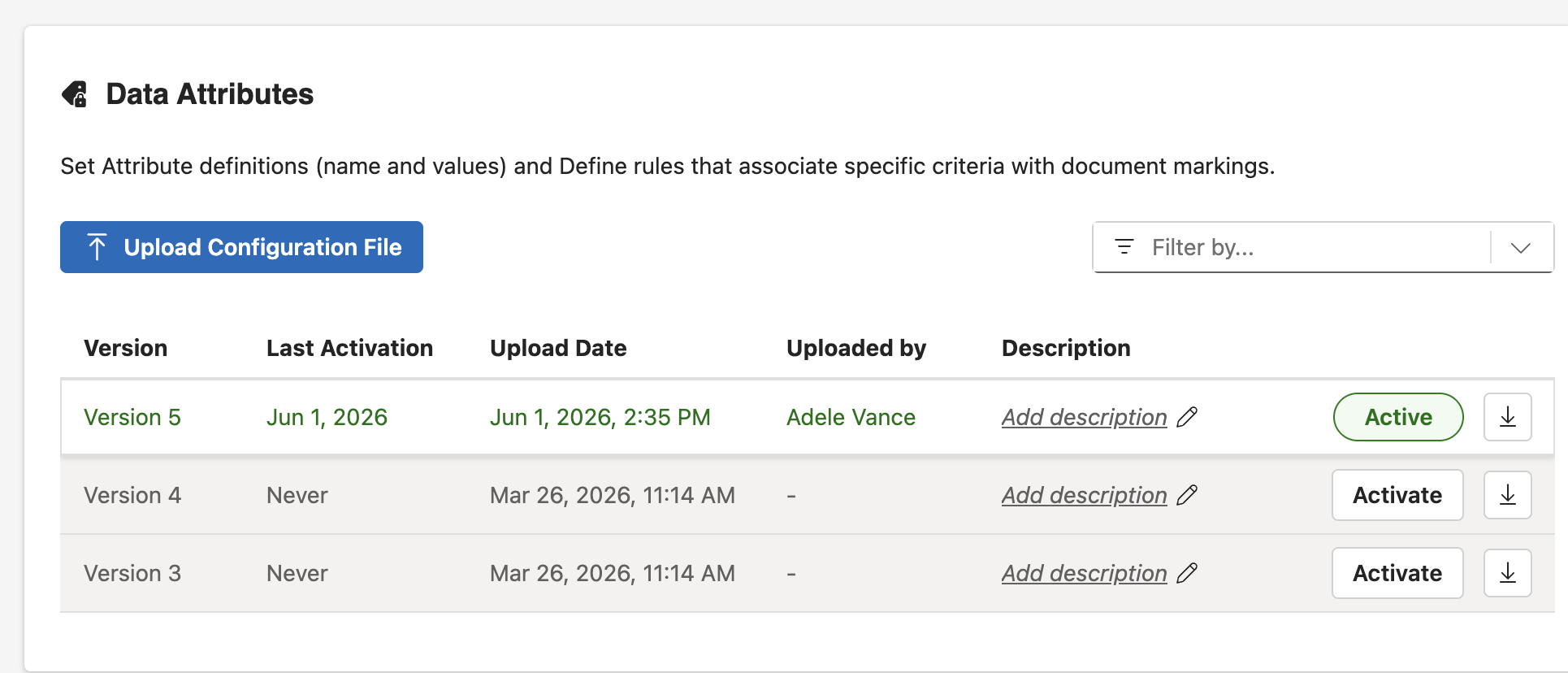
Data Classification
This menu is the area where admins can upload their configuration files for the Data Attributes Office/Outlook Add-in for applying visual markings to documents and emails. For more information, see Configure Data Attributes via Configuration File.