To create a fully branded and white-labeled eSHARE experience, you will need to provide eSHARE with your organization's branding collateral. You can configure these settings directly in 'Admin Console' > 'Corporate Branding'. Alternatively, you can share the following logo files and colors with your eSHARE Customer Success Manager. The following sections are covered:
Logo Size Requirements
Logo | Requirements | Example |
|---|---|---|
Full Color Logo | Organization logo with colored text or icon. Size should be 200 x 50 pixels in .png format with a transparent background. |
|
White Color Logo | Organization logo with white text or icon. Size should be 200 x 50 pixels in .png format with a transparent background. Used to display the logo on a colored header background. |
|
Notification Icon | Organization logo or icon. Size should be 192 x 192 pixels in .png format with a transparent background. Used in browser push notifications when enabled. |
|
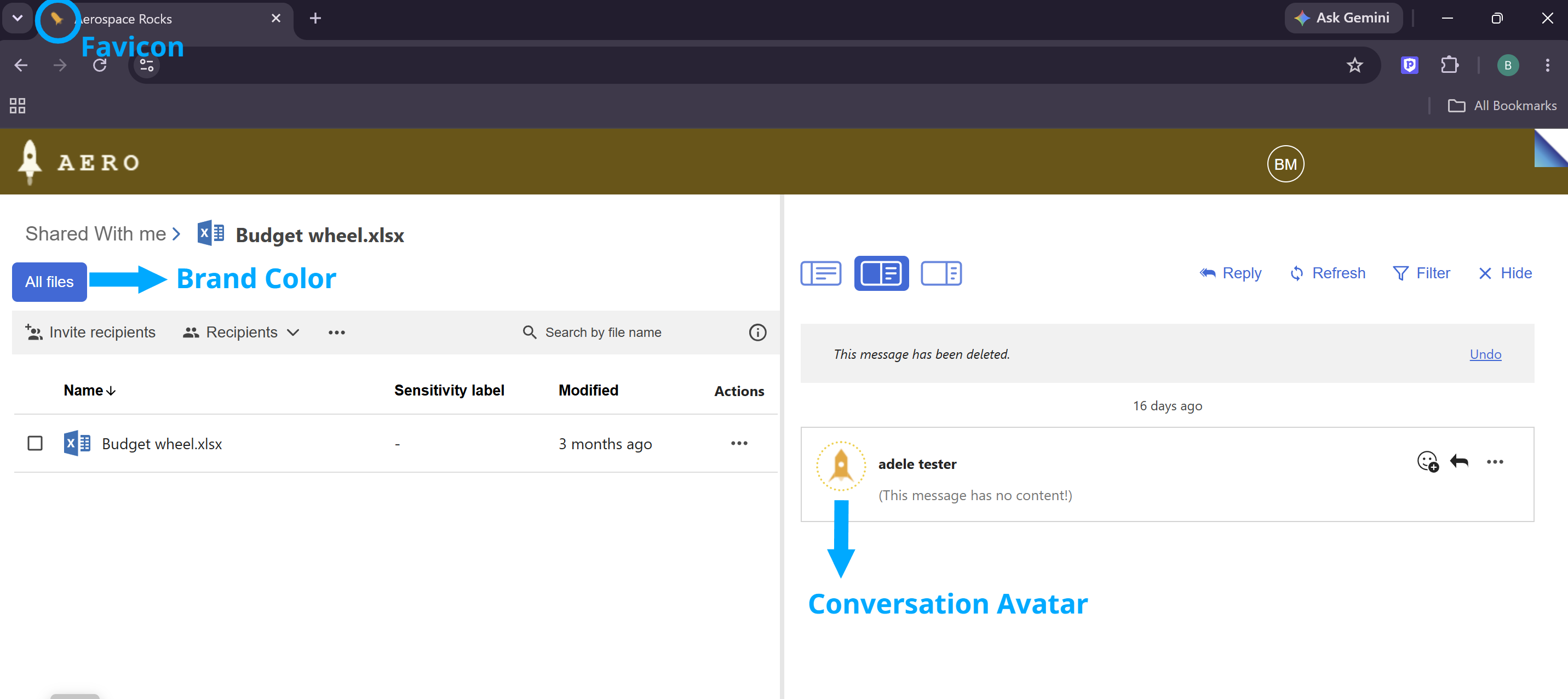
Conversation Avatar | Organization logo or icon with a transparent background. Size should be 35 x 35 pixels in .png format. Used as the avatar in Secure Conversations. |
|
Favicon | Organization logo or icon. Size should be 16 x 16 pixels in .png format with a transparent background. Used as the icon on the browser tab. |
|





Branding Preview
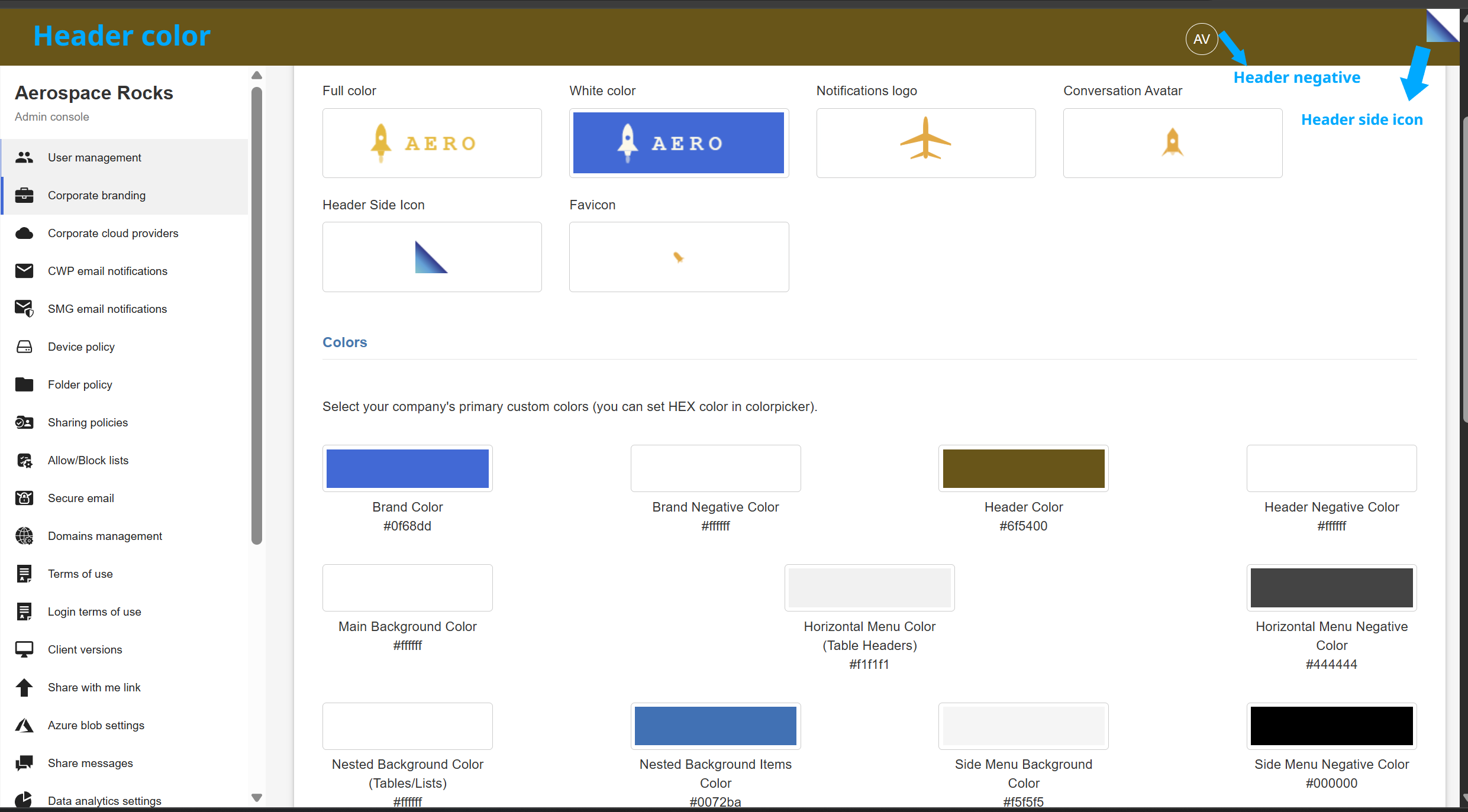
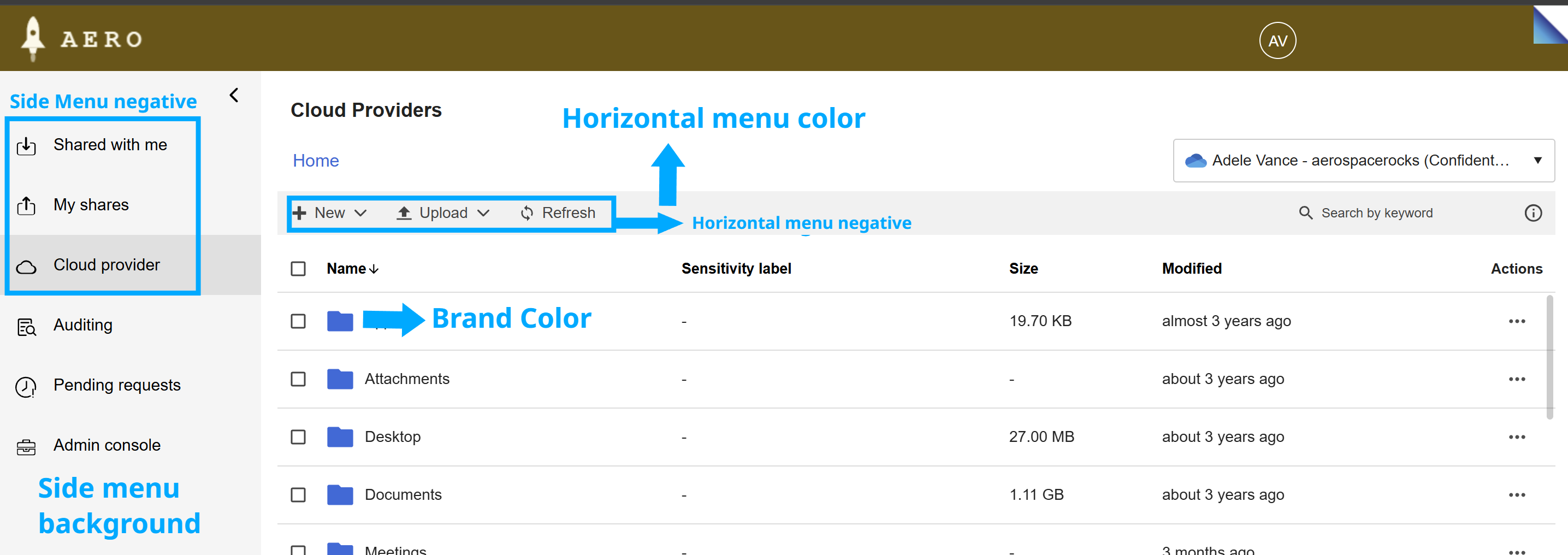
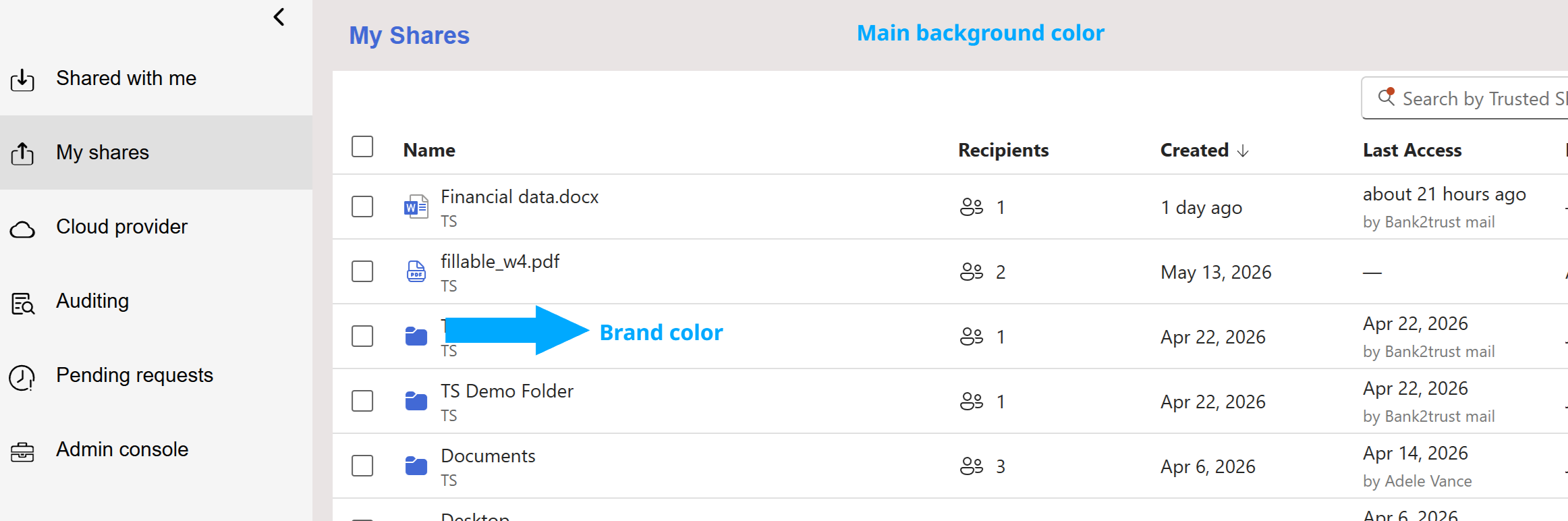
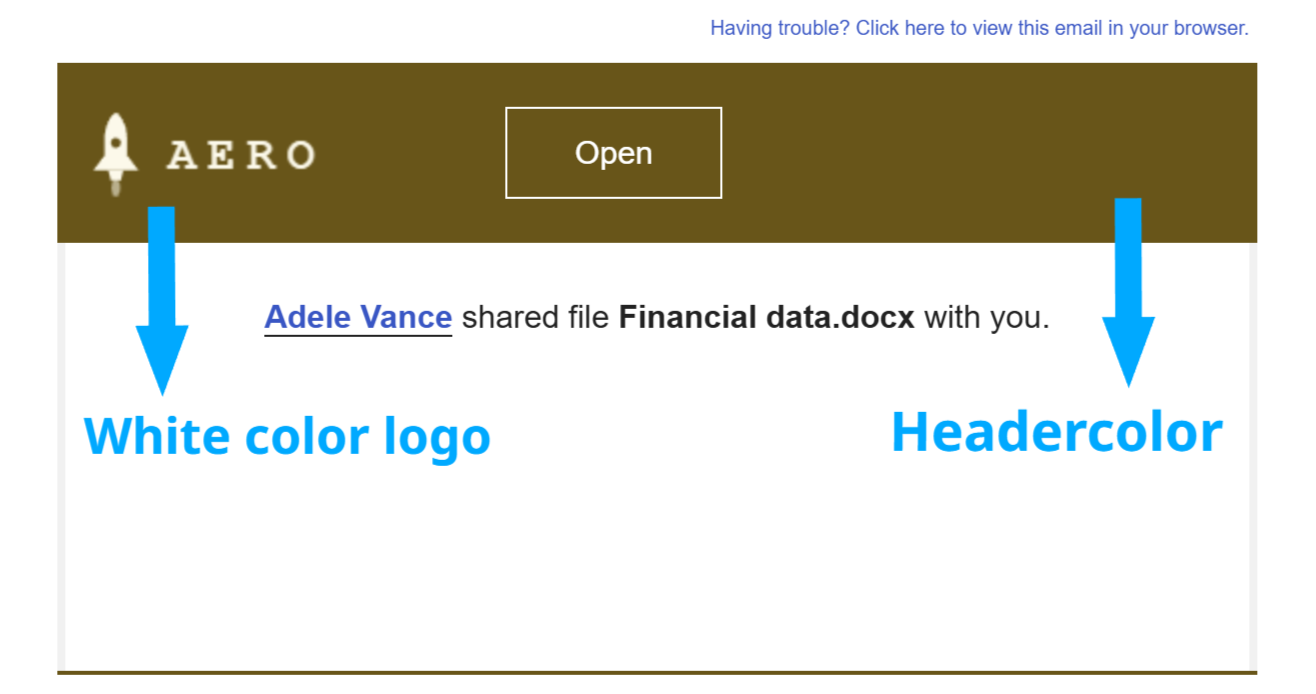
The screenshots below show how a configured branding set appears across eSHARE.
eSHARE Web Portal
Email Notification
On a Trusted Share
Share Branding Files with Your Customer Success Manager
If you are sharing the documents with your Customer Success Manager, provide your primary, secondary, and tertiary brand colors in hex code format along with the logos and icons listed above.
Example:
Primary = #000000
Secondary = #6a479c
Tertiary = #ffffff