This document explains how an admin can enable Microsoft Purview Information Protection (PIP) Sensitivity Labels on user OneDrive sites. Applying a Sensitivity Label to OneDrive sites enables the use of a Default Sharing Policy when a user shares items that do not have a label or tag applied to them. This integration provides organizations more granularity with data protection in OneDrive while enabling users to share content with appropriate guard rails in place. The following steps will be reviewed:
Apply a Sensitivity Label to a List of OneDrive Sites - Commercial
Apply a Sensitivity Label to a List of OneDrive Sites - Government
PREREQUISITES:
The person performing these steps must have an administrator role assignment of SharePoint Administrator and Compliance Administrator roles, or the Global Administrator role in the destination M365 tenant.
Overview of the OneDrive Sensitivity Label Feature
Organizations who apply Microsoft Sensitivity Labels to their SharePoint and Teams sites benefit from the advanced governance capabilities, such as automatic policy enforcement. Up to this point Microsoft has only allowed organizations to apply Sensitivity Labels to SharePoint site containers; however, they have recently added a way to apply a label to user OneDrive sites. eSHARE is able to take advantage of labels applied to user OneDrive sites, and enforce the Sharing Policy assigned to the label when sharing unlabeled files/folders.
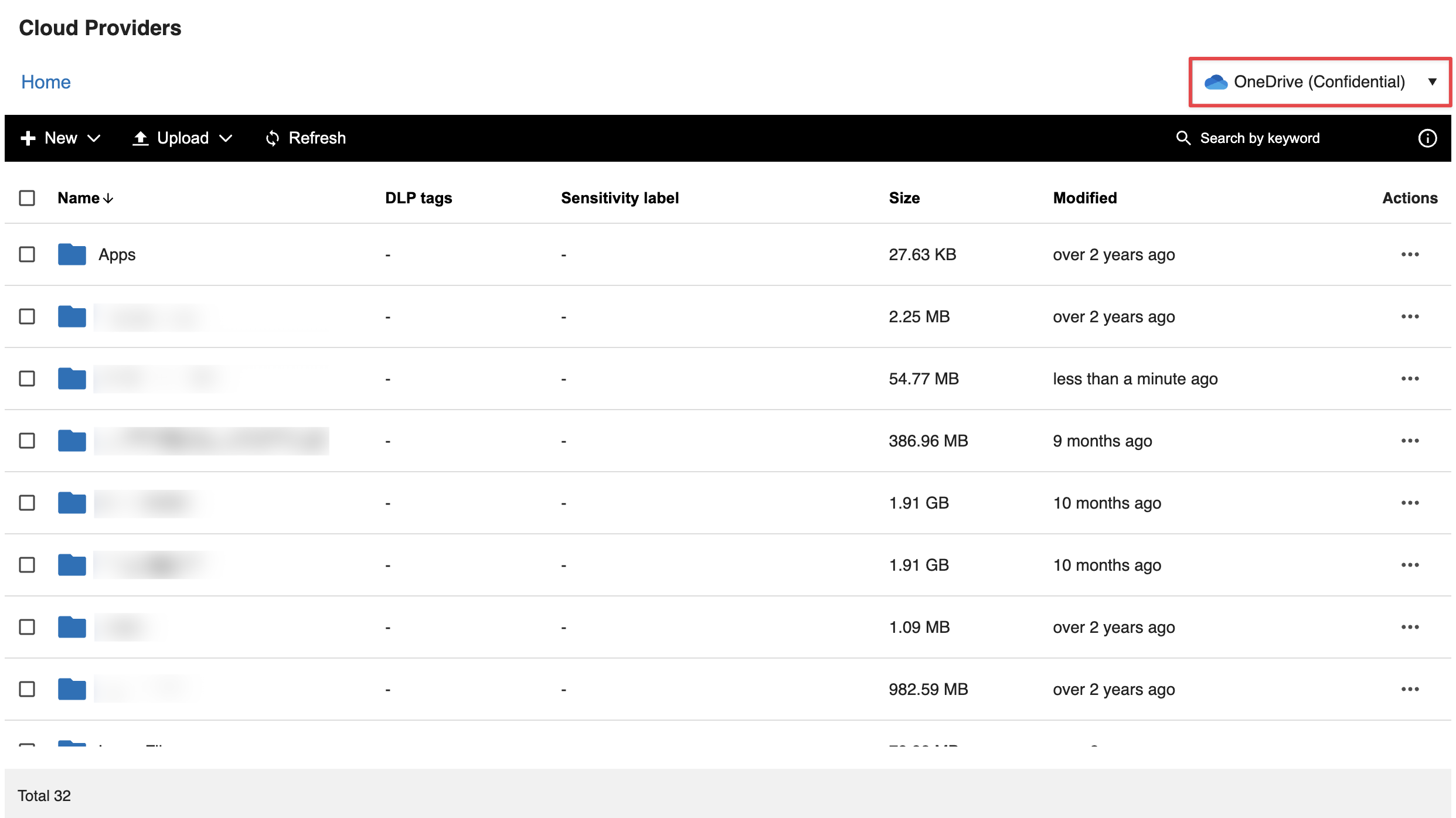
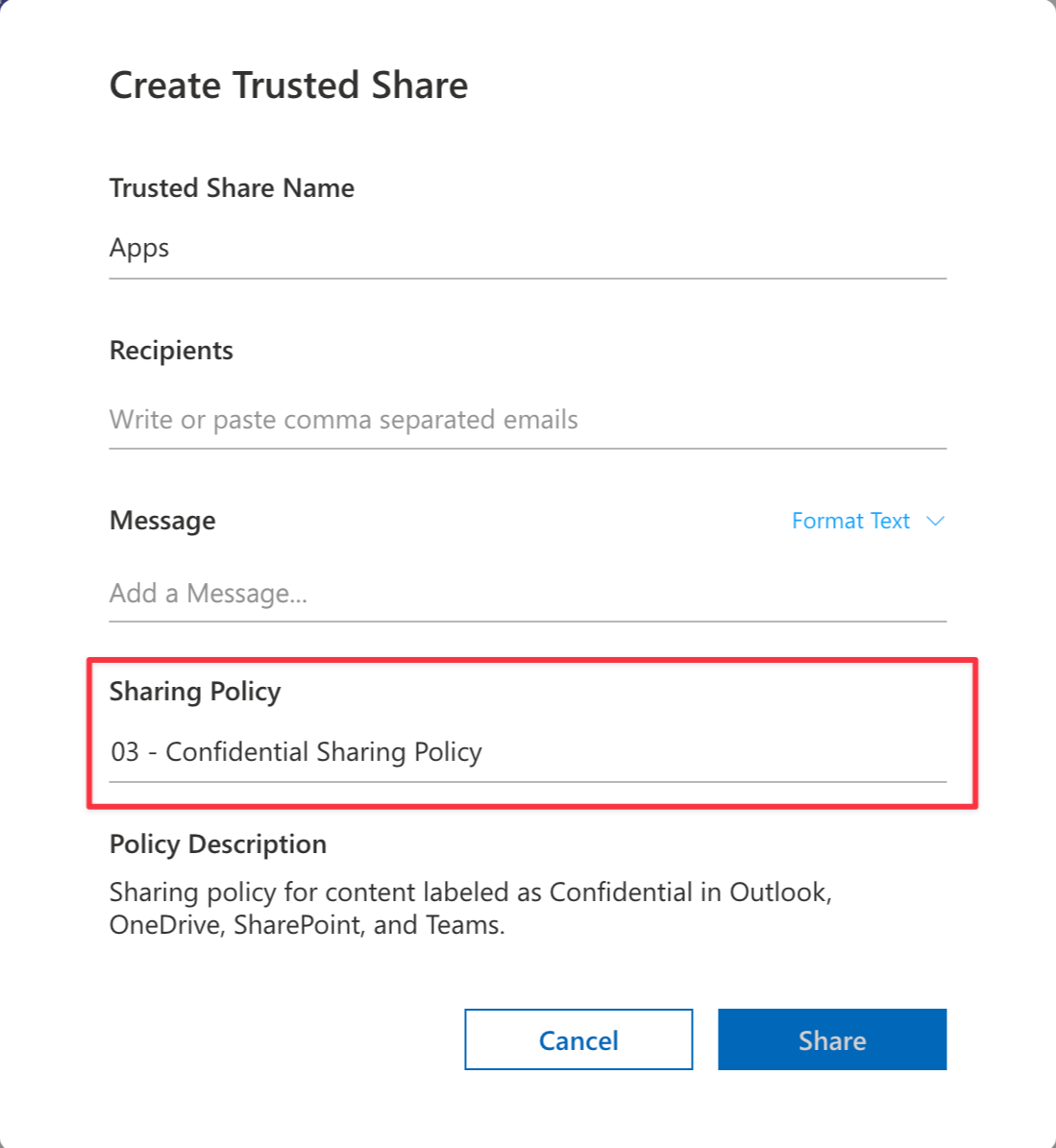
Apply a Sensitivity Label to a OneDrive Site
To apply a Sensitivity Label to a user’s OneDrive site, a series of PowerShell commands need to be executed.
Before executing the commands below, connect to the SharePoint Online and Compliance PowerShell modules.
# Commercial Cloud connect commands
Connect-SPOService -Url "https://contoso-admin.sharepoint.com"
Connect-IPPSSession

# Government Cloud connect commands
Connect-SPOService -Url "https://contoso-admin.sharepoint.us" -Region ITAR
Connect-IPPSSession -ConnectionUri https://ps.compliance.protection.office365.us/powershell-liveid/ -AzureADAuthorizationEndpointUri https://login.microsoftonline.us/organizations
Once connected, use the Get-Label command to display a list of Sensitivity Labels available in the M365 tenant. Note the GUID of the label that should be applied to the OneDrive site.
Get-Label | Format-List Name, GuidGet the OneDrive URL for the user, which is required for applying the Sensitivity Label to the OneDrive site. The following command returns the URL for a specific user.
Get-SPOSite -IncludePersonalSite $true -Filter "Owner -eq 'user1@contoso.com'" | Where-Object {$_.Url -like "https://contoso-my.sharepoint.com*"}Set the desired label on the OneDrive site. Insert the OneDrive site URL and the GUID of the desired Sensitivity Label that were identified by the last two commands.
Set-SPOSite -Identity "https://contoso-my.sharepoint.com/personal/user1_contoso_com" -SensitivityLabel "<label_guid>"To confirm the label was applied as expected, run the following command. It returns the assigned label for the OneDrive site URL specified in the command.
Get-SPOSite -Identity "https://contoso-my.sharepoint.com/personal/user1_contoso_com" | Select SensitivityLabelOnce the label is applied, eSHARE will detect the site label and enforce a mapped policy when a user shares content from OneDrive.
Apply a Sensitivity Label to a List of OneDrive Sites - Commercial
Note:
This script will only work with M365 Commercial and GCC tenants. If the tenant in scope is GCC High, please jump to this section for more information.
To simplify applying a label to many OneDrive sites, the script below programmatically assigns a label to a list of OneDrive sites. The script can be broken down into the following steps:
Step 1 - Defines a .csv file containing a list of email addresses that will have a label applied. The .csv must be in the same directory as the script, and needs to have a header named “Email” (below is an example of the .csv contents).
Email
user1@contoso.com
user2@contoso.com
user3@contoso.com
Step 2 - Prompts the user executing this script to enter the tenant’s SharePoint URL prefix (ex. contoso).
Step 3 - Checks if SharePoint Online and Exchange Online PowerShell modules are installed; if not, it will install the modules.
Step 4 - Imports the SharePoint Online and Exchange Online PowerShell modules for use.
Step 5 - Initiates connection and login sessions for the use of SharePoint Online and Compliance PowerShell modules.
Step 6 - Gets a list of the Sensitivity Labels available in the M365 tenant and asks the user executing this script to select the label.
Step 7 - Gets the OneDrive site URL for an individual user and stores it in the output.csv file.
Step 8 - Applies the selected Sensitivity Label to the OneDrive site in scope.
Step 9 - Gets the label of the OneDrive site in scope, compares the current value with what was applied and confirms it was added successfully, writing the result into the output.csv file.
Step 10 - Repeats steps 7-9 until all email addresses defined in the .csv file have undergone the label assignment process.
The script that runs through the outlined 10 steps can be found below:
# Step 1: Define CSV File to Read that is in same directory as script
$scriptPath = $PSScriptRoot
$csvPath = Join-Path -Path $scriptPath -ChildPath "users.csv"
$outputPath = Join-Path -Path $scriptPath -ChildPath "output.csv"

# Check if CSV exists
if (-not (Test-Path $csvPath)) {
    Write-Host "Error: CSV file not found at $csvPath" -ForegroundColor Red
    exit
}

# Step 2: Define the SharePoint tenant prefix
$tenantPrefix = Read-Host "Please enter your SharePoint tenant prefix (e.g., 'contonso' in 'https://contoso.sharepoint.com)"

# Step 3: Check if SharePoint Online and Exchange Online PowerShell Modules are Installed
$spoModule = Get-Module -ListAvailable -Name Microsoft.Online.SharePoint.PowerShell
$exoModule = Get-Module -ListAvailable -Name ExchangeOnlineManagement

if (-not $spoModule -or -not $exoModule) {
    Write-Host "One or more required modules are not installed. Installing now..." -ForegroundColor Yellow

    # Install SharePoint Online and Exchange Online Modules if missing
    if (-not $spoModule) {
        Install-Module -Name Microsoft.Online.SharePoint.PowerShell -Force -AllowClobber
    }
    if (-not $exoModule) {
        Install-Module -Name ExchangeOnlineManagement -Force -AllowClobber
    }
} else {
    Write-Host "Required modules are already installed." -ForegroundColor Green
}

# Step 4: Import SharePoint Online and Exchange Online Modules
Import-Module -Name Microsoft.Online.SharePoint.PowerShell
Import-Module -Name ExchangeOnlineManagement

# Step 5: Connect to SharePoint Online and Exchange Online PowerShell
$spoAdminUrl = "https://$tenantPrefix-admin.sharepoint.com"
Connect-SPOService -Url $spoAdminUrl
Connect-IPPSSession

# Step 6: List all sensitivity labels and ask user to select one
$labels = Get-Label
Write-Host "`nAvailable Sensitivity Labels:" -ForegroundColor Cyan
for ($i = 0; $i -lt $labels.Count; $i++) {
    Write-Host "$($i + 1). $($labels[$i].Name) (GUID: $($labels[$i].Guid))"
}

$selection = Read-Host "`nEnter the number of the label you want to apply"
$selectedLabel = $labels[$selection - 1]
$labelGuid = $selectedLabel.Guid
Write-Host "Selected Label: $($selectedLabel.Name) ($labelGuid)" -ForegroundColor Green

# Step 7: Read CSV and get OneDrive URL for each user
$users = Import-Csv -Path $csvPath

# Add URL and Applied? columns if they don't exist
if (-not ($users[0].PSObject.Properties.Name -contains "URL")) {
    $users | Add-Member -MemberType NoteProperty -Name "URL" -Value $null -Force
}
if (-not ($users[0].PSObject.Properties.Name -contains "Applied?")) {
    $users | Add-Member -MemberType NoteProperty -Name "Applied?" -Value $null -Force
}

foreach ($user in $users) {
    Write-Host "`nProcessing user: $($user.Email)" -ForegroundColor Cyan

    # Get OneDrive URL
    try {
        $site = Get-SPOSite -IncludePersonalSite $true -Filter "Owner -eq '$($user.Email)'" |
                Where-Object {$_.Url -like "https://$tenantPrefix-my.sharepoint.com*"}

        if ($site) {
            $oneDriveUrl = $site.Url
            $user.URL = $oneDriveUrl
            Write-Host "  Found OneDrive URL: $oneDriveUrl" -ForegroundColor Green

            # Step 8: Apply the sensitivity label
            try {
                Set-SPOSite -Identity $oneDriveUrl -SensitivityLabel $labelGuid
                Write-Host "  Applied sensitivity label" -ForegroundColor Green

                # Step 9: Verify the sensitivity label
                Start-Sleep -Seconds 2  # Give it a moment to apply
                $appliedLabel = (Get-SPOSite -Identity $oneDriveUrl).SensitivityLabel

                if ($appliedLabel -eq $labelGuid) {
                    $user.'Applied?' = $true
                    Write-Host "  Verification: Label successfully applied" -ForegroundColor Green
                } else {
                    $user.'Applied?' = $false
                    Write-Host "  Verification: Label application failed" -ForegroundColor Red
                }
            } catch {
                $user.'Applied?' = $false
                Write-Host "  Error applying label: $_" -ForegroundColor Red
            }
        } else {
            $user.URL = "Not Found"
            $user.'Applied?' = $false
            Write-Host "  OneDrive not found for this user" -ForegroundColor Yellow
        }
    } catch {
        $user.URL = "Error"
        $user.'Applied?' = $false
        Write-Host "  Error retrieving OneDrive: $_" -ForegroundColor Red
    }
}

# Save to output.csv
$users | Export-Csv -Path $outputPath -NoTypeInformation
Write-Host "`nScript completed. Results saved to $outputPath" -ForegroundColor Green
Apply a Sensitivity Label to a List of OneDrive Sites - Government
Note:
This script will only work with M365 GCC High tenants. If the tenant in scope is Commercial or GCC, please jump to this section for more information.
To simplify applying a label to many OneDrive sites, the script below programmatically assigns a label to a list of OneDrive sites. The script can be broken down into the following steps:
Step 1 - Defines a .csv file containing a list of email addresses that will have a label applied. The .csv must be in the same directory as the script, and needs to have a header named “Email” (below is an example of the .csv contents).
Email
user1@contoso.com
user2@contoso.com
user3@contoso.com
Step 2 - Prompts the user executing this script to enter the tenant’s SharePoint URL prefix (ex. contoso).
Step 3 - Checks if SharePoint Online and Exchange Online PowerShell modules are installed; if not, it will install the modules.
Step 4 - Imports the SharePoint Online and Exchange Online PowerShell modules for use.
Step 5 - Initiates connection and login sessions for the use of SharePoint Online and Compliance PowerShell modules.
Step 6 - Gets a list of the Sensitivity Labels available in the M365 tenant and asks the user executing this script to select the label.
Step 7 - Gets the OneDrive site URL for an individual user and stores it in the output.csv file.
Step 8 - Applies the selected Sensitivity Label to the OneDrive site in scope.
Step 9 - Gets the label of the OneDrive site in scope, compares the current value with what was applied and confirms it was added successfully, writing the result into the output.csv file.
Step 10 - Repeats steps 7-9 until all email addresses defined in the .csv file have undergone the label assignment process.
The script that runs through the outlined 10 steps can be found below:
# Step 1: Define CSV File to Read that is in same directory as script
$scriptPath = $PSScriptRoot
$csvPath = Join-Path -Path $scriptPath -ChildPath "users.csv"
$outputPath = Join-Path -Path $scriptPath -ChildPath "output.csv"

# Check if CSV exists
if (-not (Test-Path $csvPath)) {
    Write-Host "Error: CSV file not found at $csvPath" -ForegroundColor Red
    exit
}

# Step 2: Define the SharePoint tenant prefix
$tenantPrefix = Read-Host "Please enter your SharePoint tenant prefix (e.g., 'contonso' in 'https://contoso.sharepoint.us)"

# Step 3: Check if SharePoint Online and Exchange Online PowerShell Modules are Installed
$spoModule = Get-Module -ListAvailable -Name Microsoft.Online.SharePoint.PowerShell
$exoModule = Get-Module -ListAvailable -Name ExchangeOnlineManagement

if (-not $spoModule -or -not $exoModule) {
    Write-Host "One or more required modules are not installed. Installing now..." -ForegroundColor Yellow

    # Install SharePoint Online and Exchange Online Modules if missing
    if (-not $spoModule) {
        Install-Module -Name Microsoft.Online.SharePoint.PowerShell -Force -AllowClobber
    }
    if (-not $exoModule) {
        Install-Module -Name ExchangeOnlineManagement -Force -AllowClobber
    }
} else {
    Write-Host "Required modules are already installed." -ForegroundColor Green
}

# Step 4: Import SharePoint Online and Exchange Online Modules
Import-Module -Name Microsoft.Online.SharePoint.PowerShell
Import-Module -Name ExchangeOnlineManagement

# Step 5: Connect to SharePoint Online and Exchange Online PowerShell
$spoAdminUrl = "https://$tenantPrefix-admin.sharepoint.us"
Connect-SPOService -Url $spoAdminUrl -Region ITAR
Connect-IPPSSession -ConnectionUri https://ps.compliance.protection.office365.us/powershell-liveid/ -AzureADAuthorizationEndpointUri https://login.microsoftonline.us/organizations

# Step 6: List all sensitivity labels and ask user to select one
$labels = Get-Label
Write-Host "`nAvailable Sensitivity Labels:" -ForegroundColor Cyan
for ($i = 0; $i -lt $labels.Count; $i++) {
    Write-Host "$($i + 1). $($labels[$i].Name) (GUID: $($labels[$i].Guid))"
}

$selection = Read-Host "`nEnter the number of the label you want to apply"
$selectedLabel = $labels[$selection - 1]
$labelGuid = $selectedLabel.Guid
Write-Host "Selected Label: $($selectedLabel.Name) ($labelGuid)" -ForegroundColor Green

# Step 7: Read CSV and get OneDrive URL for each user
$users = Import-Csv -Path $csvPath

# Add URL and Applied? columns if they don't exist
if (-not ($users[0].PSObject.Properties.Name -contains "URL")) {
    $users | Add-Member -MemberType NoteProperty -Name "URL" -Value $null -Force
}
if (-not ($users[0].PSObject.Properties.Name -contains "Applied?")) {
    $users | Add-Member -MemberType NoteProperty -Name "Applied?" -Value $null -Force
}

foreach ($user in $users) {
    Write-Host "`nProcessing user: $($user.Email)" -ForegroundColor Cyan

    # Get OneDrive URL
    try {
        $site = Get-SPOSite -IncludePersonalSite $true -Filter "Owner -eq '$($user.Email)'" |
                Where-Object {$_.Url -like "https://$tenantPrefix-my.sharepoint.us*"}

        if ($site) {
            $oneDriveUrl = $site.Url
            $user.URL = $oneDriveUrl
            Write-Host "  Found OneDrive URL: $oneDriveUrl" -ForegroundColor Green

            # Step 8: Apply the sensitivity label
            try {
                Set-SPOSite -Identity $oneDriveUrl -SensitivityLabel $labelGuid
                Write-Host "  Applied sensitivity label" -ForegroundColor Green

                # Step 9: Verify the sensitivity label
                Start-Sleep -Seconds 2  # Give it a moment to apply
                $appliedLabel = (Get-SPOSite -Identity $oneDriveUrl).SensitivityLabel

                if ($appliedLabel -eq $labelGuid) {
                    $user.'Applied?' = $true
                    Write-Host "  Verification: Label successfully applied" -ForegroundColor Green
                } else {
                    $user.'Applied?' = $false
                    Write-Host "  Verification: Label application failed" -ForegroundColor Red
                }
            } catch {
                $user.'Applied?' = $false
                Write-Host "  Error applying label: $_" -ForegroundColor Red
            }
        } else {
            $user.URL = "Not Found"
            $user.'Applied?' = $false
            Write-Host "  OneDrive not found for this user" -ForegroundColor Yellow
        }
    } catch {
        $user.URL = "Error"
        $user.'Applied?' = $false
        Write-Host "  Error retrieving OneDrive: $_" -ForegroundColor Red
    }
}

# Save to output.csv
$users | Export-Csv -Path $outputPath -NoTypeInformation
Write-Host "`nScript completed. Results saved to $outputPath" -ForegroundColor Green