As the owner or co-owner of a Trusted Share, you can make sure that when a recipient downloads a file you sent, the user’s name is printed as a watermark on the file to prevent unauthorized distribution of the file, especially if it has sensitive information. The following steps will be reviewed:
Note:
You can make these changes only if permitted by your organization’s policy.
Enable User Watermarks on Downloaded Files
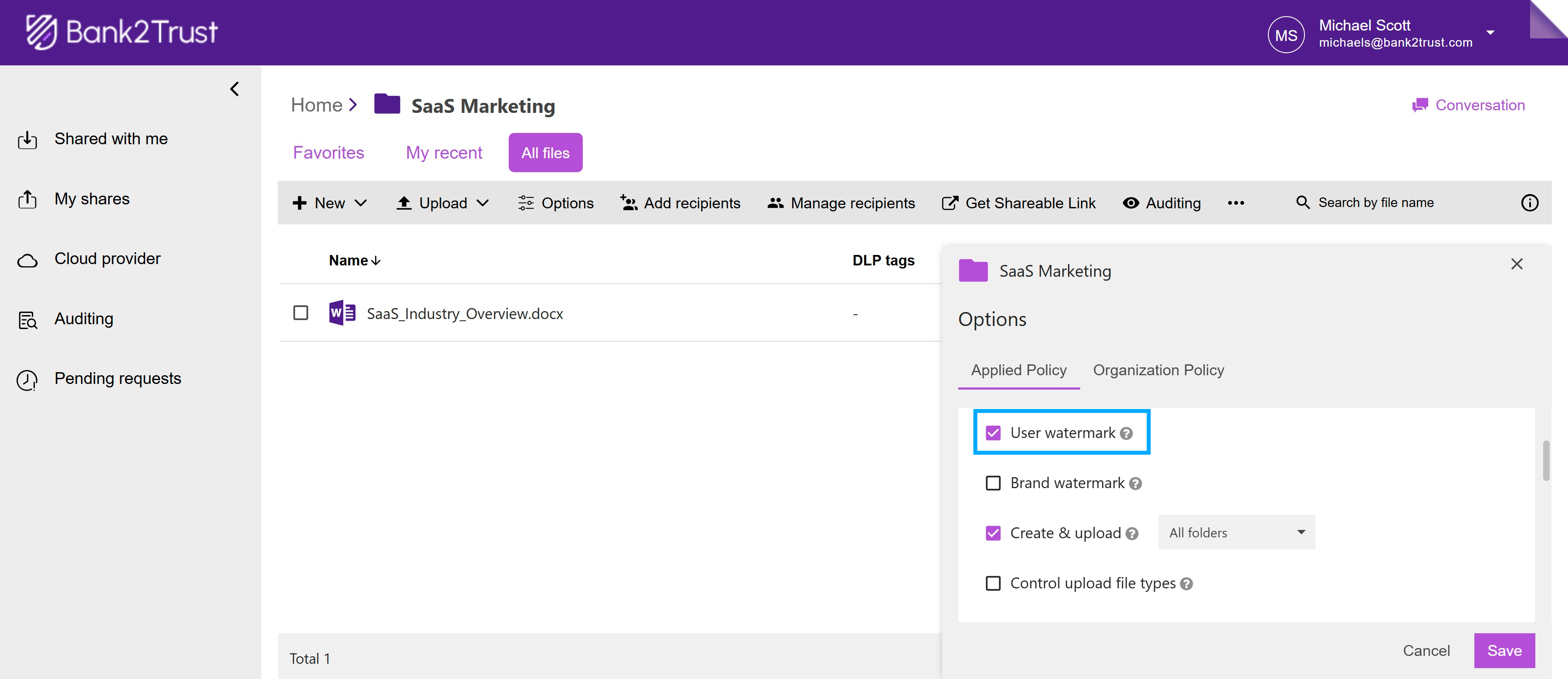
Navigate to 'My Shares', open your Trusted Share, and click the 'Options' button in the toolbar.

Under 'Applied Policy' > 'Permissions', scroll down to find 'User Watermark'.
Check this box to add a watermark on downloaded files showing the recipient’s email address. This can be used to trace file distribution and prevent unauthorized sharing.
Enable Brand Watermarks on Downloaded Files
Similarly, you can also apply your organization’s logo as a watermark on the document.
Go to 'Options' and, under 'Applied Policy' > 'Permissions', scroll down to locate 'Brand Watermark'.
Check this box, then choose a relevant watermark from the dropdown (set by your organization’s admin).
Save the changes by clicking 'Save'. The selected watermark will appear on recipients’ downloaded files. This helps trace file distribution and prevent unauthorized sharing.
Note:
You cannot choose your own logo for the watermark. Contact your organization admin for assistance.
