As the owner or co-owner of a Trusted Share, you can assign all internal users (users within your organization) as co-owners of a Trusted Share, or make individual recipients co-owners. This grants them similar rights as the owner, including the ability to add and manage recipients, audit the share and manage Trusted Share options. The following steps will be reviewed:
Make All Internal Users Co-Owners
Navigate to 'My Shares' and open your Trusted Share.
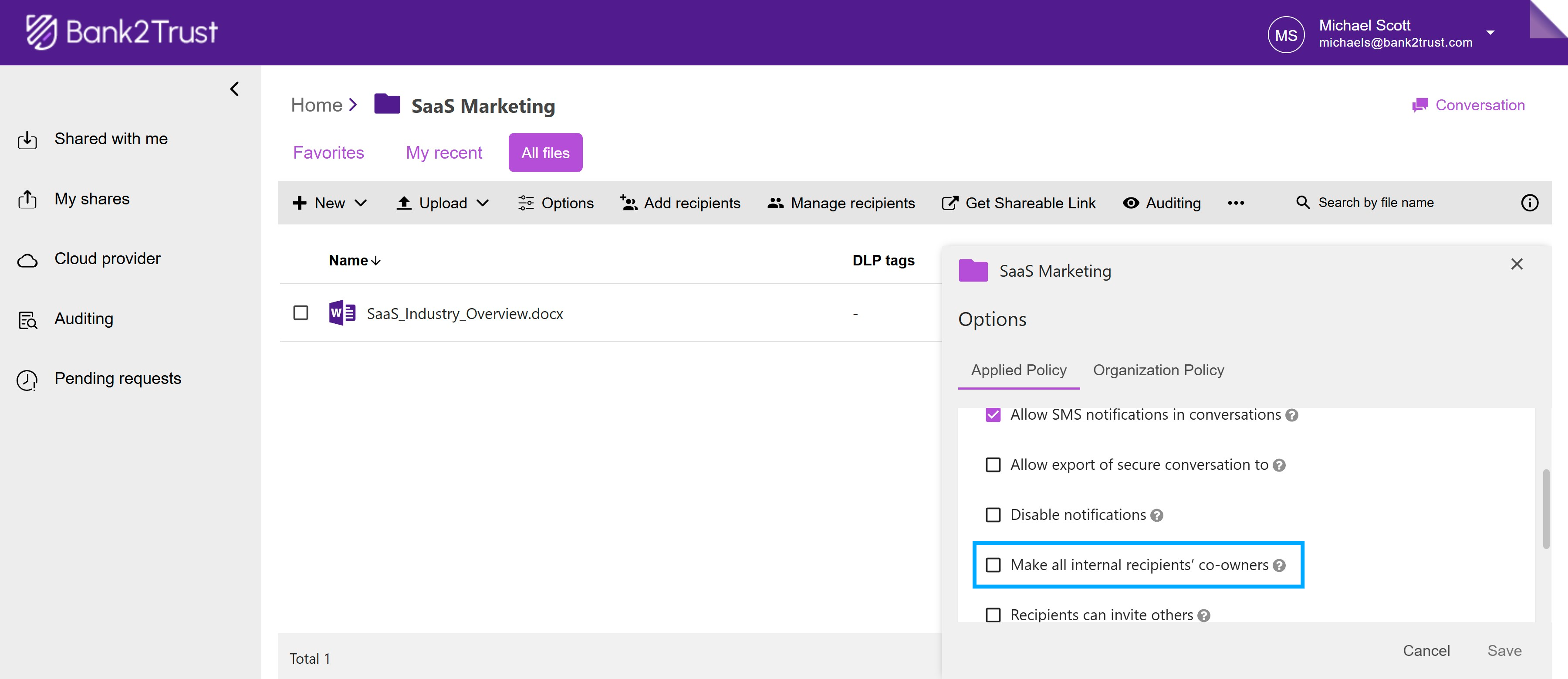
Click the 'Options' button in the toolbar.
Note:
You can make the changes below only if permitted by your organization’s policy.

Under 'Applied Policy' > 'Collaboration', scroll down to locate the 'Make All Internal Recipients Co-Owners' option and enable it.
Click Save. Once enabled, this grants all internal users co-owner rights on the Trusted Share, allowing them to manage recipients, audit the share, and configure options.
To verify, go to 'Manage Recipients'. Under 'All Recipients', you will see a key icon next to the names of all co-owners.
Make Individual Recipients Co-Owners
Instead of making every internal user a co-owner, you can manage permissions individually for greater flexibility.
Go to your Trusted Share and click 'Manage Recipients'.
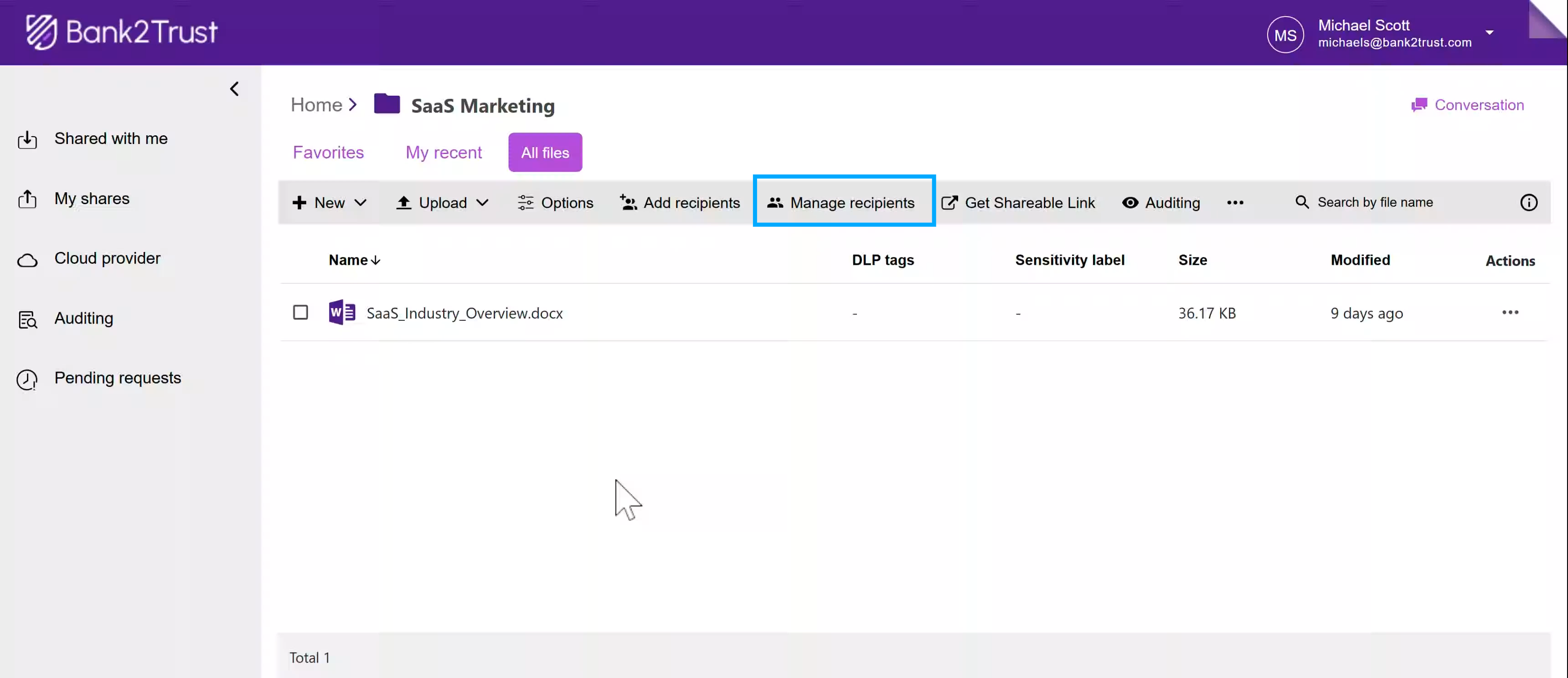
Under the 'All Recipients' tab, locate the recipient you want to make a co-owner.
Click the 'Actions' menu (three dots) beside their name and select 'Authorize as Owner'. You will see a confirmation, and a key icon will appear below the recipient’s name, indicating they are now a co-owner.
Note:
Only internal users can be made co-owners.

Differences Between Owner and Co-Owner Rights
While co-owners have many of the same privileges as the owner, certain settings are exclusive to the owner for security purposes. Specifically, a co-owner cannot archive a Trusted Share, rename a Trusted Share and revoke access of the owner. These restrictions help maintain control and security over the Trusted Share.
Co-Owner Feature Summary
Designated user(s) must be a member of the Trusted Share to be assigned co-owner role.
Users with co-owner role can continue to access Trusted Share under 'Shared With Me' tab, not 'My Shares' tab.
A co-owner may grant or revoke co-owner role to other users of the same organization.
Co-owners may expire access for all recipients or disable the Trusted Share, but the original owner and all co-owners still retain access and management rights.
All co-owners receive the same email notifications as the original owner.
Audit logs of all Trusted Share events are available to all co-owners.
Co-owners can approve/reject Trusted Share access requests.