As the owner or co-owner of a Trusted Share, you can choose to allow or block recipients from requesting access to shared content. The following steps will be reviewed:
Note:
You can make the changes below only if permitted by your organization’s policy.
Example use case: Suppose you share a folder containing multiple Word documents, each with different sensitivity labels. The sharing policy determines which files can be accessed. If a document’s sensitivity label is higher than what the sharing policy allows, recipients won’t be able to open it directly and will need to request access from you.
Allow Recipients to Request Access for Unauthorized Files
Navigate to 'My Shares' and open your Trusted Share.
Click the 'Options' button in the toolbar.

Under 'Applied Policy' > 'Collaboration', scroll down to locate the 'Allow recipient to request access' option and enable it.
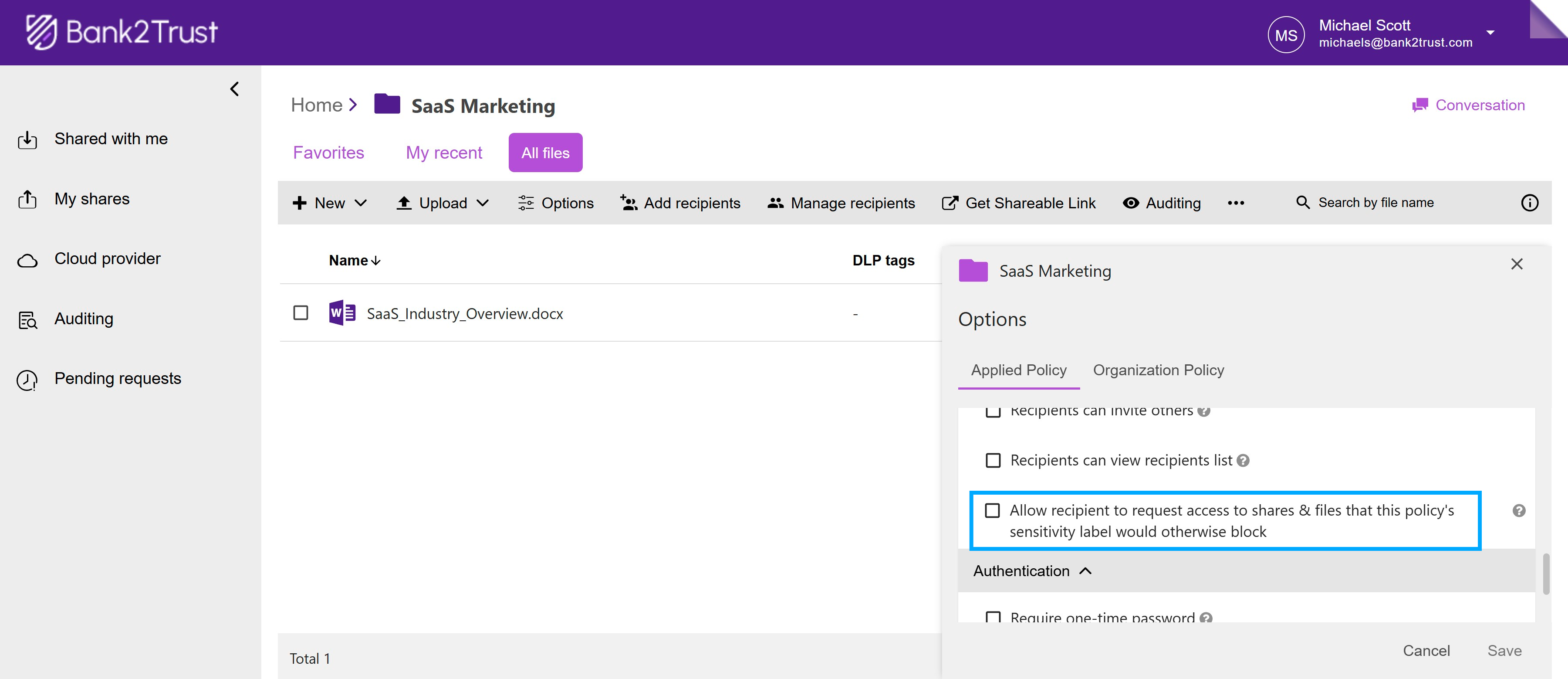
Click the 'Save' button at the bottom of the options menu to save the changes made to the sharing settings.
