As the owner or co-owner of a Trusted Share, you can control collaboration between recipients by allowing recipients to invite others. You also have the option to hide recipients from each other to maintain privacy. The following steps will be reviewed:
Note:
You can make the changes below only if permitted by your organization’s policy.
Allow Recipients to View Other Recipients
Navigate to 'My Shares', open your Trusted Share and click the 'Options' button in the toolbar.

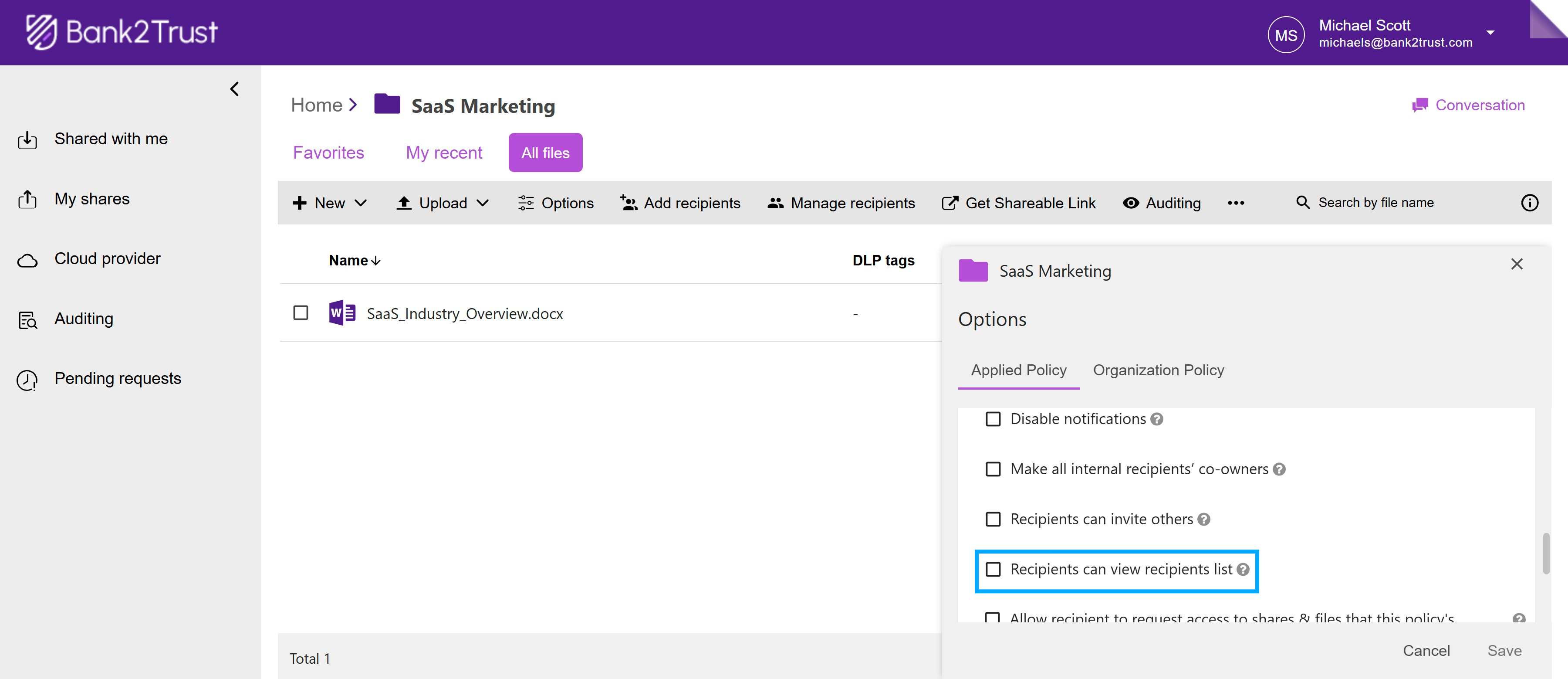
Under 'Applied Policy' > 'Collaboration', scroll down to locate the 'Recipients Can View Recipients List' option and enable it. Enabling this option allows all recipients to see the names and email addresses of other recipients on the Trusted Share.
Allow Recipients to Invite New Users
On a Trusted Share, you can allow recipients to invite new users when they need to share documents with others. Invited users are automatically approved and added to the Trusted Share without owner/co-owner approval.
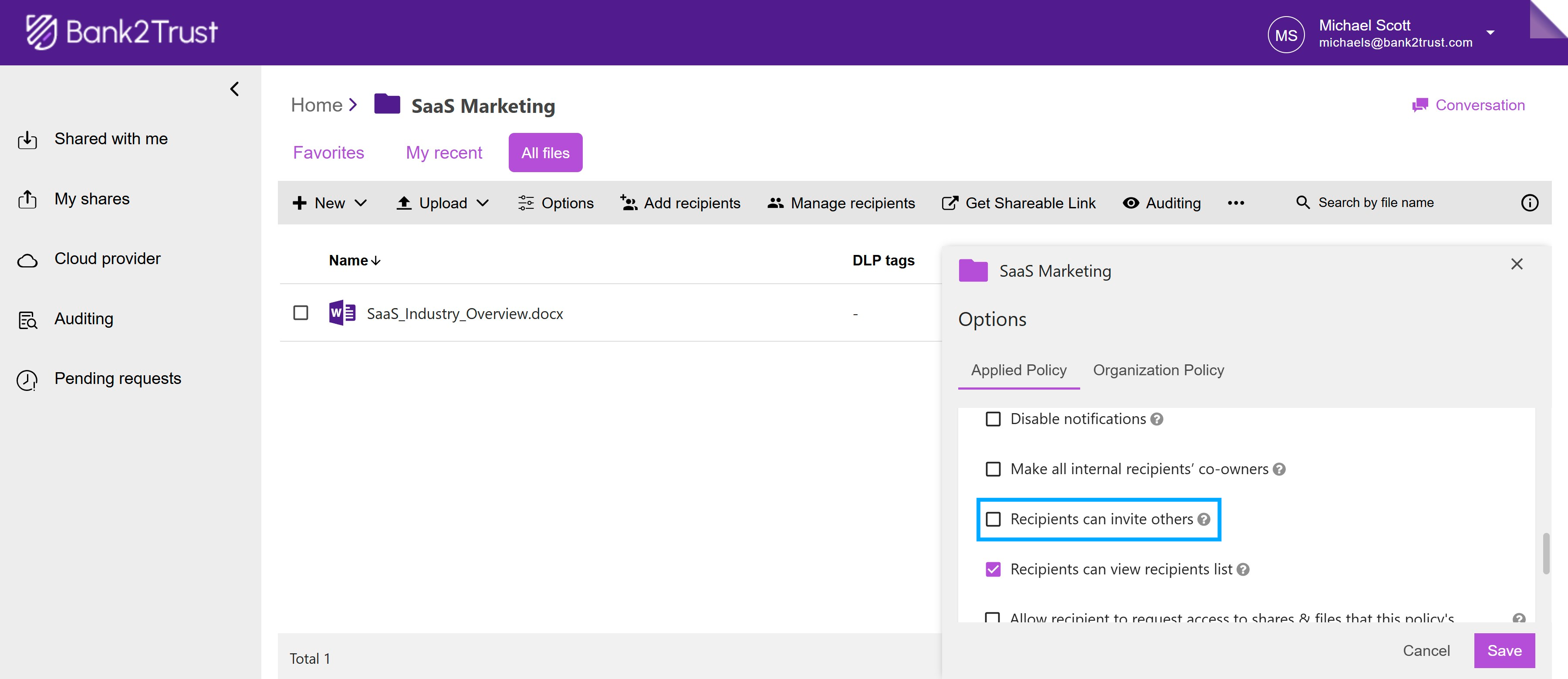
Under 'Applied Policy' > 'Collaboration', scroll down and check 'Recipients Can Invite Others'.
Select the level of auto-approval. Once enabled, and if permitted by your organization, you can choose auto-approval instead of the Trusted Share owner approving it manually. Open the dropdown menu and select the appropriate option: auto approve for either 'All users' or 'Only internal users' (same organization as the inviter).

Click 'Save' at the bottom of the options panel to finalize and apply your changes.