This document describes the steps to create a custom eSHARE Collaborate application in the Microsoft Entra (Azure AD) portal. The following steps will be reviewed:
PREREQUISITES:
The person performing these steps must have an administrator role assignment of Application Administrator, Cloud Application Administrator, or Global Administrator in the destination M365 tenant.
Register the Application
Sign in to the Microsoft Entra admin center (https://entra.microsoft.com or https://entra.microsoft.us) and navigate to 'Applications' > 'App Registrations'.
On the 'App Registrations' page, click the '+ New registration' button in the top menu bar.
Enter a recognizable, unique name for the custom eSHARE app and select the 'Register' button at the bottom of the page. In a few moments, a shell application is created and ready for further configuration.
Register the Application with PowerShell (Alternative)
Alternate Method through PowerShell Script
You can also automate the Commercial Cloud installation steps by running a PowerShell script. Copy and paste the following script into PowerShell to perform the same configuration
Expand this block and copy the script below
# =============================================================================
# Create App Registration: eSHARE Collaborate
# - Single tenant
# - Web + SPA redirect URIs
# - API permissions: Graph, ARMS, MIP, Exchange Online, O365 Mgmt, SharePoint
#
# Usage:
#   ./create_eshare_collaborate.ps1 -TenantId <tenant-guid>
# =============================================================================

[CmdletBinding()]
param(
    [Parameter(Mandatory = $true)]
    [string] $TenantId,

    # Optional: create a 10-year self-signed certificate and export the
    # private key as a PEM .key file. The certificate is NOT uploaded to the
    # app automatically — you must upload it manually via the Entra portal.
    # If not specified, the script prompts interactively.
    [switch] $CreateCertificate,

    # Where the .cer / .crt / .key files are written when -CreateCertificate is on.
    [string] $CertOutputDir = (Join-Path $PSScriptRoot 'certs')
)

$ErrorActionPreference = 'Stop'

$DisplayName = 'eSHARE Collaborate'

$WebRedirectUris = @(
    'https://www.ncryptedcloud.com/oauth2_openid/consume/outlook',
    'https://www.ncryptedcloud.com/oauth2_openid/consume/labels',
    'https://www.ncryptedcloud.com/oauth2_openid/consume/personal_graphAPI',
    'https://login.ncryptedcloud.com/oauth2_openid/consume/personal_graphAPI',
    'https://n11d.com/oauth2_openid/consume/graphAPI',
    'https://login.ncryptedcloud.com/oauth2_openid/consume/graphAPI',
    'https://login.ncryptedcloud.com/oauth2_openid/consume/outlook',
    'https://login.ncryptedcloud.com/cloudwebportal/onedrive/auth/endpoint/provisioning/',
    'https://login.ncryptedcloud.com/cloudwebportal/onedrive/auth/endpoint/business/',
    'https://login.ncryptedcloud.com/oauth2_openid/consume/adgraph',
    'https://login.ncryptedcloud.com/oauth2_openid/consume/sharepoint_search'
)

$SpaRedirectUris = @(
    'https://*.sharepoint.com/_forms/default.aspx'
)

# Permissions to request, grouped by resource API.
# Type = 'Application' (app role) or 'Delegated' (oauth2 scope).
$PermissionsByResource = @(
    @{
        ResourceName = 'Azure Rights Management Services'
        ResourceAppId = '00000012-0000-0000-c000-000000000000'
        Permissions = @(
            @{ Name = 'Content.DelegatedReader'; Type = 'Application' },
            @{ Name = 'user_impersonation';      Type = 'Delegated'   }
        )
    },
    @{
        ResourceName = 'Microsoft Graph'
        ResourceAppId = '00000003-0000-0000-c000-000000000000'
        Permissions = @(
            @{ Name = 'Directory.Read.All';    Type = 'Application' },
            @{ Name = 'Files.ReadWrite.All';   Type = 'Application' },
            @{ Name = 'Group.Read.All';        Type = 'Application' },
            @{ Name = 'GroupMember.Read.All';  Type = 'Application' },
            @{ Name = 'Sites.ReadWrite.All';   Type = 'Application' },
            @{ Name = 'User.Read.All';         Type = 'Application' }
        )
    },
    @{
        ResourceName = 'Microsoft Information Protection Sync Service'
        ResourceAppId = '870c4f2e-85b6-4d43-bdda-6ed9a579b725'
        Permissions = @(
            @{ Name = 'UnifiedPolicy.User.Read'; Type = 'Delegated' }
        )
    },
    @{
        ResourceName = 'Office 365 Exchange Online'
        ResourceAppId = '00000002-0000-0ff1-ce00-000000000000'
        Permissions = @(
            @{ Name = 'Exchange.ManageAsApp'; Type = 'Application' }
        )
    },
    @{
        ResourceName = 'Office 365 Management APIs'
        ResourceAppId = 'c5393580-f805-4401-95e8-94b7a6ef2fc2'
        Permissions = @(
            @{ Name = 'ActivityFeed.Read';    Type = 'Application' },
            @{ Name = 'ActivityFeed.ReadDlp'; Type = 'Application' }
        )
    },
    @{
        ResourceName = 'SharePoint'
        ResourceAppId = '00000003-0000-0ff1-ce00-000000000000'
        Permissions = @(
            @{ Name = 'Sites.Read.All'; Type = 'Application' }
        )
    }
)

# --- Ensure required modules ---
$requiredModules = @('Microsoft.Graph.Authentication', 'Microsoft.Graph.Applications')
foreach ($m in $requiredModules) {
    if (-not (Get-Module -ListAvailable -Name $m)) {
        Write-Host "Installing module $m ..." -ForegroundColor Yellow
        Install-Module -Name $m -Scope CurrentUser -Force -AllowClobber
    }
}
Import-Module Microsoft.Graph.Authentication -ErrorAction Stop
Import-Module Microsoft.Graph.Applications  -ErrorAction Stop

# --- Connect to Microsoft Graph (reuse existing session if same tenant) ---
$existingCtx  = Get-MgContext -ErrorAction SilentlyContinue
$weConnected  = $false
if ($existingCtx -and $existingCtx.TenantId -eq $TenantId) {
    Write-Host "Reusing existing Microsoft Graph connection (tenant $TenantId)." -ForegroundColor Green
} else {
    try {
        Connect-MgGraph -TenantId $TenantId -Scopes 'Application.ReadWrite.All','Directory.Read.All' -NoWelcome -ErrorAction Stop
        Write-Host "Connected to Microsoft Graph (tenant $TenantId)." -ForegroundColor Green
        $weConnected = $true
    } catch {
        Write-Host "Error: Failed to connect to Microsoft Graph: $_" -ForegroundColor Red
        exit 1
    }
}

# If we did not open the connection, shadow Disconnect-MgGraph with a no-op
# so the rest of the script (including error paths) does not tear down the
# caller's session.
if (-not $weConnected) {
    function Disconnect-MgGraph { param() }
}

# --- Build RequiredResourceAccess by resolving permission IDs at runtime ---
$requiredResourceAccess = @()
foreach ($resource in $PermissionsByResource) {
    $sp = Get-MgServicePrincipal -Filter "appId eq '$($resource.ResourceAppId)'" -ErrorAction Stop
    if (-not $sp) {
        Write-Host "Error: Service principal for '$($resource.ResourceName)' (appId $($resource.ResourceAppId)) not found in tenant. The resource API may not be provisioned. Run: New-MgServicePrincipal -AppId $($resource.ResourceAppId)" -ForegroundColor Red
        Disconnect-MgGraph | Out-Null
        exit 1
    }

    $resourceAccess = @()
    foreach ($p in $resource.Permissions) {
        if ($p.Type -eq 'Application') {
            $role = $sp.AppRoles | Where-Object { $_.Value -eq $p.Name }
            if (-not $role) {
                Write-Host "Error: Application permission '$($p.Name)' not found on resource '$($resource.ResourceName)'." -ForegroundColor Red
                Disconnect-MgGraph | Out-Null
                exit 1
            }
            $resourceAccess += @{ id = $role.Id; type = 'Role' }
        }
        elseif ($p.Type -eq 'Delegated') {
            $scope = $sp.Oauth2PermissionScopes | Where-Object { $_.Value -eq $p.Name }
            if (-not $scope) {
                Write-Host "Error: Delegated permission '$($p.Name)' not found on resource '$($resource.ResourceName)'." -ForegroundColor Red
                Disconnect-MgGraph | Out-Null
                exit 1
            }
            $resourceAccess += @{ id = $scope.Id; type = 'Scope' }
        }
        else {
            Write-Host "Error: Unknown permission type '$($p.Type)' for '$($p.Name)'. Use 'Application' or 'Delegated'." -ForegroundColor Red
            Disconnect-MgGraph | Out-Null
            exit 1
        }
    }

    $requiredResourceAccess += @{
        resourceAppId  = $sp.AppId
        resourceAccess = $resourceAccess
    }
}

# --- Authentication platforms ---
$Web = @{
    RedirectUris = $WebRedirectUris
    ImplicitGrantSettings = @{
        EnableAccessTokenIssuance = $false
        EnableIdTokenIssuance     = $false
    }
}
$Spa = @{ RedirectUris = $SpaRedirectUris }

# --- Create or update the application ---
$existing = Get-MgApplication -Filter "displayName eq '$DisplayName'" -ErrorAction SilentlyContinue
if ($existing) {
    Write-Host "Application '$DisplayName' already exists (AppId: $($existing.AppId)). Updating it." -ForegroundColor Yellow
    Update-MgApplication -ApplicationId $existing.Id `
        -SignInAudience 'AzureADMyOrg' `
        -Web $Web `
        -Spa $Spa `
        -RequiredResourceAccess $requiredResourceAccess `
        -ErrorAction Stop
    $app = Get-MgApplication -ApplicationId $existing.Id
} else {
    $app = New-MgApplication `
        -DisplayName $DisplayName `
        -SignInAudience 'AzureADMyOrg' `
        -Web $Web `
        -Spa $Spa `
        -RequiredResourceAccess $requiredResourceAccess `
        -ErrorAction Stop
    Write-Host "Created application '$DisplayName' (AppId: $($app.AppId))." -ForegroundColor Green
}

# --- Upload application logo (best-effort; skips gracefully if unavailable) ---
$LogoUrl = 'https://eshareimagereference.blob.core.windows.net/images/eSHARE%20Sign%20WhiteBg.png'
$logoTmp = Join-Path ([System.IO.Path]::GetTempPath()) "eshare-logo-$([guid]::NewGuid()).png"
try {
    Write-Host "Downloading application logo from $LogoUrl ..." -ForegroundColor Cyan
    Invoke-WebRequest -Uri $LogoUrl -OutFile $logoTmp -UseBasicParsing -ErrorAction Stop
    $sig = [System.IO.File]::ReadAllBytes($logoTmp) | Select-Object -First 4
    if ($sig.Count -ge 4 -and $sig[0] -eq 0x89 -and $sig[1] -eq 0x50 -and $sig[2] -eq 0x4E -and $sig[3] -eq 0x47) {
        Set-MgApplicationLogo -ApplicationId $app.Id -InFile $logoTmp -ContentType 'image/png' -ErrorAction Stop
        Write-Host "Uploaded application logo." -ForegroundColor Green
    } else {
        Write-Host "Skipping logo upload: response from $LogoUrl is not a PNG." -ForegroundColor Yellow
    }
} catch {
    Write-Host "Skipping logo upload: $($_.Exception.Message)" -ForegroundColor Yellow
} finally {
    if (Test-Path $logoTmp) { Remove-Item $logoTmp -ErrorAction SilentlyContinue }
}

# --- Optional: create a self-signed certificate and export key ---
if (-not $PSBoundParameters.ContainsKey('CreateCertificate')) {
    while ($true) {
        $a = Read-Host "Create a 10-year self-signed certificate for '$DisplayName'? You will need to upload it to the app manually. [y/n]"
        switch ($a.ToString().Trim().ToLower()) {
            'y' { $CreateCertificate = $true;  break }
            'n' { $CreateCertificate = $false; break }
            default { Write-Host "  Please enter 'y' or 'n'." -ForegroundColor Yellow; continue }
        }
        break
    }
}

if ($CreateCertificate) {
    $rsa = $null
    $cert = $null
    try {
        $safeName   = ($DisplayName -replace '[^\w\.\-]', '_')
        $appCertDir = Join-Path $CertOutputDir $safeName
        New-Item -ItemType Directory -Force -Path $appCertDir | Out-Null

        $rsa = [System.Security.Cryptography.RSA]::Create(2048)
        $req = [System.Security.Cryptography.X509Certificates.CertificateRequest]::new(
            "CN=$DisplayName",
            $rsa,
            [System.Security.Cryptography.HashAlgorithmName]::SHA256,
            [System.Security.Cryptography.RSASignaturePadding]::Pkcs1)
        $notBefore = [DateTimeOffset]::UtcNow.AddMinutes(-5)
        $notAfter  = $notBefore.AddYears(10)
        $cert      = $req.CreateSelfSigned($notBefore, $notAfter)

        $cerBytes = $cert.Export([System.Security.Cryptography.X509Certificates.X509ContentType]::Cert)

        $crtPath = Join-Path $appCertDir "$safeName.crt"
        $keyPath = Join-Path $appCertDir "$safeName.key"

        $crtPem = "-----BEGIN CERTIFICATE-----`n" +
                  ([Convert]::ToBase64String($cerBytes, 'InsertLineBreaks')) +
                  "`n-----END CERTIFICATE-----`n"
        [System.IO.File]::WriteAllText($crtPath, $crtPem)

        $keyDer = $rsa.ExportPkcs8PrivateKey()
        $keyPem = "-----BEGIN PRIVATE KEY-----`n" +
                  ([Convert]::ToBase64String($keyDer, 'InsertLineBreaks')) +
                  "`n-----END PRIVATE KEY-----`n"
        [System.IO.File]::WriteAllText($keyPath, $keyPem)

        # Export password-protected PFX (PKCS#12) bundle.
        $pfxPassword = -join ((48..57) + (65..90) + (97..122) + (33,35,37,42,64) | Get-Random -Count 32 | ForEach-Object { [char]$_ })
        $pfxPath     = Join-Path $appCertDir "$safeName.pfx"
        $pfxPwdPath  = Join-Path $appCertDir "$safeName-pfx-password.txt"
        $pfxBytes    = $cert.Export([System.Security.Cryptography.X509Certificates.X509ContentType]::Pfx, $pfxPassword)
        [System.IO.File]::WriteAllBytes($pfxPath, $pfxBytes)
        [System.IO.File]::WriteAllText($pfxPwdPath, $pfxPassword)

        # Best-effort: tighten permissions on sensitive files.
        try {
            if ($IsWindows) {
                foreach ($sensitivePath in @($keyPath, $pfxPath, $pfxPwdPath)) {
                    $acl = Get-Acl $sensitivePath
                    $acl.SetAccessRuleProtection($true, $false)
                    $rule = New-Object System.Security.AccessControl.FileSystemAccessRule(
                        [System.Security.Principal.WindowsIdentity]::GetCurrent().Name,
                        'FullControl','Allow')
                    $acl.SetAccessRule($rule)
                    Set-Acl -Path $sensitivePath -AclObject $acl
                }
            } else {
                & chmod 600 $keyPath $pfxPath $pfxPwdPath 2>$null
            }
        } catch { }

        Write-Host "Created 10-year self-signed certificate (thumbprint: $($cert.Thumbprint))." -ForegroundColor Green
        Write-Host "  Public cert  (PEM, .crt) : $crtPath" -ForegroundColor Green
        Write-Host "  Private key  (PEM, .key) : $keyPath" -ForegroundColor Green
        Write-Host "  PFX bundle   (.pfx)      : $pfxPath" -ForegroundColor Green
        Write-Host "  PFX password (.txt)      : $pfxPwdPath" -ForegroundColor Green
        Write-Host "" -ForegroundColor Yellow
        Write-Host "  IMPORTANT: You must upload the .crt file to the app registration" -ForegroundColor Yellow
        Write-Host "  manually via Entra admin center > App registrations > Certificates & secrets." -ForegroundColor Yellow
    } catch {
        Write-Host "Error creating certificate: $_" -ForegroundColor Red
    } finally {
        if ($cert) { $cert.Dispose() }
        if ($rsa)  { $rsa.Dispose()  }
    }
} else {
    Write-Host "Skipping certificate creation." -ForegroundColor Gray
}

# --- Summary ---
Write-Host ""
Write-Host "=========================================================="
Write-Host " App Registration Created / Updated"
Write-Host "=========================================================="
Write-Host " Display Name            : $($app.DisplayName)"
Write-Host " Object Id               : $($app.Id)"
Write-Host " Application (Client) Id : $($app.AppId)"
Write-Host " Sign-in Audience        : $($app.SignInAudience)"
if ($app.Web.RedirectUris) {
    Write-Host " Web Redirect URIs:"
    $app.Web.RedirectUris | ForEach-Object { Write-Host "   - $_" }
}
if ($app.Spa.RedirectUris) {
    Write-Host " SPA Redirect URIs:"
    $app.Spa.RedirectUris | ForEach-Object { Write-Host "   - $_" }
}
Write-Host "=========================================================="
Write-Host ""
Write-Host "NOTE: Application permissions still require ADMIN CONSENT." -ForegroundColor Yellow
Write-Host "Grant consent in the Entra admin center, or via:" -ForegroundColor Yellow
Write-Host "  https://login.microsoftonline.com/$TenantId/adminconsent?client_id=$($app.AppId)" -ForegroundColor Yellow
Write-Host ""

Disconnect-MgGraph | Out-Null
Alternate Method through PowerShell Script
You can also automate the Government Cloud installation steps by running a PowerShell script. Copy and paste the below script into PowerShell to perform the same configuration
Expand this block and copy the script below
# =============================================================================
# Create App Registration: eSHARE Collaborate  (GCC HIGH)
# - Single tenant
# - Web + SPA redirect URIs
# - API permissions: Graph, ARMS, MIP, Exchange Online, O365 Mgmt, SharePoint
#
# GCC High targets the US Government cloud (graph.microsoft.us /
# login.microsoftonline.us). Connects via Connect-MgGraph -Environment USGov.
#
# Usage:
#   ./create_eshare_collaborate.ps1 -TenantId <tenant-guid>
# =============================================================================

[CmdletBinding()]
param(
    [Parameter(Mandatory = $true)]
    [string] $TenantId,

    # Optional: create a 10-year self-signed certificate and export the
    # private key as a PEM .key file. The certificate is NOT uploaded to the
    # app automatically — you must upload it manually via the Entra portal.
    # If not specified, the script prompts interactively.
    [switch] $CreateCertificate,

    # Where the .cer / .crt / .key files are written when -CreateCertificate is on.
    [string] $CertOutputDir = (Join-Path $PSScriptRoot 'certs')
)

$ErrorActionPreference = 'Stop'

$DisplayName    = 'eSHARE Collaborate'
$GraphEnv       = 'USGov'                            # GCC High
$AdminConsentHost = 'login.microsoftonline.us'        # GCC High consent host

$WebRedirectUris = @(
    'https://app.e-sharegov.us/oauth2_openid/consume/outlook',
    'https://app.e-sharegov.us/oauth2_openid/consume/labels',
    'https://app.e-sharegov.us/oauth2_openid/consume/personal_graphAPI',
    'https://app.e-sharegov.us/oauth2_openid/consume/graphAPI',
    'https://app.e-sharegov.us/cloudwebportal/onedrive/auth/endpoint/provisioning/',
    'https://app.e-sharegov.us/cloudwebportal/onedrive/auth/endpoint/business/',
    'https://app.e-sharegov.us/oauth2_openid/consume/adgraph',
    'https://app.e-sharegov.us/oauth2_openid/consume/sharepoint_search'
)

$SpaRedirectUris = @(
    'https://*.sharepoint.us/_forms/default.aspx'
)

# Resource AppIds are the same across commercial and GCC High clouds.
$PermissionsByResource = @(
    @{
        ResourceName = 'Azure Rights Management Services'
        ResourceAppId = '00000012-0000-0000-c000-000000000000'
        Permissions = @(
            @{ Name = 'Content.DelegatedReader'; Type = 'Application' },
            @{ Name = 'user_impersonation';      Type = 'Delegated'   }
        )
    },
    @{
        ResourceName = 'Microsoft Graph'
        ResourceAppId = '00000003-0000-0000-c000-000000000000'
        Permissions = @(
            @{ Name = 'Directory.Read.All';    Type = 'Application' },
            @{ Name = 'Files.ReadWrite.All';   Type = 'Application' },
            @{ Name = 'Group.Read.All';        Type = 'Application' },
            @{ Name = 'GroupMember.Read.All';  Type = 'Application' },
            @{ Name = 'Sites.ReadWrite.All';   Type = 'Application' },
            @{ Name = 'User.Read.All';         Type = 'Application' }
        )
    },
    @{
        ResourceName = 'Microsoft Information Protection Sync Service'
        ResourceAppId = '870c4f2e-85b6-4d43-bdda-6ed9a579b725'
        Permissions = @(
            @{ Name = 'UnifiedPolicy.User.Read'; Type = 'Delegated' }
        )
    },
    @{
        ResourceName = 'Office 365 Exchange Online'
        ResourceAppId = '00000002-0000-0ff1-ce00-000000000000'
        Permissions = @(
            @{ Name = 'Exchange.ManageAsApp'; Type = 'Application' }
        )
    },
    @{
        ResourceName = 'Office 365 Management APIs'
        ResourceAppId = 'c5393580-f805-4401-95e8-94b7a6ef2fc2'
        Permissions = @(
            @{ Name = 'ActivityFeed.Read';    Type = 'Application' },
            @{ Name = 'ActivityFeed.ReadDlp'; Type = 'Application' }
        )
    },
    @{
        ResourceName = 'SharePoint'
        ResourceAppId = '00000003-0000-0ff1-ce00-000000000000'
        Permissions = @(
            @{ Name = 'Sites.Read.All'; Type = 'Application' }
        )
    }
)

# --- Ensure required modules ---
$requiredModules = @('Microsoft.Graph.Authentication', 'Microsoft.Graph.Applications')
foreach ($m in $requiredModules) {
    if (-not (Get-Module -ListAvailable -Name $m)) {
        Write-Host "Installing module $m ..." -ForegroundColor Yellow
        Install-Module -Name $m -Scope CurrentUser -Force -AllowClobber
    }
}
Import-Module Microsoft.Graph.Authentication -ErrorAction Stop
Import-Module Microsoft.Graph.Applications  -ErrorAction Stop

# --- Connect to Microsoft Graph (GCC High; reuse existing session if same tenant) ---
$existingCtx = Get-MgContext -ErrorAction SilentlyContinue
$weConnected = $false
if ($existingCtx -and $existingCtx.TenantId -eq $TenantId) {
    Write-Host "Reusing existing Microsoft Graph connection (tenant $TenantId)." -ForegroundColor Green
} else {
    try {
        Connect-MgGraph -Environment $GraphEnv -TenantId $TenantId -Scopes 'Application.ReadWrite.All','Directory.Read.All' -NoWelcome -ErrorAction Stop
        Write-Host "Connected to Microsoft Graph [$GraphEnv] (tenant $TenantId)." -ForegroundColor Green
        $weConnected = $true
    } catch {
        Write-Host "Error: Failed to connect to Microsoft Graph: $_" -ForegroundColor Red
        exit 1
    }
}

if (-not $weConnected) {
    function Disconnect-MgGraph { param() }
}

# --- Build RequiredResourceAccess by resolving permission IDs at runtime ---
$requiredResourceAccess = @()
foreach ($resource in $PermissionsByResource) {
    $sp = Get-MgServicePrincipal -Filter "appId eq '$($resource.ResourceAppId)'" -ErrorAction Stop
    if (-not $sp) {
        Write-Host "Error: Service principal for '$($resource.ResourceName)' (appId $($resource.ResourceAppId)) not found in tenant. The resource API may not be provisioned. Run: New-MgServicePrincipal -AppId $($resource.ResourceAppId)" -ForegroundColor Red
        Disconnect-MgGraph | Out-Null
        exit 1
    }

    $resourceAccess = @()
    foreach ($p in $resource.Permissions) {
        if ($p.Type -eq 'Application') {
            $role = $sp.AppRoles | Where-Object { $_.Value -eq $p.Name }
            if (-not $role) {
                Write-Host "Error: Application permission '$($p.Name)' not found on resource '$($resource.ResourceName)'." -ForegroundColor Red
                Disconnect-MgGraph | Out-Null
                exit 1
            }
            $resourceAccess += @{ id = $role.Id; type = 'Role' }
        }
        elseif ($p.Type -eq 'Delegated') {
            $scope = $sp.Oauth2PermissionScopes | Where-Object { $_.Value -eq $p.Name }
            if (-not $scope) {
                Write-Host "Error: Delegated permission '$($p.Name)' not found on resource '$($resource.ResourceName)'." -ForegroundColor Red
                Disconnect-MgGraph | Out-Null
                exit 1
            }
            $resourceAccess += @{ id = $scope.Id; type = 'Scope' }
        }
        else {
            Write-Host "Error: Unknown permission type '$($p.Type)' for '$($p.Name)'. Use 'Application' or 'Delegated'." -ForegroundColor Red
            Disconnect-MgGraph | Out-Null
            exit 1
        }
    }

    $requiredResourceAccess += @{
        resourceAppId  = $sp.AppId
        resourceAccess = $resourceAccess
    }
}

# --- Authentication platforms ---
$Web = @{
    RedirectUris = $WebRedirectUris
    ImplicitGrantSettings = @{
        EnableAccessTokenIssuance = $false
        EnableIdTokenIssuance     = $false
    }
}
$Spa = @{ RedirectUris = $SpaRedirectUris }

# --- Create or update the application ---
$existing = Get-MgApplication -Filter "displayName eq '$DisplayName'" -ErrorAction SilentlyContinue
if ($existing) {
    Write-Host "Application '$DisplayName' already exists (AppId: $($existing.AppId)). Updating it." -ForegroundColor Yellow
    Update-MgApplication -ApplicationId $existing.Id `
        -SignInAudience 'AzureADMyOrg' `
        -Web $Web `
        -Spa $Spa `
        -RequiredResourceAccess $requiredResourceAccess `
        -ErrorAction Stop
    $app = Get-MgApplication -ApplicationId $existing.Id
} else {
    $app = New-MgApplication `
        -DisplayName $DisplayName `
        -SignInAudience 'AzureADMyOrg' `
        -Web $Web `
        -Spa $Spa `
        -RequiredResourceAccess $requiredResourceAccess `
        -ErrorAction Stop
    Write-Host "Created application '$DisplayName' (AppId: $($app.AppId))." -ForegroundColor Green
}

# --- Upload application logo (best-effort; skips gracefully if unavailable) ---
$LogoUrl = 'https://eshareimagereference.blob.core.windows.net/images/eSHARE%20Sign%20WhiteBg.png'
$logoTmp = Join-Path ([System.IO.Path]::GetTempPath()) "eshare-logo-$([guid]::NewGuid()).png"
try {
    Write-Host "Downloading application logo from $LogoUrl ..." -ForegroundColor Cyan
    Invoke-WebRequest -Uri $LogoUrl -OutFile $logoTmp -UseBasicParsing -ErrorAction Stop
    $sig = [System.IO.File]::ReadAllBytes($logoTmp) | Select-Object -First 4
    if ($sig.Count -ge 4 -and $sig[0] -eq 0x89 -and $sig[1] -eq 0x50 -and $sig[2] -eq 0x4E -and $sig[3] -eq 0x47) {
        Set-MgApplicationLogo -ApplicationId $app.Id -InFile $logoTmp -ContentType 'image/png' -ErrorAction Stop
        Write-Host "Uploaded application logo." -ForegroundColor Green
    } else {
        Write-Host "Skipping logo upload: response from $LogoUrl is not a PNG." -ForegroundColor Yellow
    }
} catch {
    Write-Host "Skipping logo upload: $($_.Exception.Message)" -ForegroundColor Yellow
} finally {
    if (Test-Path $logoTmp) { Remove-Item $logoTmp -ErrorAction SilentlyContinue }
}

# --- Optional: create a self-signed certificate and export key ---
if (-not $PSBoundParameters.ContainsKey('CreateCertificate')) {
    while ($true) {
        $a = Read-Host "Create a 10-year self-signed certificate for '$DisplayName'? You will need to upload it to the app manually. [y/n]"
        switch ($a.ToString().Trim().ToLower()) {
            'y' { $CreateCertificate = $true;  break }
            'n' { $CreateCertificate = $false; break }
            default { Write-Host "  Please enter 'y' or 'n'." -ForegroundColor Yellow; continue }
        }
        break
    }
}

if ($CreateCertificate) {
    $rsa = $null
    $cert = $null
    try {
        $safeName   = ($DisplayName -replace '[^\w\.\-]', '_')
        $appCertDir = Join-Path $CertOutputDir $safeName
        New-Item -ItemType Directory -Force -Path $appCertDir | Out-Null

        $rsa = [System.Security.Cryptography.RSA]::Create(2048)
        $req = [System.Security.Cryptography.X509Certificates.CertificateRequest]::new(
            "CN=$DisplayName",
            $rsa,
            [System.Security.Cryptography.HashAlgorithmName]::SHA256,
            [System.Security.Cryptography.RSASignaturePadding]::Pkcs1)
        $notBefore = [DateTimeOffset]::UtcNow.AddMinutes(-5)
        $notAfter  = $notBefore.AddYears(10)
        $cert      = $req.CreateSelfSigned($notBefore, $notAfter)

        $cerBytes = $cert.Export([System.Security.Cryptography.X509Certificates.X509ContentType]::Cert)

        $crtPath = Join-Path $appCertDir "$safeName.crt"
        $keyPath = Join-Path $appCertDir "$safeName.key"

        $crtPem = "-----BEGIN CERTIFICATE-----`n" +
                  ([Convert]::ToBase64String($cerBytes, 'InsertLineBreaks')) +
                  "`n-----END CERTIFICATE-----`n"
        [System.IO.File]::WriteAllText($crtPath, $crtPem)

        $keyDer = $rsa.ExportPkcs8PrivateKey()
        $keyPem = "-----BEGIN PRIVATE KEY-----`n" +
                  ([Convert]::ToBase64String($keyDer, 'InsertLineBreaks')) +
                  "`n-----END PRIVATE KEY-----`n"
        [System.IO.File]::WriteAllText($keyPath, $keyPem)

        # Export password-protected PFX (PKCS#12) bundle.
        $pfxPassword = -join ((48..57) + (65..90) + (97..122) + (33,35,37,42,64) | Get-Random -Count 32 | ForEach-Object { [char]$_ })
        $pfxPath     = Join-Path $appCertDir "$safeName.pfx"
        $pfxPwdPath  = Join-Path $appCertDir "$safeName-pfx-password.txt"
        $pfxBytes    = $cert.Export([System.Security.Cryptography.X509Certificates.X509ContentType]::Pfx, $pfxPassword)
        [System.IO.File]::WriteAllBytes($pfxPath, $pfxBytes)
        [System.IO.File]::WriteAllText($pfxPwdPath, $pfxPassword)

        # Best-effort: tighten permissions on sensitive files.
        try {
            if ($IsWindows) {
                foreach ($sensitivePath in @($keyPath, $pfxPath, $pfxPwdPath)) {
                    $acl = Get-Acl $sensitivePath
                    $acl.SetAccessRuleProtection($true, $false)
                    $rule = New-Object System.Security.AccessControl.FileSystemAccessRule(
                        [System.Security.Principal.WindowsIdentity]::GetCurrent().Name,
                        'FullControl','Allow')
                    $acl.SetAccessRule($rule)
                    Set-Acl -Path $sensitivePath -AclObject $acl
                }
            } else {
                & chmod 600 $keyPath $pfxPath $pfxPwdPath 2>$null
            }
        } catch { }

        Write-Host "Created 10-year self-signed certificate (thumbprint: $($cert.Thumbprint))." -ForegroundColor Green
        Write-Host "  Public cert  (PEM, .crt) : $crtPath" -ForegroundColor Green
        Write-Host "  Private key  (PEM, .key) : $keyPath" -ForegroundColor Green
        Write-Host "  PFX bundle   (.pfx)      : $pfxPath" -ForegroundColor Green
        Write-Host "  PFX password (.txt)      : $pfxPwdPath" -ForegroundColor Green
        Write-Host "" -ForegroundColor Yellow
        Write-Host "  IMPORTANT: You must upload the .crt file to the app registration" -ForegroundColor Yellow
        Write-Host "  manually via Entra admin center > App registrations > Certificates & secrets." -ForegroundColor Yellow
    } catch {
        Write-Host "Error creating certificate: $_" -ForegroundColor Red
    } finally {
        if ($cert) { $cert.Dispose() }
        if ($rsa)  { $rsa.Dispose()  }
    }
} else {
    Write-Host "Skipping certificate creation." -ForegroundColor Gray
}

# --- Summary ---
Write-Host ""
Write-Host "=========================================================="
Write-Host " App Registration Created / Updated  [GCC HIGH]"
Write-Host "=========================================================="
Write-Host " Display Name            : $($app.DisplayName)"
Write-Host " Object Id               : $($app.Id)"
Write-Host " Application (Client) Id : $($app.AppId)"
Write-Host " Sign-in Audience        : $($app.SignInAudience)"
if ($app.Web.RedirectUris) {
    Write-Host " Web Redirect URIs:"
    $app.Web.RedirectUris | ForEach-Object { Write-Host "   - $_" }
}
if ($app.Spa.RedirectUris) {
    Write-Host " SPA Redirect URIs:"
    $app.Spa.RedirectUris | ForEach-Object { Write-Host "   - $_" }
}
Write-Host "=========================================================="
Write-Host ""
Write-Host "NOTE: Application permissions still require ADMIN CONSENT." -ForegroundColor Yellow
Write-Host "Grant consent in the Entra admin center (GCC High), or via:" -ForegroundColor Yellow
Write-Host "  https://$AdminConsentHost/$TenantId/adminconsent?client_id=$($app.AppId)" -ForegroundColor Yellow
Write-Host ""

Disconnect-MgGraph | Out-Null
Modify the Application Manifest - Commercial Cloud
Note:
If any of the manifest lines do not match the line numbers mentioned below, please contact your eSHARE Customer Success Manager.
On the newly registered application page, navigate to the 'Manage' > 'Manifest' tab.
In the application's manifest, look for 'requiredResourceAccess'.

Replace the above string (including the comma at the end) from line 53 to 63 with the text below.
	"requiredResourceAccess": [
		{
			"resourceAppId": "00000003-0000-0ff1-ce00-000000000000",
			"resourceAccess": [
				{
					"id": "d13f72ca-a275-4b96-b789-48ebcc4da984",
					"type": "Role"
				}
			]
		},
		{
			"resourceAppId": "00000003-0000-0000-c000-000000000000",
			"resourceAccess": [
				{
					"id": "e1fe6dd8-ba31-4d61-89e7-88639da4683d",
					"type": "Scope"
				},
				{
					"id": "7ab1d382-f21e-4acd-a863-ba3e13f7da61",
					"type": "Role"
				},
				{
					"id": "75359482-378d-4052-8f01-80520e7db3cd",
					"type": "Role"
				},
				{
					"id": "5b567255-7703-4780-807c-7be8301ae99b",
					"type": "Role"
				},
				{
					"id": "9492366f-7969-46a4-8d15-ed1a20078fff",
					"type": "Role"
				},
				{
					"id": "df021288-bdef-4463-88db-98f22de89214",
					"type": "Role"
				}
			]
		},
		{
			"resourceAppId": "00000012-0000-0000-c000-000000000000",
			"resourceAccess": [
				{
					"id": "c9c9a04d-3b66-4ca8-a00c-fca953e2afd3",
					"type": "Scope"
				},
				{
					"id": "7f740376-647b-4ad7-9ff7-292af252707a",
					"type": "Role"
				}
			]
		},
		{
			"resourceAppId": "00000002-0000-0ff1-ce00-000000000000",
			"resourceAccess": [
				{
					"id": "dc50a0fb-09a3-484d-be87-e023b12c6440",
					"type": "Role"
				}
			]
		},
		{
			"resourceAppId": "c5393580-f805-4401-95e8-94b7a6ef2fc2",
			"resourceAccess": [
				{
					"id": "594c1fb6-4f81-4475-ae41-0c394909246c",
					"type": "Role"
				},
				{
					"id": "4807a72c-ad38-4250-94c9-4eabfe26cd55",
					"type": "Role"
				}
			]
		},
		{
			"resourceAppId": "870c4f2e-85b6-4d43-bdda-6ed9a579b725",
			"resourceAccess": [
				{
					"id": "34f7024b-1bed-402f-9664-f5316a1e1b4a",
					"type": "Scope"
				},
				{
					"id": "8b2071cd-015a-4025-8052-1c0dba2d3f64",
					"type": "Role"
				}
			]
		}
	],
Click the 'Save' button in the top menu bar.
In the same application manifest, look for 'web' at lines 146 to 149 and replace it with the text below.
	"web": {
		"homePageUrl": null,
		"logoutUrl": null,
		"redirectUris": [
			"https://login.ncryptedcloud.com/oauth2_openid/consume/sharepoint_search",
			"https://login.ncryptedcloud.com/oauth2_openid/consume/adgraph",
			"https://login.ncryptedcloud.com/cloudwebportal/onedrive/auth/endpoint/business/",
			"https://login.ncryptedcloud.com/cloudwebportal/onedrive/auth/endpoint/provisioning/",
			"https://login.ncryptedcloud.com/oauth2_openid/consume/outlook",
			"https://login.ncryptedcloud.com/oauth2_openid/consume/graphAPI",
			"https://n11d.com/oauth2_openid/consume/graphAPI",
			"https://login.ncryptedcloud.com/oauth2_openid/consume/personal_graphAPI",
			"https://www.ncryptedcloud.com/oauth2_openid/consume/personal_graphAPI",
			"https://www.ncryptedcloud.com/oauth2_openid/consume/labels",
			"https://www.ncryptedcloud.com/oauth2_openid/consume/outlook"
		],
Click the 'Save' button in the top menu bar.
In the same application manifest, look for 'redirectUriSettings' at lines 166 to 167 and replace it with the text below.
		"redirectUriSettings": [
			{
				"uri": "https://login.ncryptedcloud.com/oauth2_openid/consume/sharepoint_search",
				"index": null
			},
			{
				"uri": "https://login.ncryptedcloud.com/oauth2_openid/consume/adgraph",
				"index": null
			},
			{
				"uri": "https://login.ncryptedcloud.com/cloudwebportal/onedrive/auth/endpoint/business/",
				"index": null
			},
			{
				"uri": "https://login.ncryptedcloud.com/cloudwebportal/onedrive/auth/endpoint/provisioning/",
				"index": null
			},
			{
				"uri": "https://login.ncryptedcloud.com/oauth2_openid/consume/outlook",
				"index": null
			},
			{
				"uri": "https://login.ncryptedcloud.com/oauth2_openid/consume/graphAPI",
				"index": null
			},
			{
				"uri": "https://n11d.com/oauth2_openid/consume/graphAPI",
				"index": null
			},
			{
				"uri": "https://login.ncryptedcloud.com/oauth2_openid/consume/personal_graphAPI",
				"index": null
			},
			{
				"uri": "https://www.ncryptedcloud.com/oauth2_openid/consume/personal_graphAPI",
				"index": null
			},
			{
				"uri": "https://www.ncryptedcloud.com/oauth2_openid/consume/labels",
				"index": null
			},
			{
				"uri": "https://www.ncryptedcloud.com/oauth2_openid/consume/outlook",
				"index": null
			}
		]
	},
Click the 'Save' button in the top menu bar.
In the same application manifest, look for 'spa' at lines 221 to 224 and replace it with the text below.
	"spa": {
		"redirectUris": [
			"https://*.sharepoint.com/_forms/default.aspx"
		]
	}
}
Click the 'Save' button in the top menu bar.
Modify the Application Manifest - Government Cloud
On the newly registered application page, navigate to the 'Manage' > 'Manifest' tab.
In the application's manifest, look for 'replyUrlsWithType'.
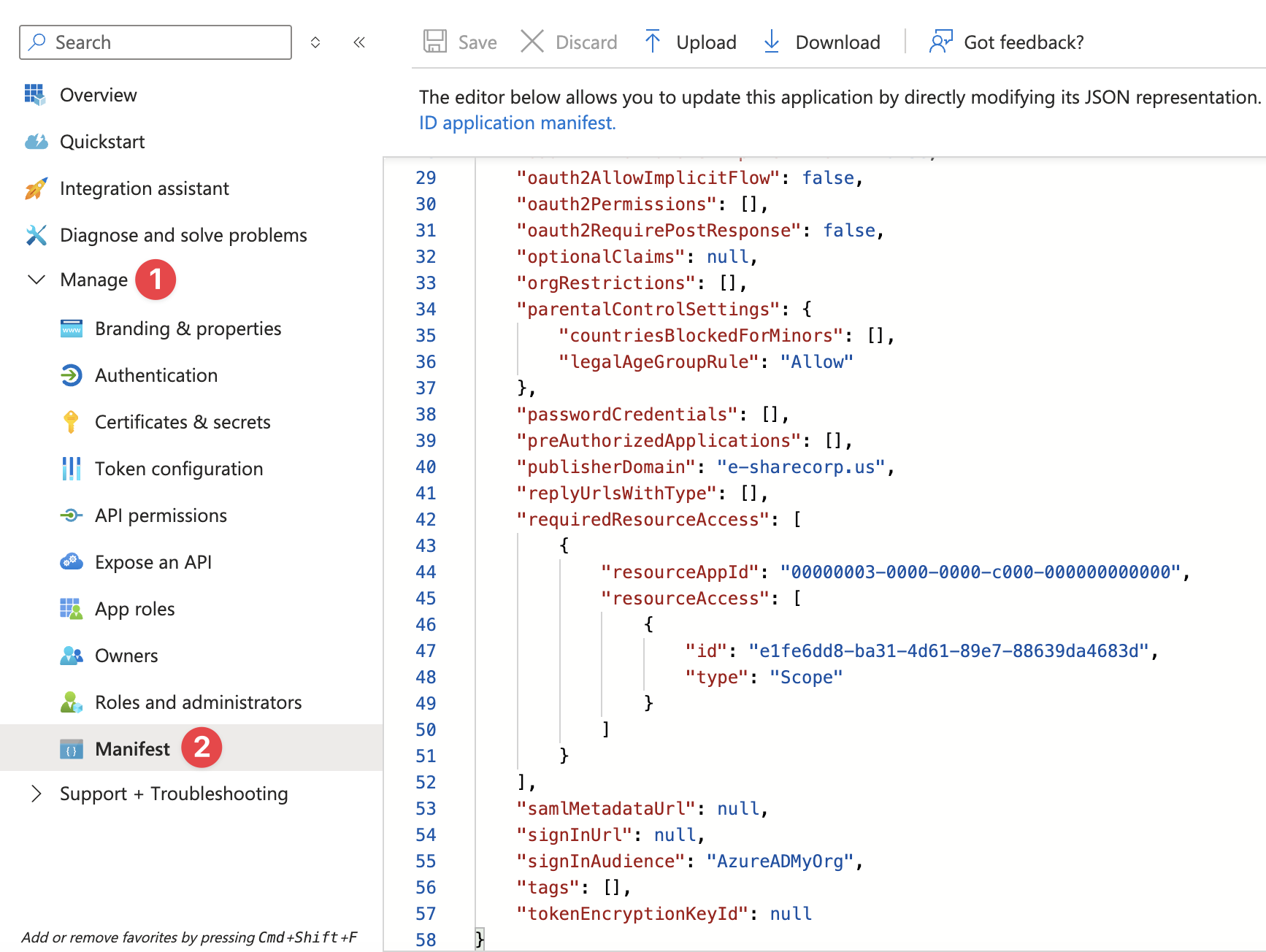
Replace the above string (including the comma at the end) from line 58 to 68 with the text below.
	"requiredResourceAccess": [
		{
			"resourceAppId": "00000003-0000-0000-c000-000000000000",
			"resourceAccess": [
				{
					"id": "7ab1d382-f21e-4acd-a863-ba3e13f7da61",
					"type": "Role"
				},
				{
					"id": "75359482-378d-4052-8f01-80520e7db3cd",
					"type": "Role"
				},
				{
					"id": "5b567255-7703-4780-807c-7be8301ae99b",
					"type": "Role"
				},
				{
					"id": "9492366f-7969-46a4-8d15-ed1a20078fff",
					"type": "Role"
				},
				{
					"id": "df021288-bdef-4463-88db-98f22de89214",
					"type": "Role"
				}
			]
		},
		{
			"resourceAppId": "00000002-0000-0ff1-ce00-000000000000",
			"resourceAccess": [
				{
					"id": "dc50a0fb-09a3-484d-be87-e023b12c6440",
					"type": "Role"
				}
			]
		},
		{
			"resourceAppId": "c5393580-f805-4401-95e8-94b7a6ef2fc2",
			"resourceAccess": [
				{
					"id": "594c1fb6-4f81-4475-ae41-0c394909246c",
					"type": "Role"
				},
				{
					"id": "4807a72c-ad38-4250-94c9-4eabfe26cd55",
					"type": "Role"
				}
			]
		},
		{
			"resourceAppId": "00000012-0000-0000-c000-000000000000",
			"resourceAccess": [
				{
					"id": "c9c9a04d-3b66-4ca8-a00c-fca953e2afd3",
					"type": "Scope"
				},
				{
					"id": "7f740376-647b-4ad7-9ff7-292af252707a",
					"type": "Role"
				}
			]
		},
		{
			"resourceAppId": "00000003-0000-0ff1-ce00-000000000000",
			"resourceAccess": [
				{
					"id": "d13f72ca-a275-4b96-b789-48ebcc4da984",
					"type": "Role"
				}
			]
		},
		{
			"resourceAppId": "870c4f2e-85b6-4d43-bdda-6ed9a579b725",
			"resourceAccess": [
				{
					"id": "34f7024b-1bed-402f-9664-f5316a1e1b4a",
					"type": "Scope"
				},
				{
					"id": "8b2071cd-015a-4025-8052-1c0dba2d3f64",
					"type": "Role"
				}
			]
		}
	],
Click the 'Save' button in the top menu bar.
In the same application manifest, look for 'web' at lines 142 to 145 and replace it with the text below.
	"web": {
		"homePageUrl": null,
		"logoutUrl": null,
		"redirectUris": [
			"https://app.e-sharegov.us/oauth2_openid/consume/adgraph",
			"https://app.e-sharegov.us/cloudwebportal/onedrive/auth/endpoint/business/",
			"https://app.e-sharegov.us/cloudwebportal/onedrive/auth/endpoint/provisioning/",
			"https://app.e-sharegov.us/oauth2_openid/consume/personal_graphAPI",
			"https://app.e-sharegov.us/oauth2_openid/consume/outlook",
			"https://app.e-sharegov.us/oauth2_openid/consume/sharepoint_search",
			"https://app.e-sharegov.us/oauth2_openid/consume/labels",
			"https://app.e-sharegov.us/oauth2_openid/consume/graphAPI"
		],
Click the 'Save' button in the top menu bar.
In the same application manifest, look for 'redirectUriSettings' at lines 159 to 160 and replace it with the text below.
		"redirectUriSettings": [
			{
				"uri": "https://app.e-sharegov.us/oauth2_openid/consume/adgraph",
				"index": null
			},
			{
				"uri": "https://app.e-sharegov.us/cloudwebportal/onedrive/auth/endpoint/business/",
				"index": null
			},
			{
				"uri": "https://app.e-sharegov.us/cloudwebportal/onedrive/auth/endpoint/provisioning/",
				"index": null
			},
			{
				"uri": "https://app.e-sharegov.us/oauth2_openid/consume/personal_graphAPI",
				"index": null
			},
			{
				"uri": "https://app.e-sharegov.us/oauth2_openid/consume/outlook",
				"index": null
			},
			{
				"uri": "https://app.e-sharegov.us/oauth2_openid/consume/sharepoint_search",
				"index": null
			},
			{
				"uri": "https://app.e-sharegov.us/oauth2_openid/consume/labels",
				"index": null
			},
			{
				"uri": "https://app.e-sharegov.us/oauth2_openid/consume/graphAPI",
				"index": null
			}
		]
	},
Click the 'Save' button in the top menu bar.
In the same application manifest, look for 'spa' at lines 202 to 205 and replace it with the text below.
	"spa": {
		"redirectUris": [
			"https://*.sharepoint.us/_forms/default.aspx"
		]
	}
}
Click the 'Save' button in the top menu bar.
Grant Admin Consent for API Permissions
REQUIREMENT:
Granting admin consent for permissions within an app registration must be performed by a Global Administrator in the destination M365 tenant.
Important:
Please consult your eSHARE Customer Success Manager before removing any API permissions.
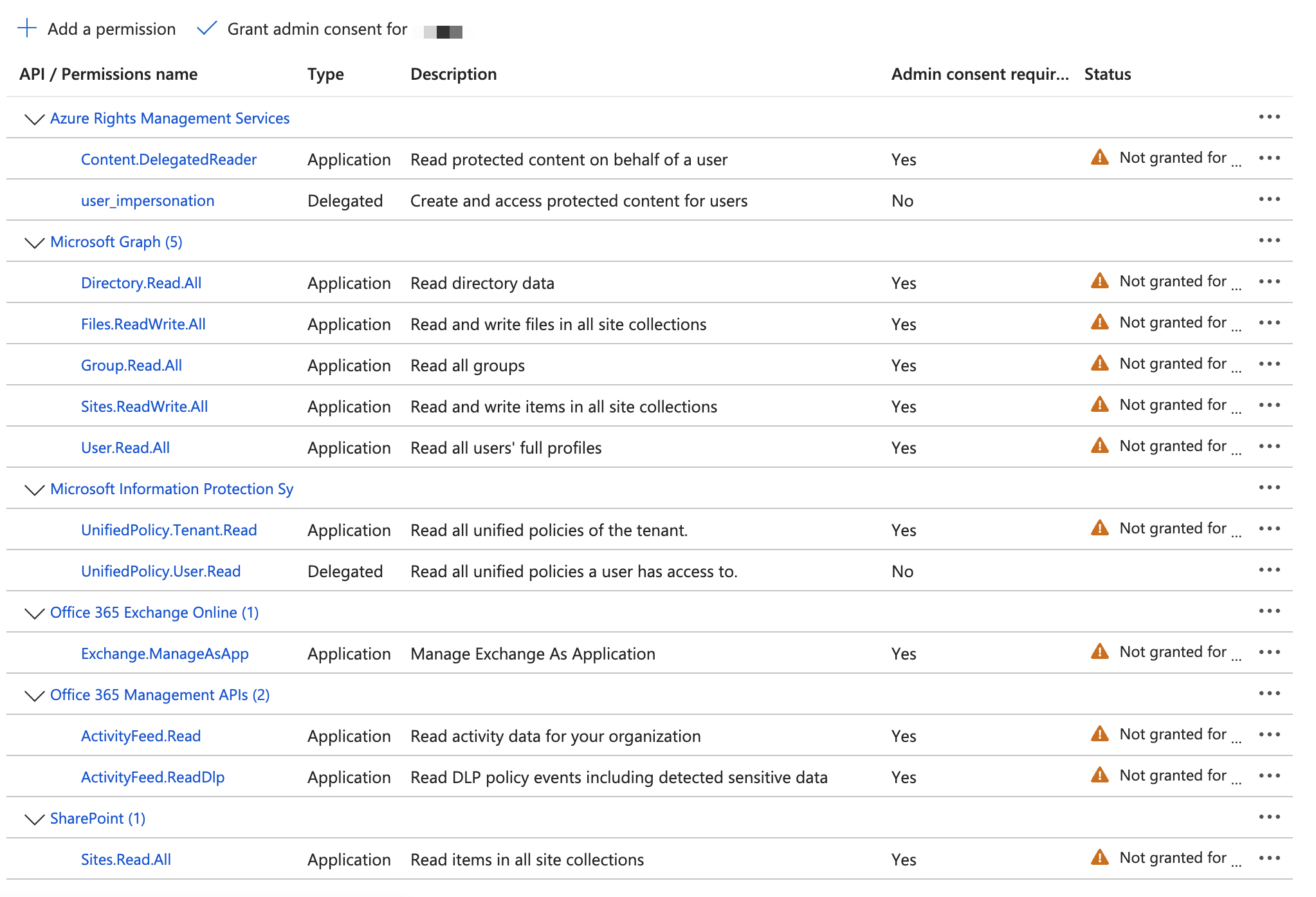
For the saved application, navigate to the 'Manage' > 'API permissions' tab.
Select 'Grant admin consent for <tenant name>' at the top of the API permissions table.
Confirm when prompted.
Upload the Application Certificate
Obtain a certificate using one of the following options:
Option 1: Purchase a certificate from a well-known certificate authority and extract the private and public portions of the certificate. Upload the public portion in the Azure portal for the application and upload the private key in your eSHARE Admin Console (or provide the private key to your eSHARE admin).
Option 2: Create a self-signed certificate by following the instructions available at https://learn.microsoft.com/en-us/azure/active-directory/develop/howto-create-self-signed-certificate. A short summary of those instructions is below.
# Create a self-signed certificate in PowerShell
$mycert = "eShareApp"
$mycert = New-SelfSignedCertificate -DnsName "eShareApp" -Subject "CN=eShareApp" -CertStoreLocation "Cert:\CurrentUser\My" -NotAfter (Get-Date).AddYears(50) -KeyExportPolicy Exportable -KeySpec Signature -KeyLength 2048 -KeyAlgorithm RSA -HashAlgorithm SHA256
# Extract .key file using OpenSSL
openssl pkcs12 -in eShareApp.pfx -nocerts -nodes -out eShareApp.key# Extract crt from pfx using OpenSSL
openssl pkcs12 -in eShareApp.pfx -clcerts -nokeys -out eShareApp.crt# Export certificate to .pfx file
$mycert | Export-PfxCertificate -FilePath eShareApp.pfx -Password $(ConvertTo-SecureString -String "myp@55W0rd" -AsPlainText -Force)When the appropriate certificate portions are available, navigate to 'Manage' > 'Certificates & secrets'.
On the 'Certificates' tab, click the 'Upload certificate' button.
Upload the CRT file from the steps above and click 'Add' at the bottom of the open pane.
Collect the Values Required for the eSHARE Tenant
Collect and save the following values:
M365 Tenant ID: Navigate to the 'Identity' > 'Overview' tab of the Entra admin center, copy the 'Tenant ID' and save it.
Application ID: Navigate to the 'Overview' tab of the application, copy the 'Application (client) ID' and save it.
Certificate Thumbprint: For the certificate used during the application registration process, copy the certificate thumbprint and save it.
Private Key: The private key (.key file from the steps above) for the certificate uploaded in the Entra portal for the application registration.