This document describes the 'Blocked Recipients Override' setting in the eSHARE Admin Console, which allows users to override a blocked sharing domain when creating a Trusted Share. It is intended for eSHARE administrators configuring Device Policy settings. The following steps will be reviewed:
REQUIREMENT:
The person performing these steps must have Admin Console access with permission to edit Device Policy settings.
How the Override Works
'Blocked Recipients Override' is a Device Policy setting that controls whether users can bypass a blocked sharing domain at the point of sharing a Trusted Share. It works together with the 'User Override' setting on the relevant Sharing Policy rule — both must be enabled for the override option to appear.
Note:
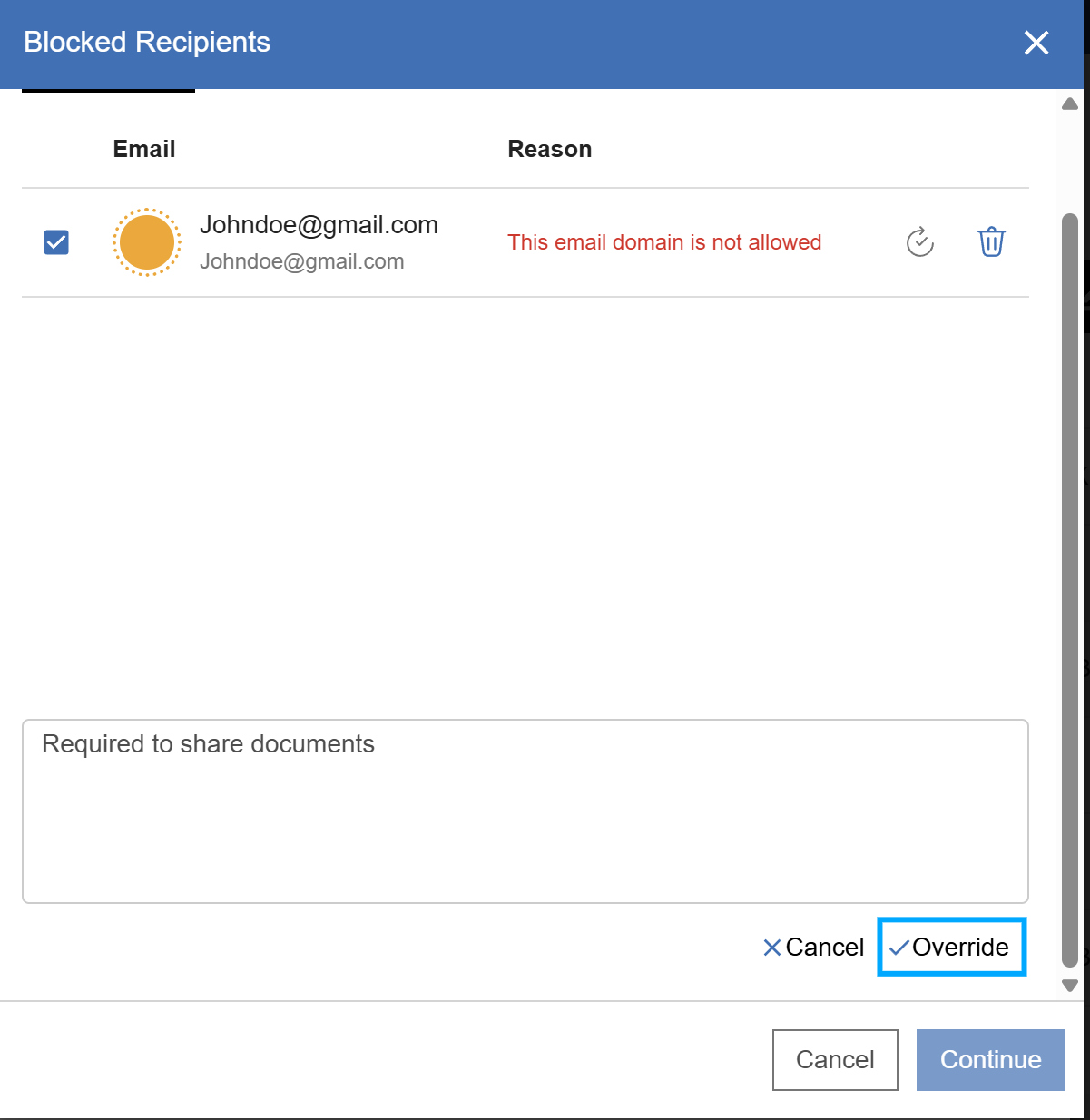
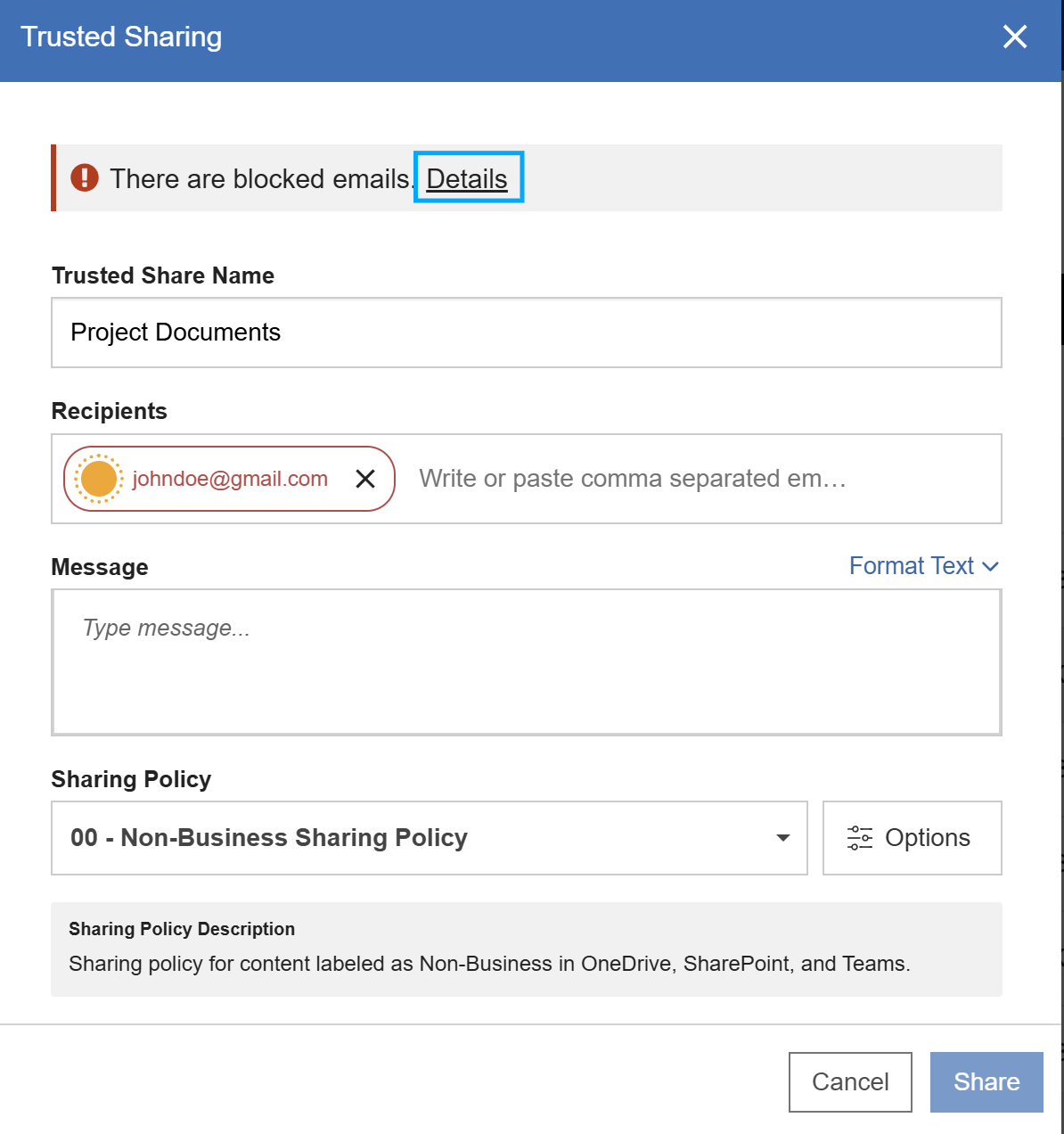
Example: Gmail.com is listed as a blocked domain on a Sharing Policy with 'User Override' set to 'Yes'. If 'Blocked Recipients Override' is also turned on in Device Policy, a user creating a Trusted Share with Johndoe@gmail.com will initially see a block message, but can choose to override it and continue sharing.
Enable Blocked Recipients Override
Navigate to 'Admin Console' > 'Device Policy'.
Locate the 'Blocked Recipients Override' setting.
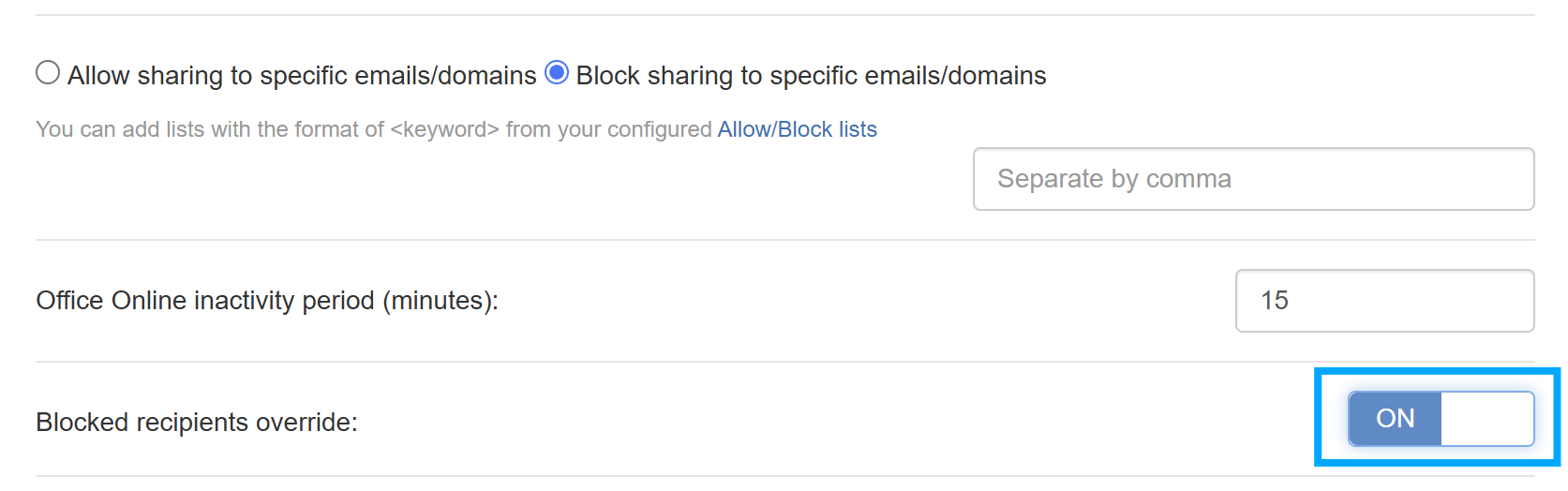
Toggle 'Blocked Recipients Override' to 'On'.
Select the 'Save' button.
Note:
This setting has no effect on its own — 'User Override' must also be enabled on the Sharing Policy rule for the blocked domain. Both settings must be turned on for the override option to appear to users.
Override a Blocked Recipient When Sharing
When a user is creating a Trusted Share with one of the blocked domains, they see an override option. Click 'Details'.
Select the recipient and provide justification if required, then click 'Override'.