This document describes the steps to create the eSHARE Outbound Connector, Inbound Connector, and sample transport rules in Exchange Online by using the Exchange Admin Center or via PowerShell. Provisioning this rule means Trusted Shares via Secure Mail Gateway are only created when the rule is matched. Before you implement these steps, we advise you to go through the SCG logic. The following steps will be reviewed:
PREREQUISITES:
The person performing these steps must have an administrator role assignment of Exchange Administrator in the destination M365 tenant.
Create the Outbound Connector (M365 to eSHARE)
Log in to the Exchange Admin Center and navigate to 'Mail flow' > 'Connectors'.
Select the '+ Add a new connector' button.
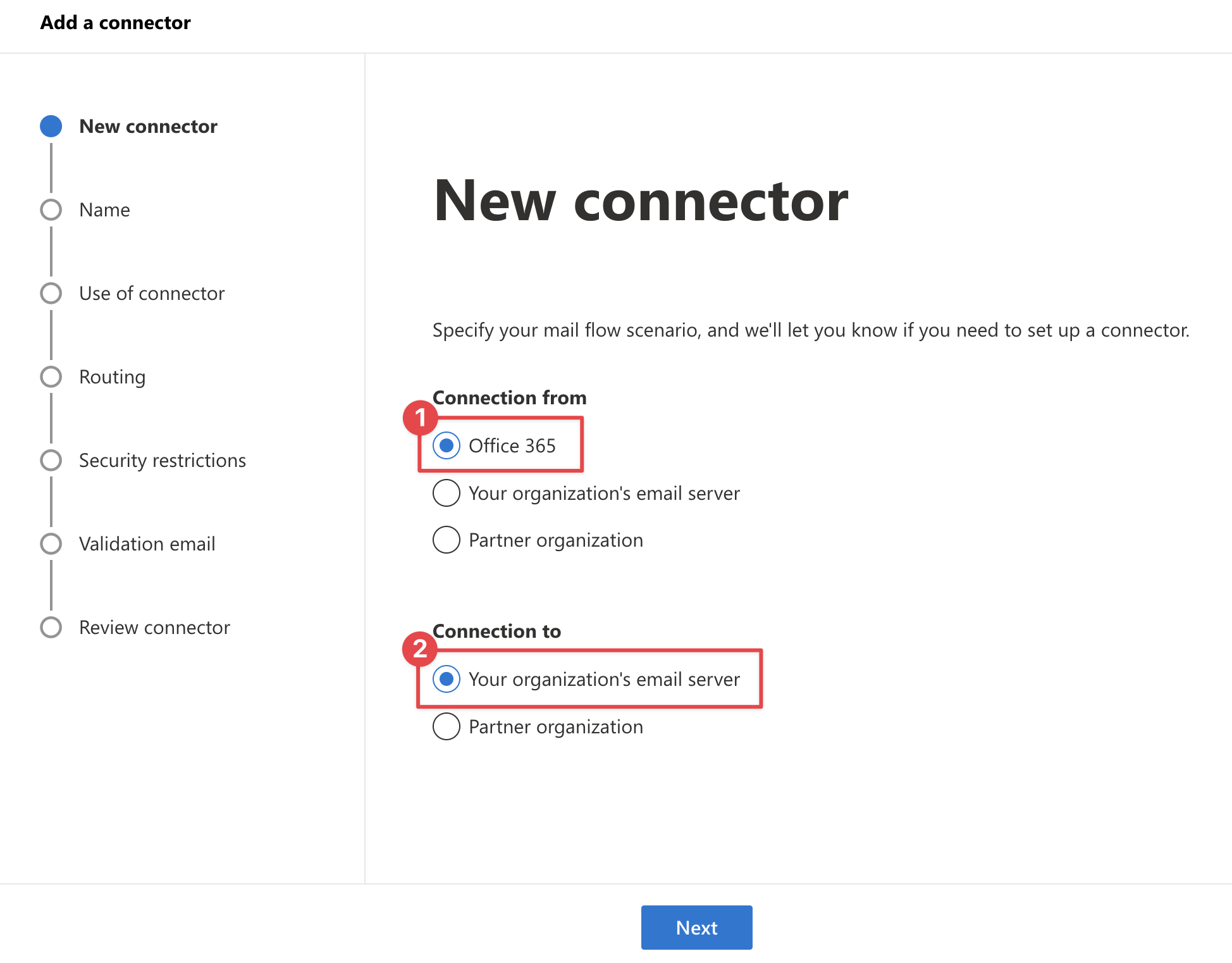
In the 'New connector' pane:
In the 'Connection from' section, select 'Office 365'.
In the 'Connection to' section, select 'Your organization’s mail server'.
Select the 'Next' button.
In the 'Connector name' pane:
Enter a 'Name' and 'Description' for the connector (ex. Connector for eShare SCG).
Leave the 'Turn it on' and 'Retain internal Exchange email headers' (recommended) options enabled.
Select the 'Next' button.
.png?sv=2026-02-06&spr=https&st=2026-11-18T20%3A17%3A00Z&se=2026-11-18T20%3A32%3A00Z&sr=b&sp=r&sig=H%2Fb0F0PloBw4sDDq2%2BRTE8gh6LObggEiLEvLiSzdJco%3D)
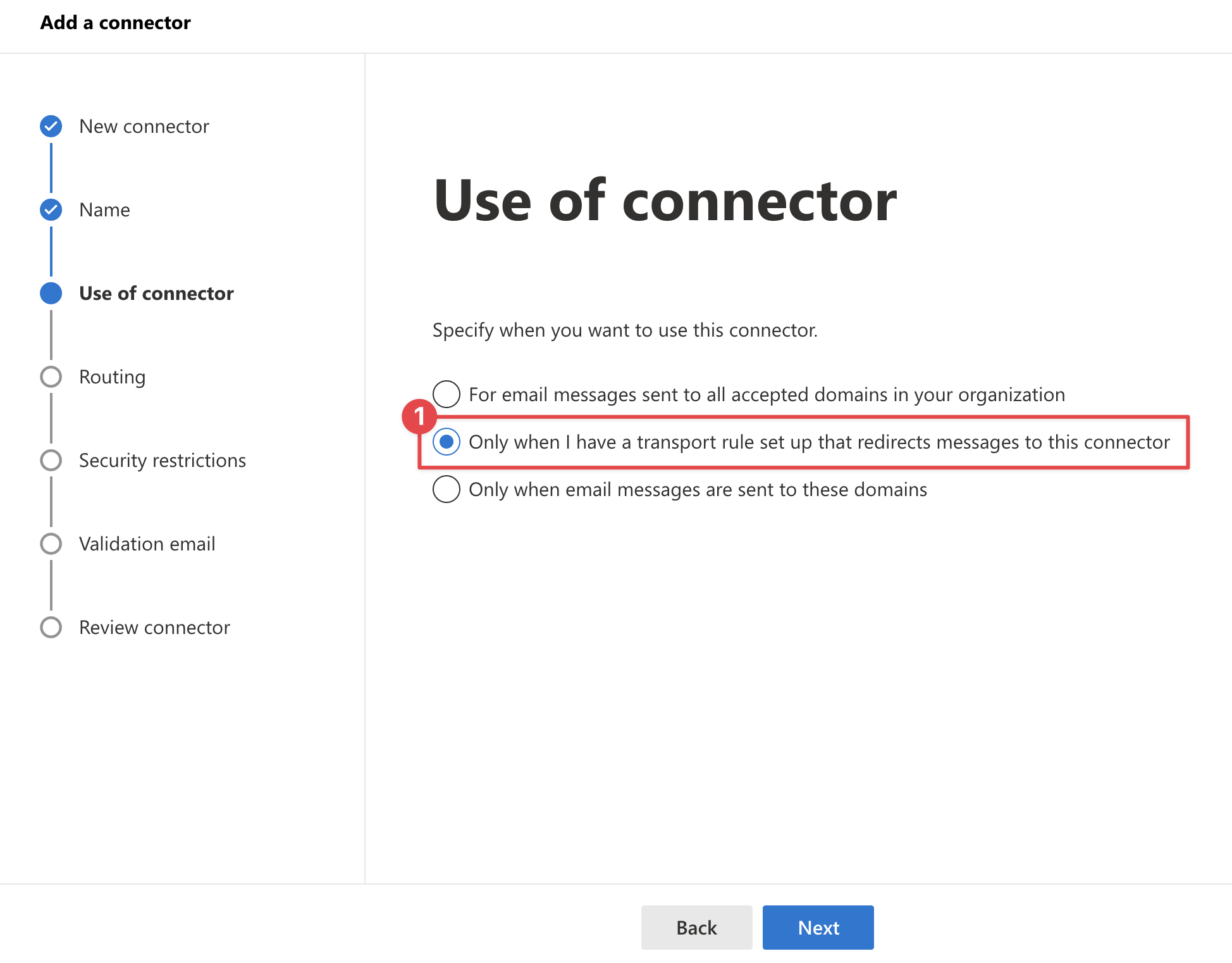
In the 'Use of connector' pane:
Select the 'Only when I have a transport rule set up that redirects messages to this connector' option.
Select the 'Next' button.
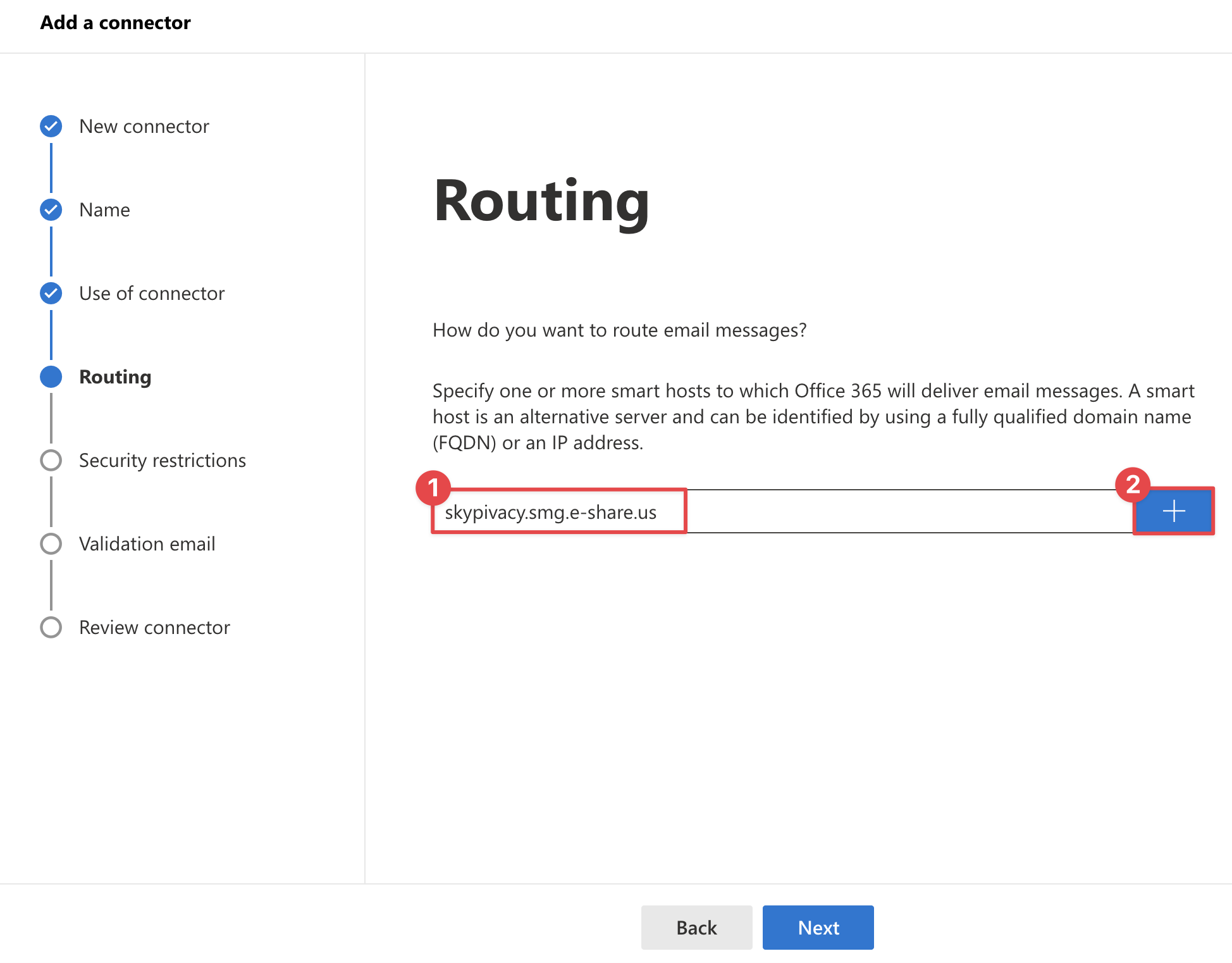
In the 'Routing' pane:
Input the IP address or the DNS smart host name provided to you by eSHARE, and select '+' to add it.
Select the 'Next' button.
In the 'Security restrictions' pane:
Select the 'Always use Transport Layer Security (TLS) to secure the connection' option.
Select the 'Any digital certificate, including self-signed certificates' option and select 'Next'.
Select the 'Next' button.
.png?sv=2026-02-06&spr=https&st=2026-11-18T20%3A17%3A00Z&se=2026-11-18T20%3A32%3A00Z&sr=b&sp=r&sig=onJ3dAVKVtjFJQ8l2LW60Fb1O0qCH4Gi9dMRx0oGiEg%3D)
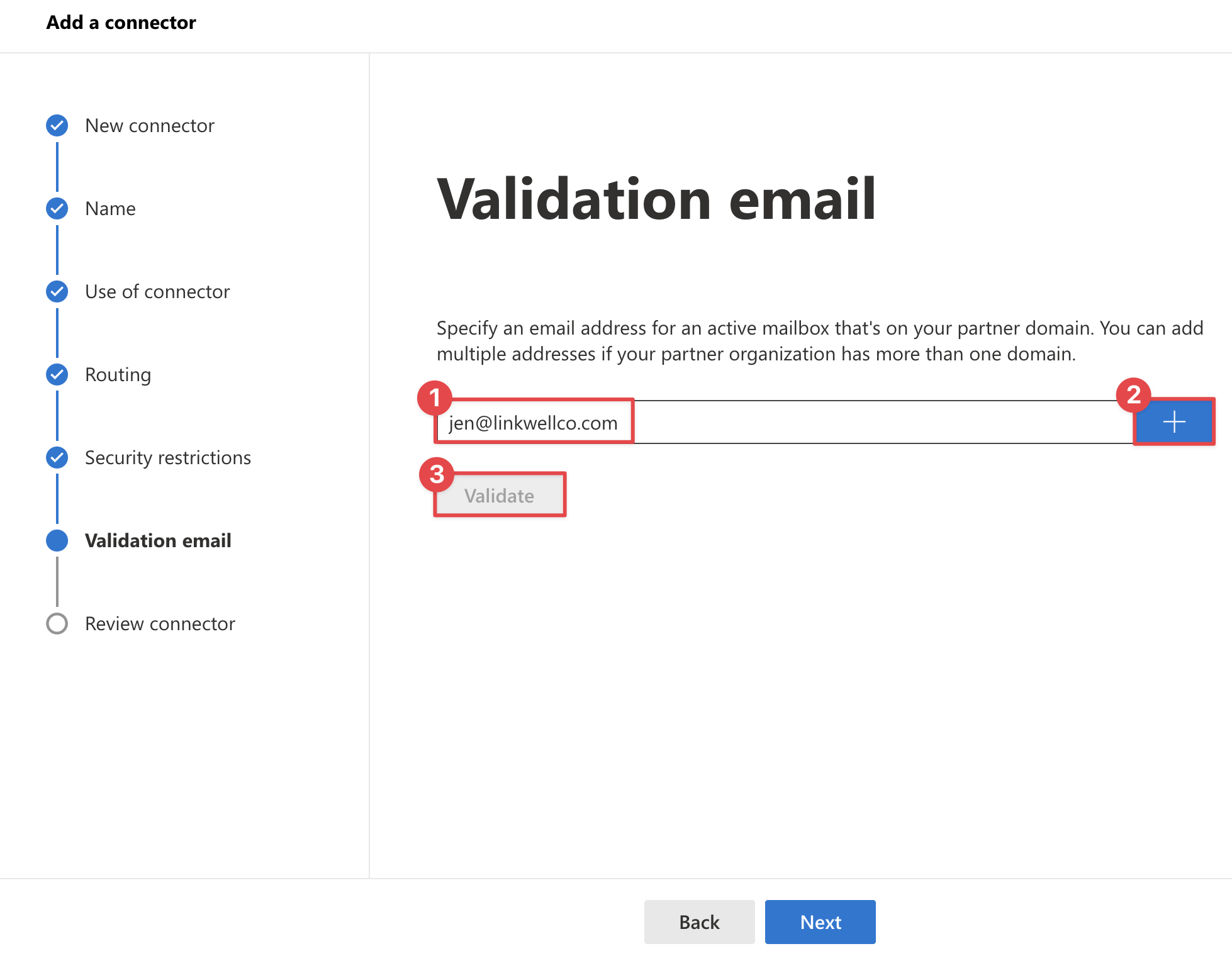
In the 'Validation email' pane, input an external email address, select the '+' button, then select 'Validate' to allow Exchange Online to validate the newly provisioned connector. After validation is completed, select the 'Next' button.
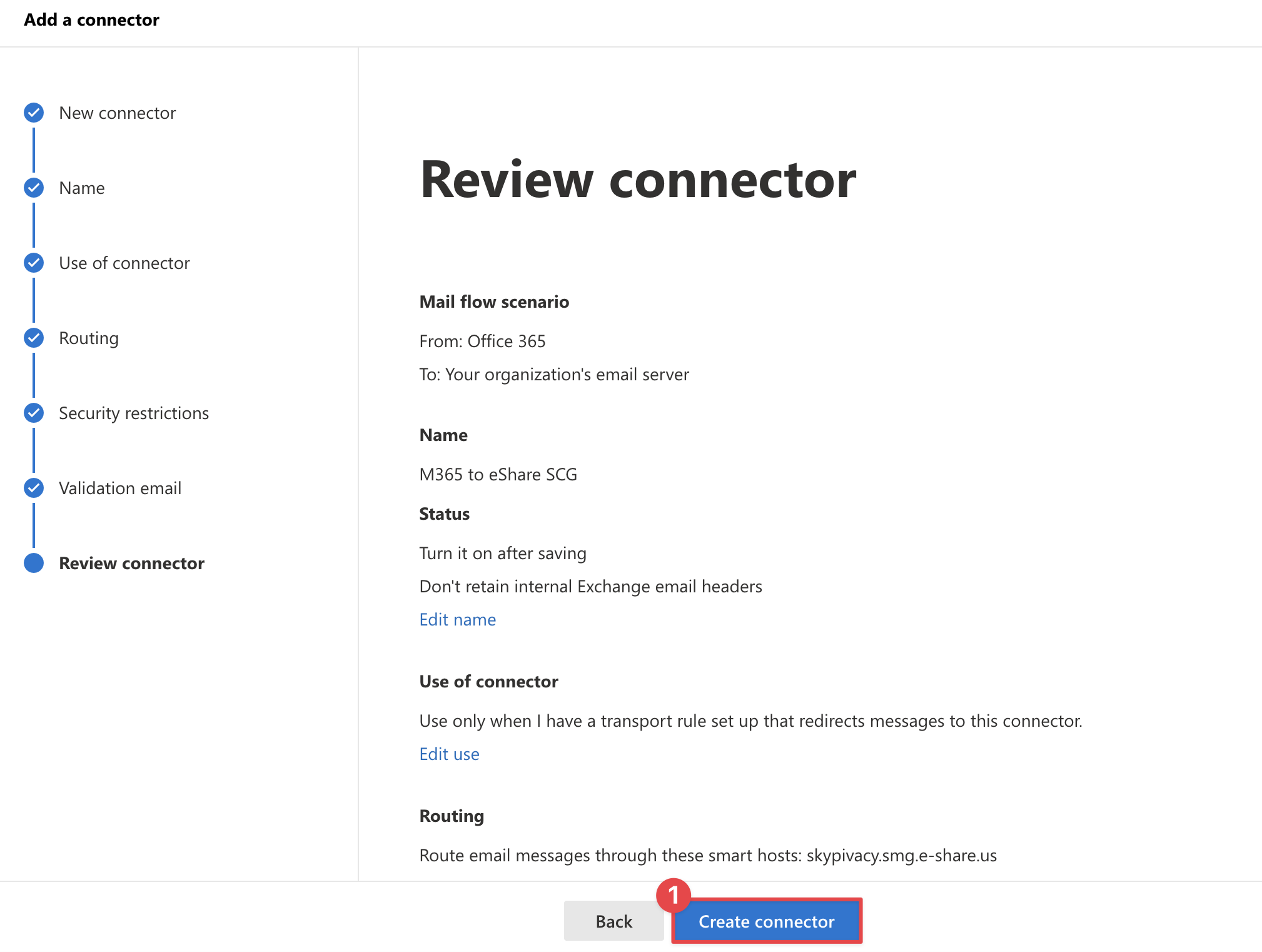
In the 'Review connector' pane, review the settings, and select 'Create connector' to create & save it. Select 'Done' to close the pane.
Create the Inbound Connector (eSHARE to M365)
On the 'Mail flow' > 'Connectors' page, select the '+ Add a new connector' button.
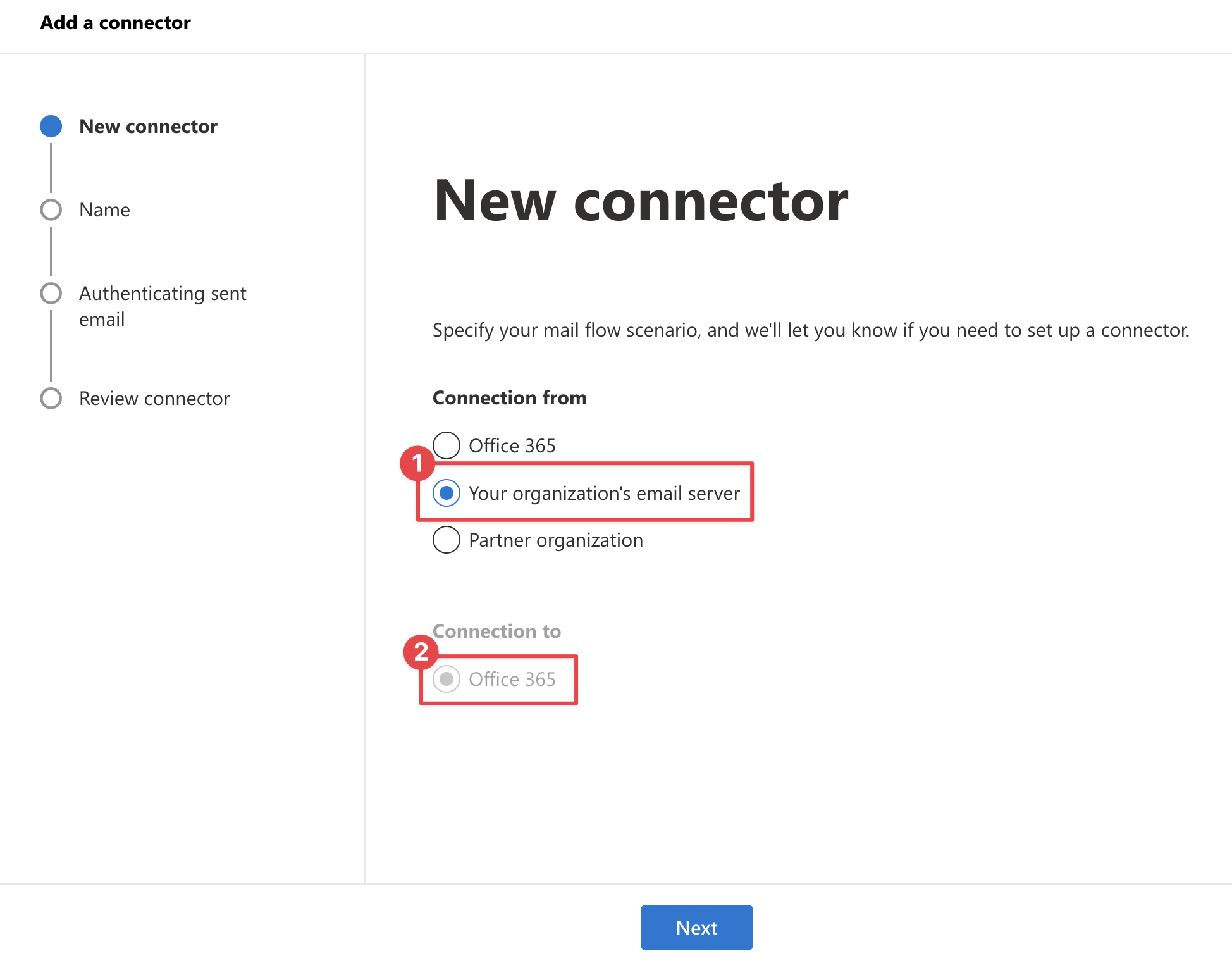
In the 'New connector' pane:
In the 'Connection from' section, select 'Your organization’s mail server'.
Select the 'Next' button.
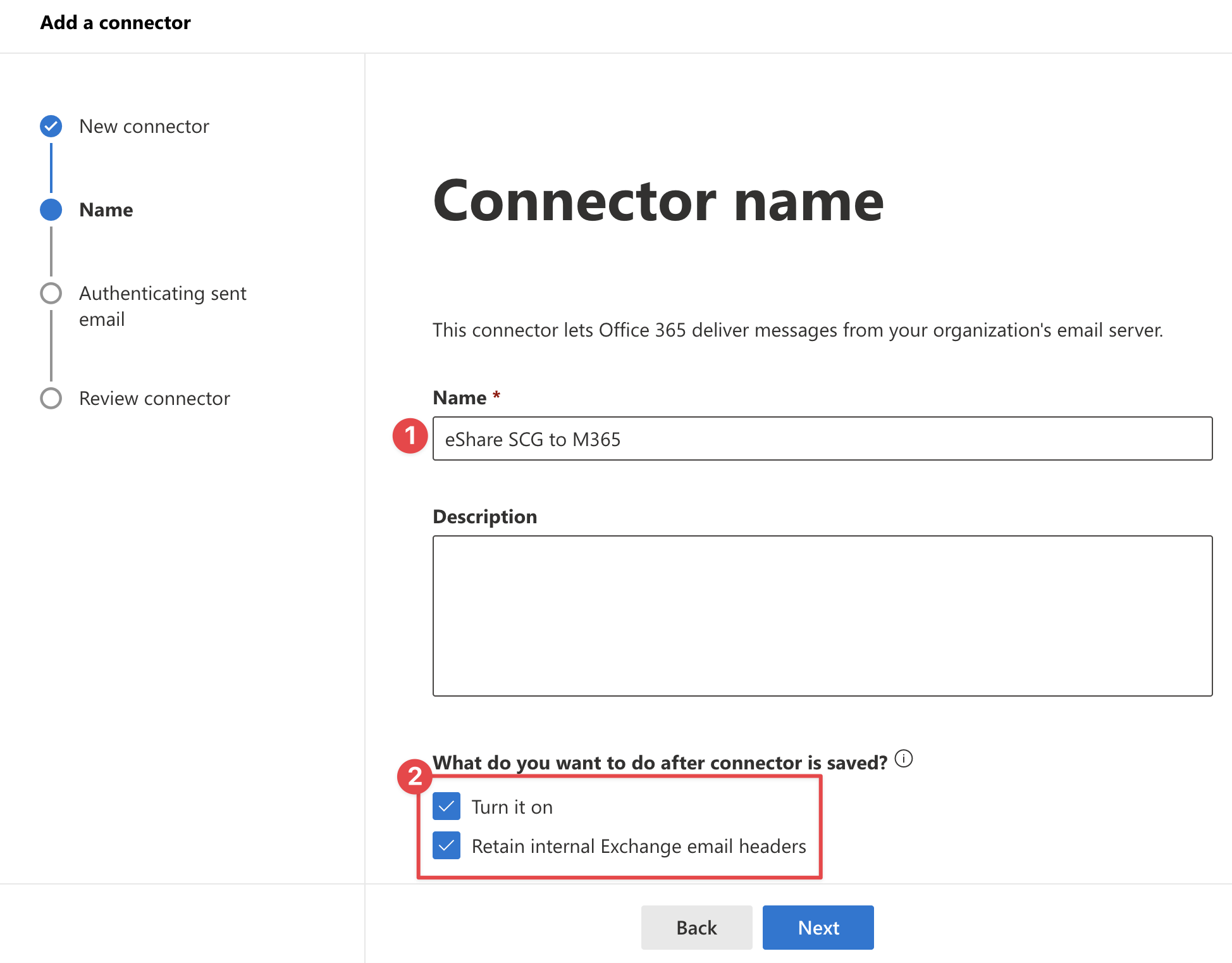
In the 'Connector name' pane:
Input a 'name'.
Input a 'description'.
Leave the 'Turn it on' and 'Retain internal Exchange mail header (recommended)' options enabled.
Select the 'Next' button.
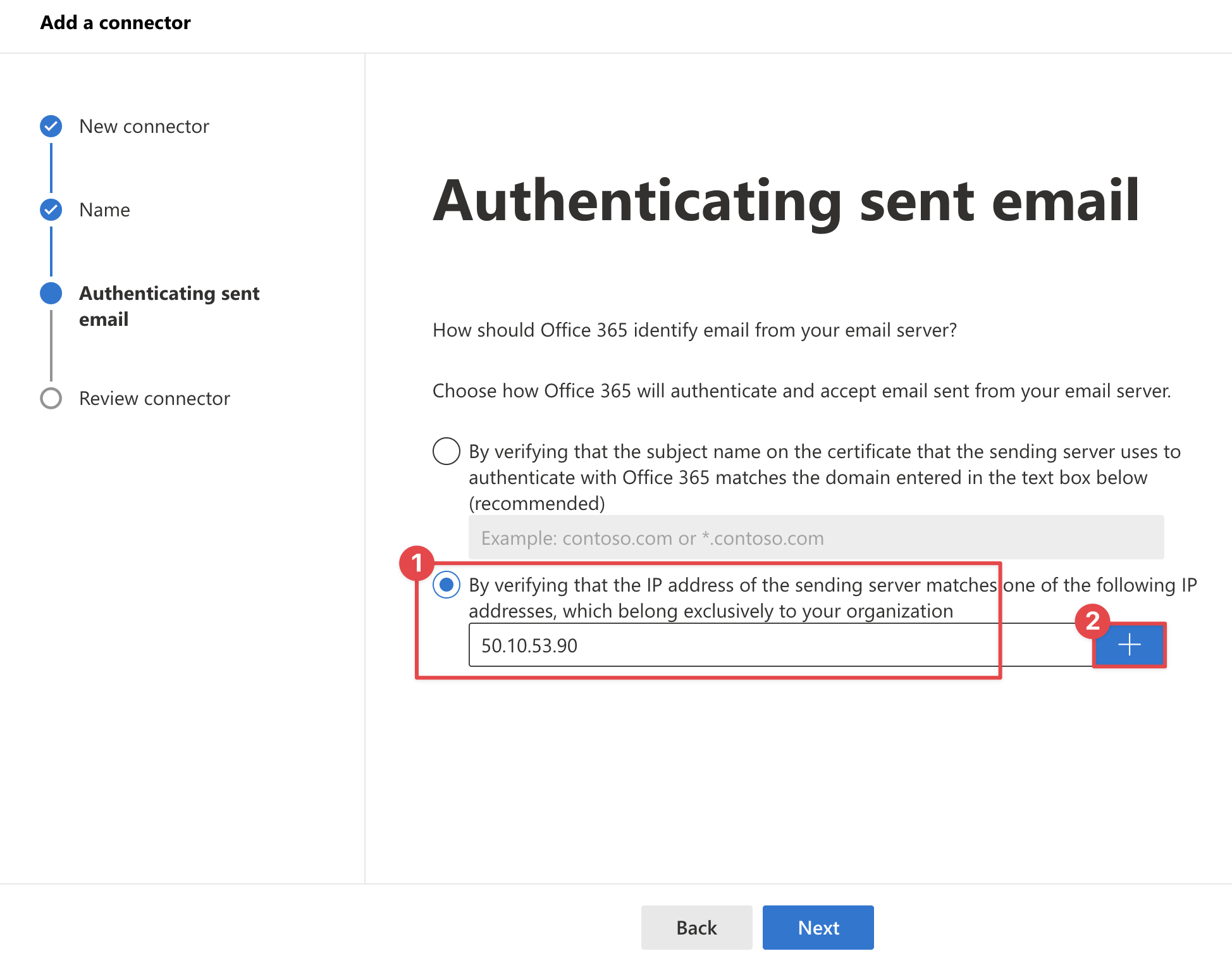
In the 'Authenticating sent email' pane:
Select the second option and input the IP address provided by eSHARE.
Select the '+' button, followed by the 'Next' button.
In the 'Review connector' pane, review the settings and select the 'Create connector' button.
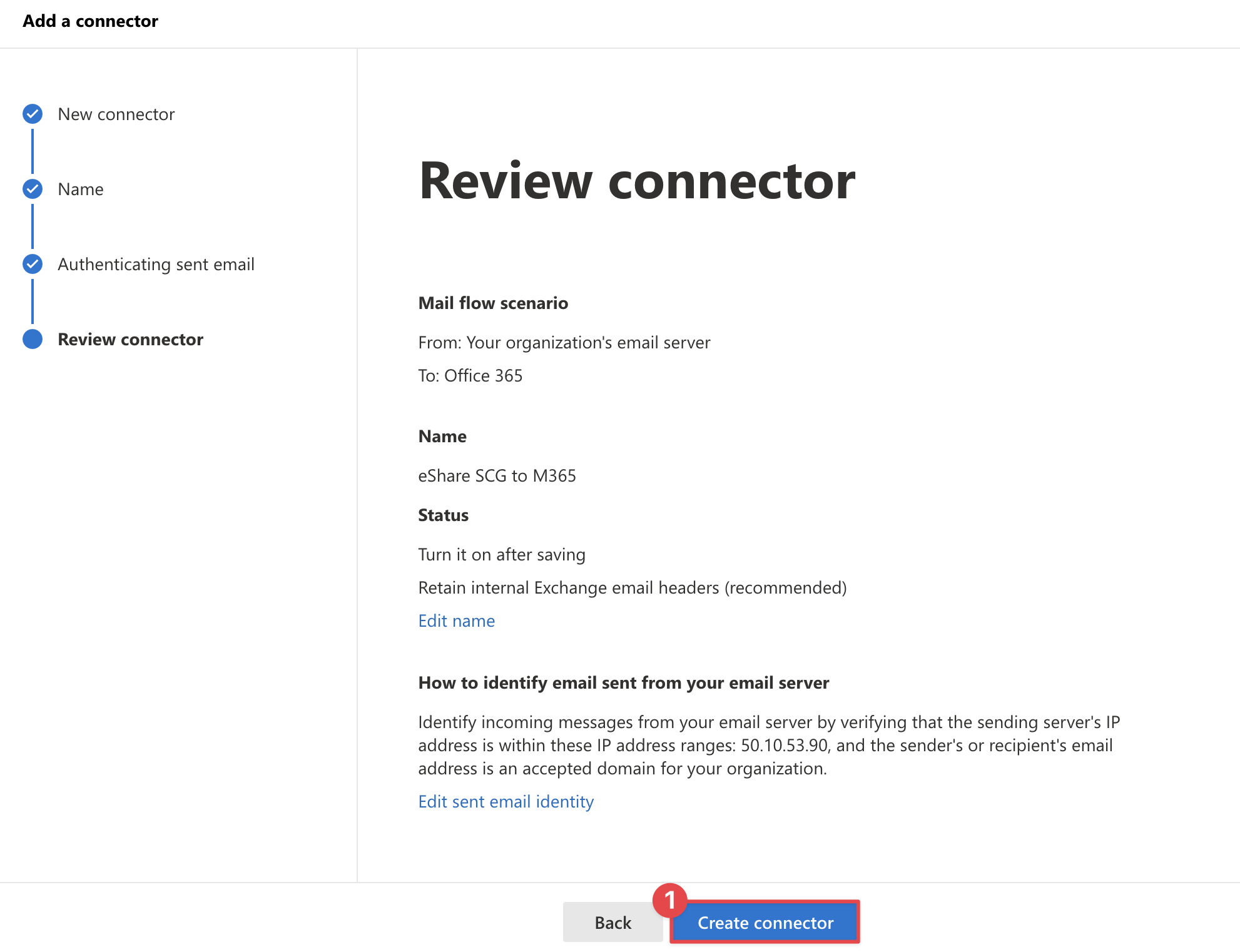
Select 'Done' to close the pane. The newly created connectors are displayed on the 'Mail flow' > 'Connectors' page.
Create the Connectors with PowerShell
Instead of the Exchange Admin Center, the connectors for eSHARE may be created using Exchange Online PowerShell. Running the PowerShell cmdlets shown below requires the Exchange Online PowerShell V2 module. To install the necessary prerequisites, please visit: https://docs.microsoft.com/en-us/powershell/exchange/exchange-online-powershell-v2?view=exchange-ps#install-and-maintain-the-exo-v2-module
In PowerShell, run the command below to load the EXO V2 module.
Import-Module ExchangeOnlineManagementConnect to Exchange Online as an Exchange Administrator.
Connect-ExchangeOnline -UserPrincipalName myadmin@myorgdomain.comRun the command below to verify the connection to Exchange Online.
Get-MailboxRun the command below to create the Outbound Connector. Change the values for -Name and -Comment as desired. The value for -SmartHosts will be provided by eSHARE.
New-OutboundConnector -Name "M365 to eShare SCG" -TlsSettings EncryptionOnly -UseMx $False -Comment "Connector to route emails from Exchange Online to eShare secure mail gateway" -AllAcceptedDomains $False -ConnectorType OnPremises -IsTransportRuleScoped $True -SmartHosts "insert_ip_address"To create a partner connector, run the following command.
New-OutboundConnector -Name "M365 to eShare SCG" -RecipientDomains * -TlsSettings EncryptionOnly -SmartHosts 13.77.229.101 -ConnectorType Partner -IsTransportRuleScoped $false - TestMode $False -Enabled $true -UseMXRecord $FalseRun the command below to create the Inbound Connector. Change the values for -Name and -Comment as desired. The value for -SenderIPAddresses will be provided by eSHARE.
New-InboundConnector -Name "eShare SCG to M365" -SenderDomains * -SenderIPAddresses "insert_ip_address" -ConnectorType onPremises -RestrictDomainsToIPAddresses $trueVerify the connectors are created as required by reviewing them in the Exchange Admin Center or by running the following commands. Update the connector names as applicable.
Get-OutboundConnector "M365 to eShare SCG" | Format-list
Get-InboundConnector "eShare SCG to M365" | Format-list
Run the following command to validate the Outbound Connector. Update the connector name as applicable.
Validate-OutboundConnector -Identity "M365 to eShare SCG" -Recipients user@externaldomain.com,user@publicemaildomain.comAfter successful validation, disconnect from Exchange Online PowerShell by running the command below.
Disconnect-ExchangeOnlineCreate the Transport Rule
Note:
This is only a sample mail flow rule. The mail flow rules to be created in your tenant may vary depending on your requirements and the use cases you intend to support with eSHARE.
Navigate to 'Mail flow' > 'Rules'.
Select the '+Add a rule' icon and select 'Create a new rule'.
Enter a suitable name for the rule (ex. Outbound mails to eShare Email Appliance).
Under 'Apply this rule if':
Select 'The sender' > is 'external/internal'.
Select 'Inside the organization' and click 'OK'.
Select 'Add Condition':
Select 'The recipient' > is 'external/internal'.
Select 'Outside the organization' and click 'OK'.
Select 'Add Condition':
Select 'The subject or body' > is 'subject includes any of these words'.
Add the keyword '[secure]' found in a Subject.
Under 'Do the following':
Select 'Redirect the message to' > 'the following connector'.
Select the connector you created first, sending mail to the eSHARE Appliance.
Under 'Except if':
Select 'Add exception', then select 'The message headers…' > 'Matches these text patterns…'.
Add the message header 'x-secure-processor', and enter the word 'eflsmg'.
Select the 'Save' button to complete creating the Transport Rule.
Edit the newly created mail flow rule. Enable 'Stop processing more rules' and select 'Save' to update the rule.
Your Exchange configuration is now complete. Mails originating from your organization to recipients outside will be passed through eShare Secure Email Appliance for processing.
Create the Transport Rules with PowerShell
Instead of the Exchange Admin Center, the mail flow rules for eSHARE may be created using Exchange Online PowerShell. Running the PowerShell cmdlets shown below requires the Exchange Online PowerShell V2 module. To install the necessary prerequisites, please visit: https://docs.microsoft.com/en-us/powershell/exchange/exchange-online-powershell-v2?view=exchange-ps#install-and-maintain-the-exo-v2-module
In PowerShell, run the command below to load the EXO V2 module.
Import-Module ExchangeOnlineManagementConnect to Exchange Online as an Exchange Administrator.
Connect-ExchangeOnline -UserPrincipalName myadmin@myorgdomain.comRun the command below to verify the connection to Exchange Online.
Get-MailboxCreate the rule to route emails with certain x-headers to eSHARE.
New-TransportRule -Name "Emails with eShare X-Header" -FromScope InOrganization -SentToScope NotInOrganization -HeaderContainsMessageHeader "x-smg" -HeaderContainsWords "[attachments]", "[securemail]" -ExceptIfHeaderContainsMessageHeader "x-secure-processor" -ExceptIfHeaderContainsWords "smg" -ExceptIfSenderIpRanges "<SMG_IP_Address>" -RouteMessageOutboundConnector "M365 to eShare SCG" -StopRuleProcessing $True -Mode Enforce -Enabled $falseCreate the rule to route email with certain keywords in the subject to eSHARE.
New-TransportRule -Name "Emails with eShare Keywords" -FromScope InOrganization -SentToScope NotInOrganization -SubjectContainsWords "[attachments]", "[securemail]" -ExceptIfHeaderContainsMessageHeader "x-secure-processor" -ExceptIfHeaderContainsWords "smg" -ExceptIfSenderIpRanges "<SMG_IP_Address>" -RouteMessageOutboundConnector "M365 to eShare SCG" -StopRuleProcessing $True -Mode Enforce -Enabled $falseCreate the rule to route emails with attachments over 2 MB to eSHARE.
New-TransportRule -Name "Emails with attachments over 2 MB" -FromScope InOrganization -SentToScope NotInOrganization -AttachmentSizeOver "2 MB" -SetHeaderName "x-smg" -SetHeaderValue "[attachments]" -ExceptIfHeaderContainsMessageHeader "x-secure-processor" -ExceptIfHeaderContainsWords "smg" -ExceptIfSenderIpRanges "<SMG_IP_Address>" -RouteMessageOutboundConnector "M365 to eShare SCG" -StopRuleProcessing $True -Mode EnforceCreate the rule to route emails with MIP labels to eSHARE.
New-TransportRule -Name "Emails with MIP Label" -FromScope InOrganization -SentToScope NotInOrganization -HeaderContainsMessageHeader "msip_labels" -HeaderContainsWords "MSIP_Label_^[0-9A-Fa-f]{8}(?:-[0-9A-Fa-f]{4}){3}-[0-9A-Fa-f]{12}$_Enabled=true" -SetHeaderName "x-smg" -SetHeaderValue "[secure-attachment]" -ExceptIfHeaderContainsMessageHeader "x-secure-processor" -ExceptIfHeaderContainsWords "smg" -ExceptIfSenderIpRanges "<SMG_IP_Address>" -RouteMessageOutboundConnector "M365 to eShare SCG" -StopRuleProcessing $True -Mode Enforce